
How to Use Midjourney v8 for Text to Image in AI FILMS Studio

Share this post:
How to Use Midjourney v8 for Text to Image in AI FILMS Studio
Midjourney 8.0 is now available in AI FILMS Studio's image workspace. Each generation produces a batch of four images at a flat cost of 100 credits. The model emphasizes cinematic realism and gives you direct control over three creative variables: how strongly its aesthetic style is applied, how varied the four outputs are from each other, and how experimental the results become. This guide covers every parameter and both generation workflows.
What Is Midjourney 8.0?
Midjourney 8.0 is the latest version of Midjourney's text-to-image model. It always produces four images per prompt rather than one, letting you compare different interpretations before choosing a direction to develop.
The model is built around cinematic realism. Photographic lighting, accurate anatomy, and spatial coherence are priorities in how it interprets prompts. It handles complex multi element scenes with stronger compositional consistency than earlier versions, and its prompt fidelity makes it more predictable for production workflows.
Opening the Image Workspace
Go to the AI FILMS Studio image workspace. The Image Generator panel opens on the left side with the output area on the right. Midjourney 8.0 is one of eight models on the text-to-image generator, which sets out where each one is strongest.
At the top of the panel, confirm the generation type is set to Text to Image.
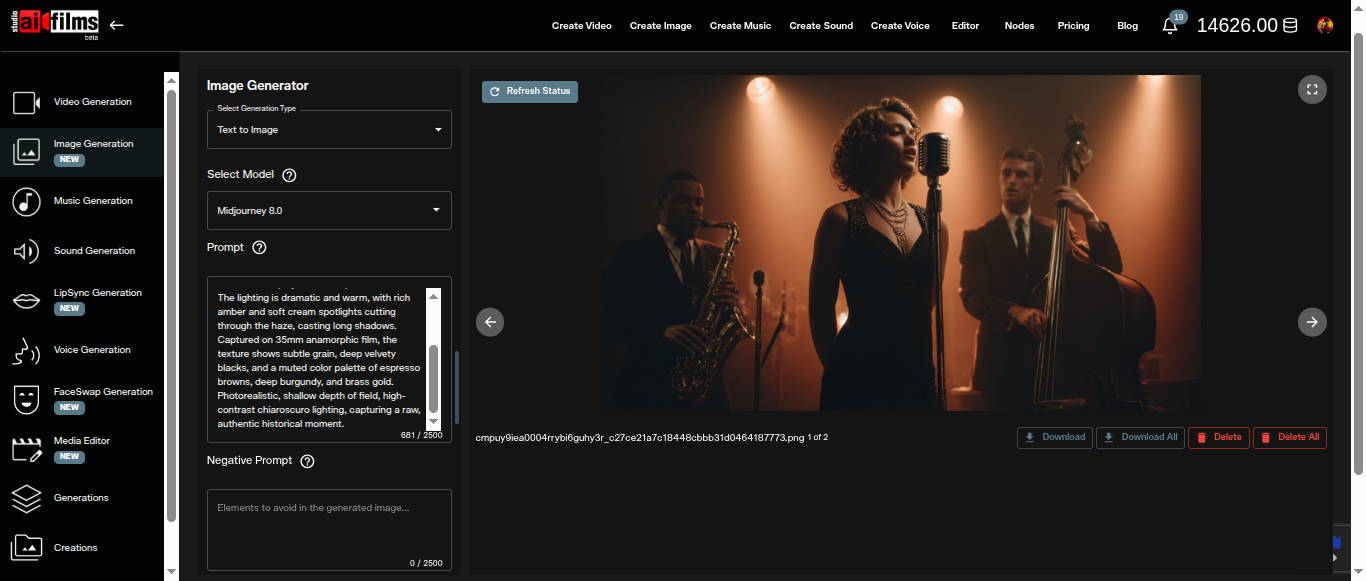
Open the Select Model dropdown and choose MidJourney 8.0.
Writing Your Prompt
Enter your description in the Prompt field. The field accepts up to 2,500 characters.
Midjourney 8.0 responds well to descriptive, scene based prompts. Structure prompts in this order for the most consistent results:
- Subject: who or what appears in the frame
- Action or state: what the subject is doing or how it is positioned
- Environment: setting, location, and background
- Lighting: quality, direction, and color of light
- Style or mood: cinematic genre, photographic style, or art direction reference
Important: Do not place native Midjourney parameter flags in the prompt field. The Studio does not support --v, --ar, or --s flags entered as text. Prompts containing these flags will be rejected. Use the dedicated controls in the workspace for aspect ratio, stylize, and all other settings described below.
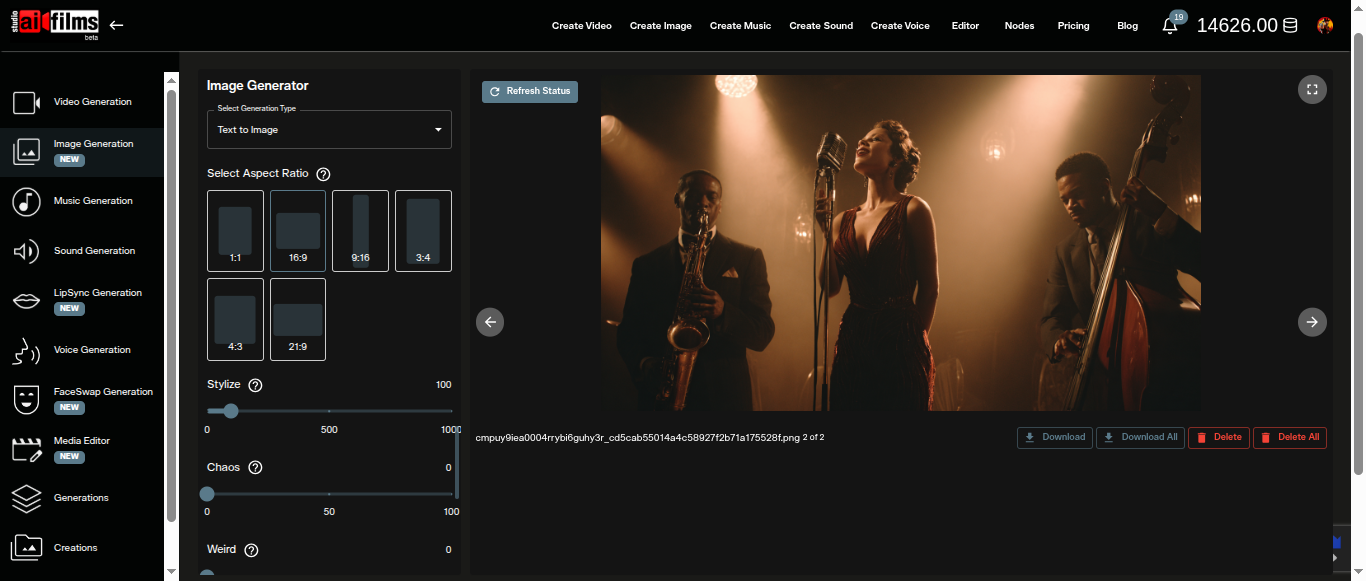
Aspect Ratio
The Aspect Ratio control offers six presets. All four images in the batch share the same ratio.
| Ratio | Best for |
|---|---|
| 1:1 | Social posts, thumbnails, square compositions |
| 16:9 | Cinematic widescreen, YouTube, horizontal presentations |
| 9:16 | Instagram Stories, TikTok covers, vertical mobile |
| 4:3 | Standard photography, presentation slides |
| 3:4 | Portrait photography, book covers |
| 21:9 | Ultrawide cinematic, panoramic scenes |
Stylize, Chaos, and Weird
These three sliders are the core creative controls specific to Midjourney 8.0. Each adjusts a distinct dimension of how the model interprets your prompt.
Stylize
Range: 0–1000. Default: 100.
Stylize controls how strongly Midjourney's default aesthetic style is applied to the output. At lower values (0–50), the model adheres more literally to your prompt description with less aesthetic interpretation. At the default of 100, it applies a balanced level of artistic judgment. Values above 400–500 let the model's own aesthetic preferences become dominant, sometimes departing from literal prompt elements in favor of visual impact.
For production work where prompt accuracy matters, stay between 50 and 200. For more artistic or exploratory generation, push higher.
Chaos
Range: 0–100. Default: 0.
Chaos controls how varied the four generated images are from each other. At 0, all four share a close interpretation of your prompt. Higher values introduce divergence: each image becomes a distinct visual direction rather than a near variation of the same composition. A chaos value of 30–50 gives four meaningfully different options in a single generation without becoming incoherent.
Use higher chaos values when exploring a new prompt for the first time. Drop to 0 when you have confirmed a direction and want four tightly related variations to choose from.
Weird
Range: 0–3000. Default: 0.
Weird introduces quirky and offbeat aesthetics into the output. At 0, the model generates within conventional visual norms. Higher values push outputs toward unconventional results: unexpected color relationships, unusual proportions, or surreal spatial arrangements. Values above 1000 produce distinctly experimental images.
Use Weird sparingly for commercial work. It works well for concept art, visual development, and cases where conventional results feel predictable.
Reference Image (Optional)
The Reference Image field accepts an image to guide the style and content of all four generated outputs. Five source options are available: Image URL, Upload Image, Previous Task, AI Actor, and AI Character.
The reference shapes the aesthetic and compositional direction of the generation without replacing your text prompt. Include a clear description in the prompt even when using a reference image, since the model uses both together.
Negative Prompt and Seed (Optional)
Negative Prompt tells the model what to exclude from the output. Enter descriptions of unwanted elements, styles, or qualities. This is useful for removing recurring artifacts or restricting the stylistic range when the same undesirable element keeps appearing across generations.
Seed pins the generation's starting state for reproducibility. Leave it at 0 to generate fresh outputs each time. Enter a specific number to lock the base composition, then adjust individual parameters (Stylize, Chaos, aspect ratio) and compare how each change affects the same starting point. This approach is effective for iterative refinement.
Generating Images
Click Generate to start the generation. The platform displays the exact credit cost before you confirm.
Each generation always produces four images at a flat cost of 100 credits, regardless of aspect ratio or parameter settings. There is no option to generate fewer than four.
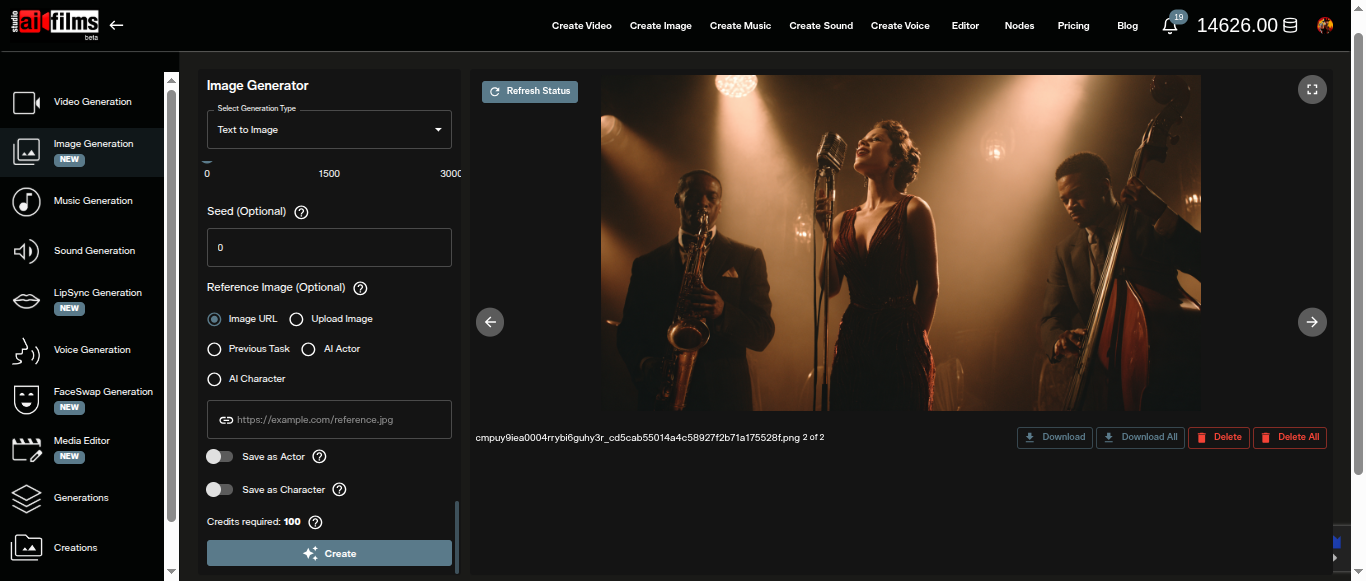
Once generation completes, all four images appear in the output area. Select any image to download it or send it forward into the video workspace for animation using image-to-video models. The image to video generator page lists which models accept a still and what each does with it.
Using Midjourney 8.0 in the Nodes Graph Editor
The Nodes Graph Editor lets you connect Midjourney 8.0 into multi step workflows alongside video generation, audio, and enhancement models.
To build a basic text-to-image pipeline:
- Open the Node Graph Editor at studio.aifilms.ai/nodes
- Add a Prompt node and enter your image description
- Add a Text to Image node and select MidJourney 8.0 as the model
- Connect the Prompt node output to the Text to Image node's prompt input
- Add an Image Viewer node and connect it to the Text to Image output
- Click Execute Graph
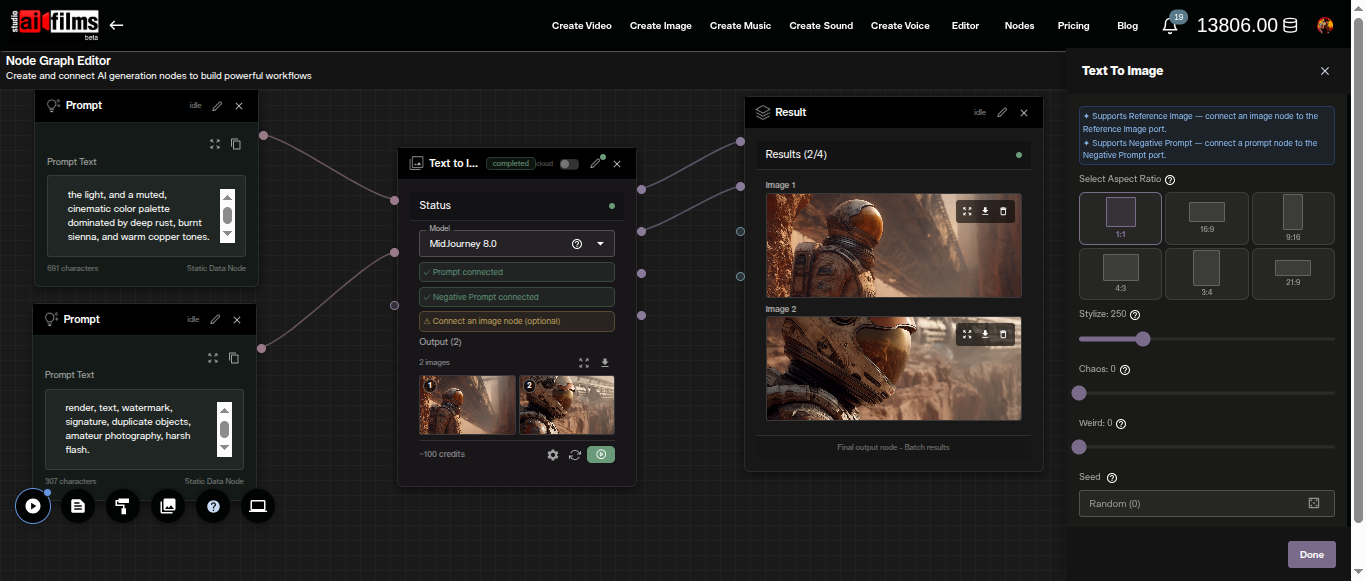
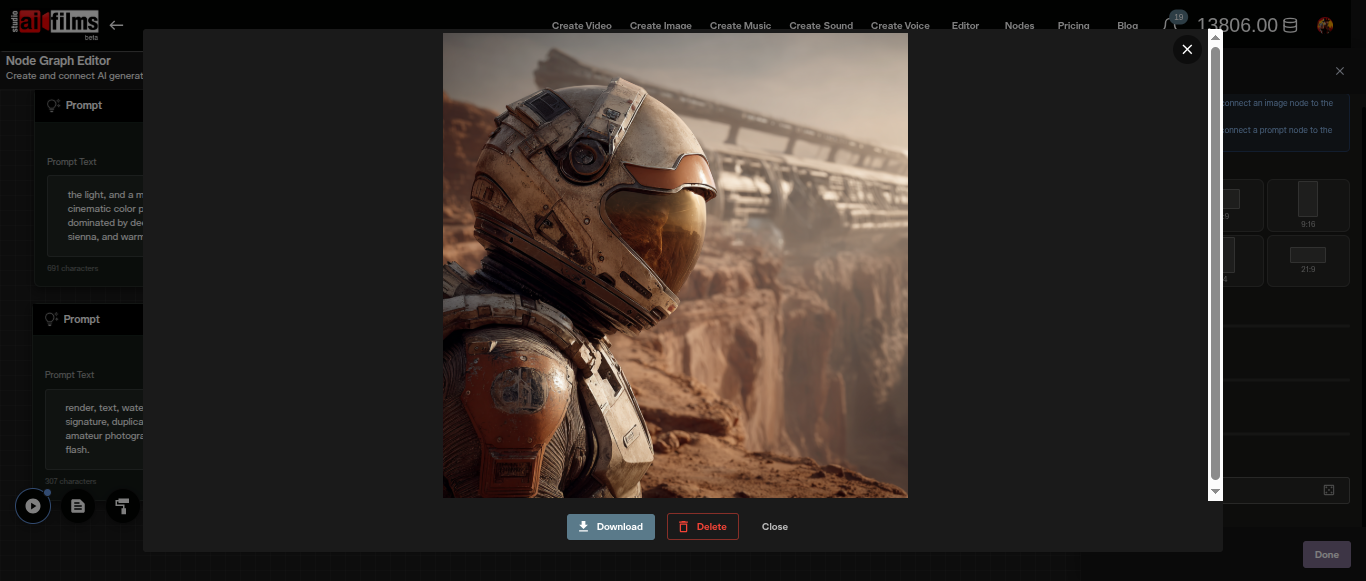
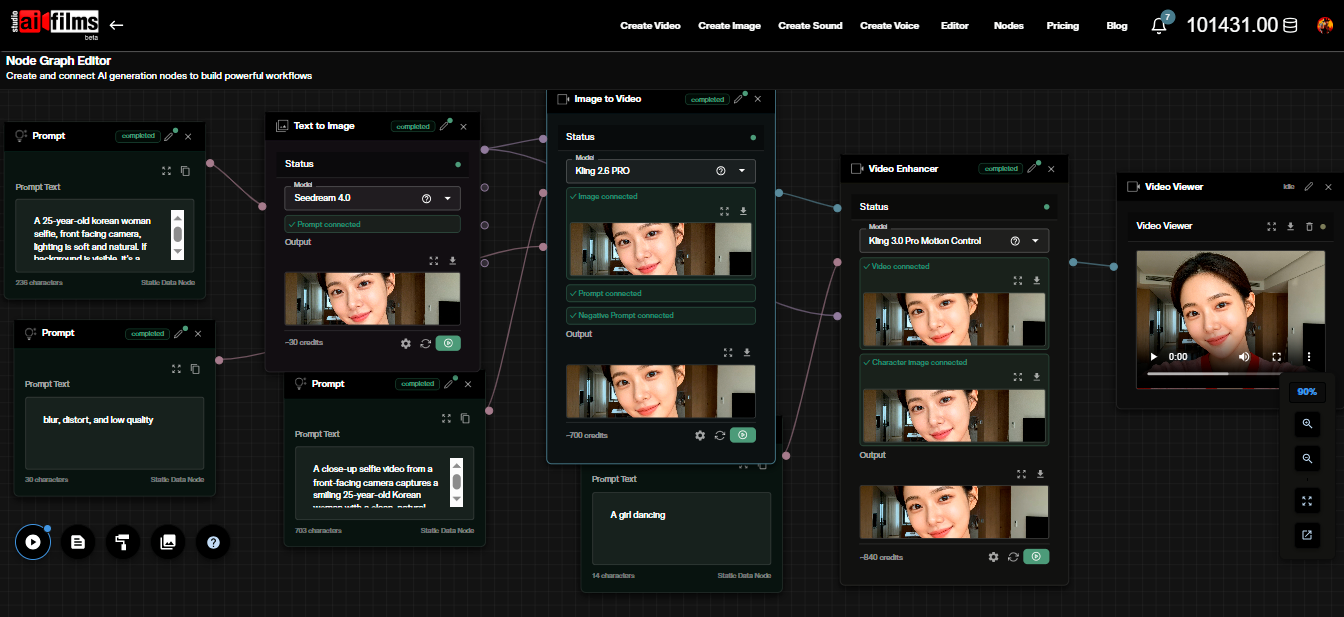
The Text to Image node shows the credit estimate before execution and updates the output thumbnail after each run. Connect the output to an Image to Video node to animate any of the four resulting images.
For a full guide to building multi step image and video pipelines, see the FLUX 2 text-to-image and editing tutorial, which covers image editing, multi reference workflows, and LoRA training in the Node Graph Editor.
Prompt Examples
These prompts follow the Subject, Action, Environment, Lighting, Style structure. Lock the seed after the first generation you want to develop further.
Cinematic action scene:
Lone astronaut standing at the edge of a crater, gazing toward a gas giant on the horizon,
barren lunar surface, dramatic rim light from behind with cool blue fill shadows,
wide shot, photoreal cinematic still
Environmental portrait:
Elderly fisherman repairing nets at dawn, coastal village dock in soft morning fog,
warm golden backlight diffusing through mist, shallow depth of field,
50mm documentary photography
Concept art for animation:
Ancient stone library carved into a cliff face, waterfall cascading beside the entrance,
glowing manuscripts floating through the interior, dusk lighting,
epic fantasy illustration style
Commercial product still:
Premium ceramic coffee mug on weathered oak, steam rising from the rim,
morning window light from left creating long warm shadows,
close up at table level, lifestyle product photography
FAQ
How many images does each generation produce? Every generation produces exactly four images. The batch always costs 100 credits regardless of which aspect ratio or parameter settings you use.
Can I use Midjourney prompt flags like --ar, --v, or --s in the prompt field?
No. These flags are not supported in the prompt field and will cause the generation to be rejected. Use the dedicated Aspect Ratio, Stylize, and other controls in the workspace instead.
How do I reproduce a result I liked? Find the seed value from that generation and enter it in the Seed field. With the same prompt and seed, the model starts from the same point. Adjust other parameters from there to refine the result.
What does the Reference Image do? The reference image guides the aesthetic and compositional direction of all four generated outputs. It acts as a visual influence alongside your text prompt. Five source options are available in the workspace: Image URL, direct upload, a previous task output, an AI Actor, or an AI Character.
What is the difference between Chaos and Weird? Chaos controls how different the four images in a batch are from each other. Weird controls how unconventional each individual image is. High chaos with low weird produces four varied but visually conventional images. Low chaos with high weird produces four similar images with an unusual or surreal quality.
Can I use Midjourney 8.0 in the Nodes Graph Editor? Yes. Add a Text to Image node, select MidJourney 8.0 as the model, connect a Prompt node, and add an Image Viewer to display the results. The node produces the same four image batch as the workspace workflow.
Can I use the generated images commercially? Yes. Paid subscribers on AI FILMS Studio hold full commercial rights to content generated on the platform. See the pricing page for current subscription details.
Sources
Midjourney
Continue Reading
.jpg?w=3840)


Video & LipSync
- Video Generator
- Text to Video
- Image to Video
- Start-End Frame to Video
- Draw to Video
- Motion Control
- Video Enhancer
- Video Upscaler
- Video Extend
- Video to Video LipSync
- Audio to Video LipSync
- Image to Video LipSync
- Video FaceSwap
- Seedance 2.5
- WAN 3.0
- Seedance 2
- FLUX 3
- Minimax H3
- Vidu Q3 Pro
- Grok Imagine Video 1.5
- Gemini Omni
- Google Veo 3.1
- Kling 3.0 Pro
- Luma Ray 3.2
- LTX 2.3
- Happy Horse 1.1
- Kling 3.0 Motion
- ByteDance Upscaler
- InfiniteTalk
- InsightFace
Image & Edit
- AI Character
- AI Actor
- Art Generator
- Text to Image
- Image to Image
- LoRA Image to Image
- Draw to Edit
- Image LoRA Training
- Remove Background
- Image Enhancer
- MidJourney 8.0
- Krea 2
- OpenAI GPT Image 2.0
- Nano Banana Pro Ultra
- Nano Banana 2 Lite
- Nano Banana Pro
- Minimax Image
- Clarity Pro
- Z-Image Turbo LoRA
- Krea 2 Turbo LoRA
- Z-Image LoRA Trainer
- Qwen Image LoRA Trainer
- Background Erase Network 2 (BEN2)