
Happy Horse 1.0 Tutorial: Text to Video and Image to Video
Share this post:
Happy Horse 1.0 Tutorial: Text to Video and Image to Video
Happy Horse 1.0 by Alibaba is now available on AI FILMS Studio. This guide covers both generation modes: text-to-video and image-to-video, from opening the workspace to downloading your output. Happy Horse 1.0 is also the model behind the sketching canvas, covered on the draw to video page.
What Is Happy Horse 1.0
Happy Horse 1.0 is Alibaba's high fidelity video generation model for cinematic output from text descriptions or reference images. It delivers 720p and 1080p video with fluid motion dynamics, stable subject rendering, and strong adherence to complex prompts.
Text-to-video supports five aspect ratios: 16:9, 9:16, 1:1, 4:3, and 3:4, with clip lengths from 3 to 15 seconds. Image-to-video preserves the composition and identity of your source image while applying smooth camera movement and physics accurate motion. Both modes bill at the same per second rate.
Happy Horse 1.1 is now available with a reduced 1080p credit rate. See the Happy Horse 1.1 tutorial for the updated model.
Text to Video
Step 1: Open the video workspace
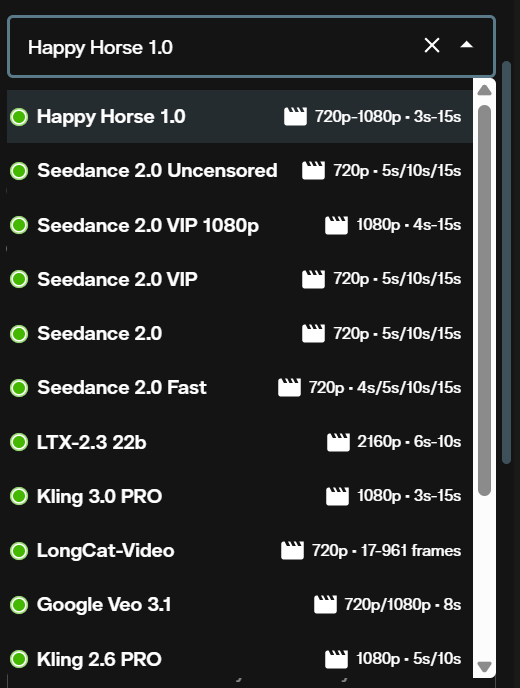
Go to AI FILMS Studio. In the model selection dropdown, choose Happy Horse 1.0 from the list of available generators. The text to video generator page documents every field in this form and how the model picker constrains duration and resolution.
Step 2: Select text to video mode
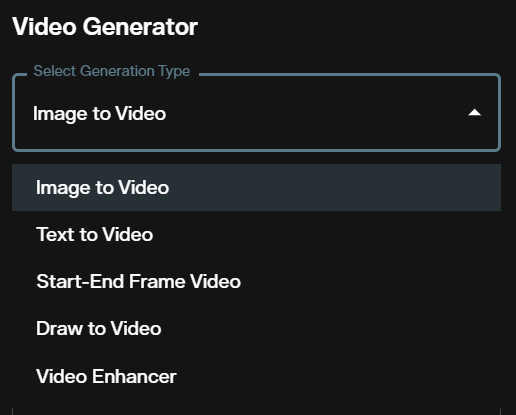
Use the generation mode dropdown to select text to video. The interface updates to show text-to-video parameters.
Step 3: Write your prompt
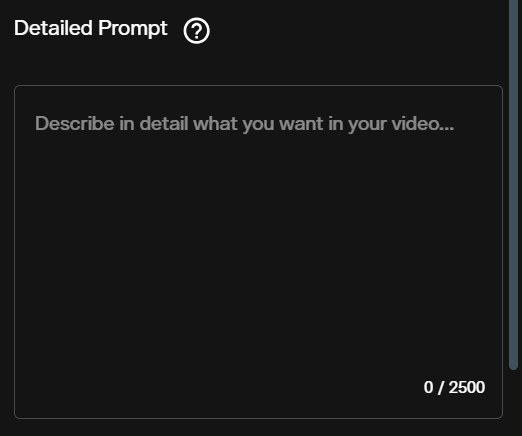
Describe the scene, motion, camera movement, lighting, and mood. Happy Horse 1.0 follows specific cinematographic instruction. "Dolly push toward the subject" produces a distinct result from "the camera moves closer". Include style anchors like "film still" or "photorealistic" to set the visual register.
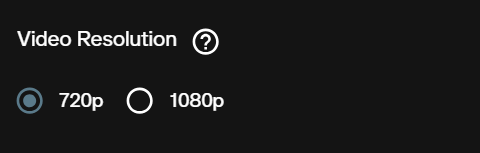
Step 4: Choose resolution and aspect ratio
Select 720p for fast iteration and drafts, 1080p for final deliverables. Text-to-video supports five aspect ratios: 16:9 (landscape), 9:16 (portrait), 1:1 (square), 4:3 (classic), and 3:4 (portrait).
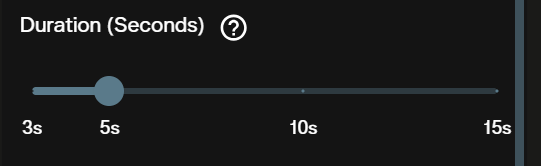
Step 5: Set the duration
Choose a duration between 3 and 15 seconds. Billing scales linearly with duration. Start with 3 to 5 seconds when testing a new prompt before committing to a longer generation.
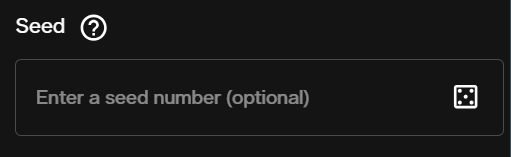
Step 6: Set the seed (optional)
A fixed seed reproduces the same output when all other parameters stay the same. Leave blank or use -1 for a different result on each run. Useful when iterating on a prompt without changing the underlying motion.
Step 7: Review the credit cost
The interface displays the exact credit cost for your selected resolution and duration before you submit. Confirm the cost matches your intended settings.

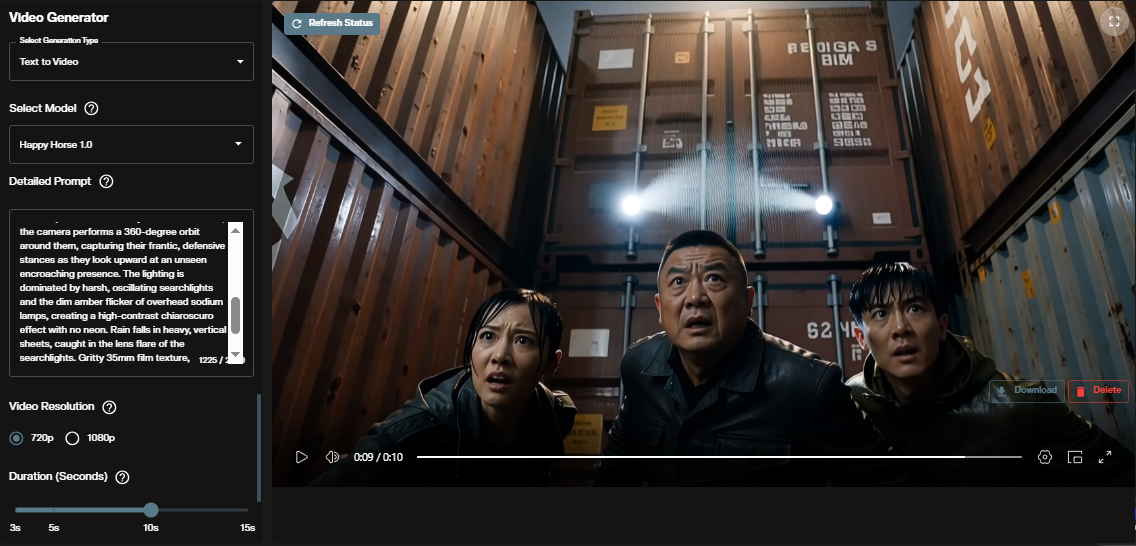
Step 8: Generate and view output
Submit the request. The video renders and appears in the output panel. Download it directly from the workspace.
Text to Video in the Nodes Graph
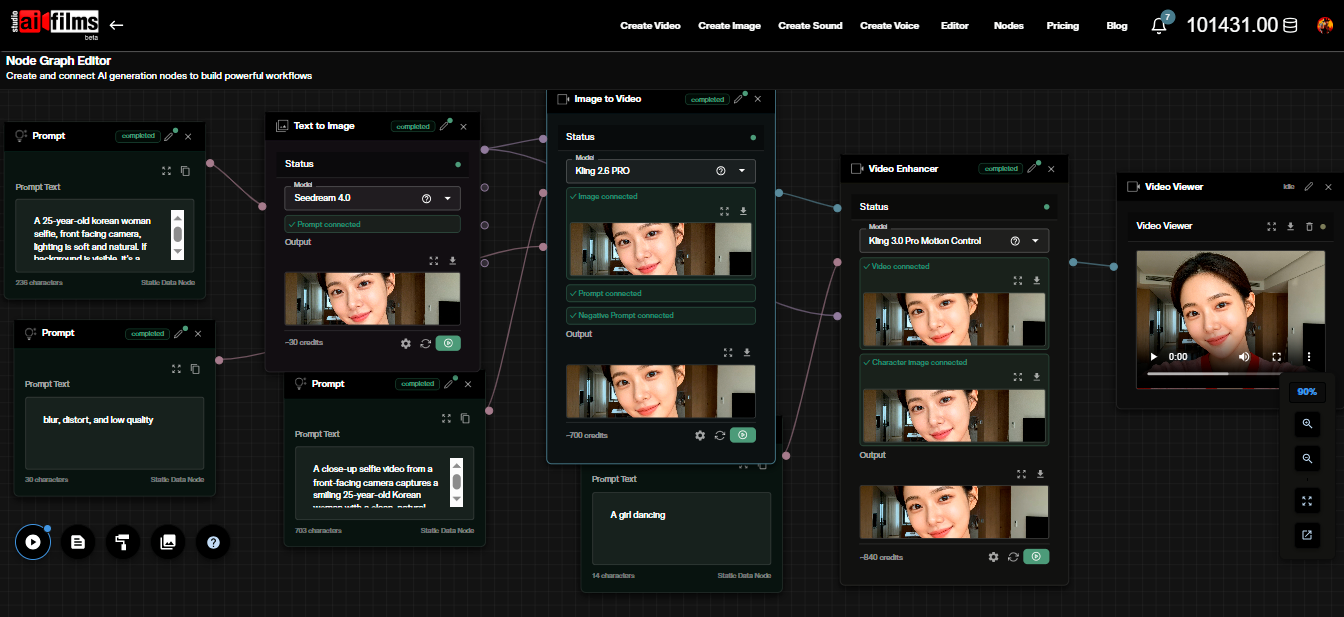
Happy Horse 1.0 text-to-video is also available as a node in the AI FILMS Studio Nodes Graph Editor. Connect a Prompt node to the Text to Video node, then wire the output to a Video Viewer or Result node. This lets you chain Happy Horse 1.0 into multi step pipelines alongside image generation, upscaling, or audio nodes.
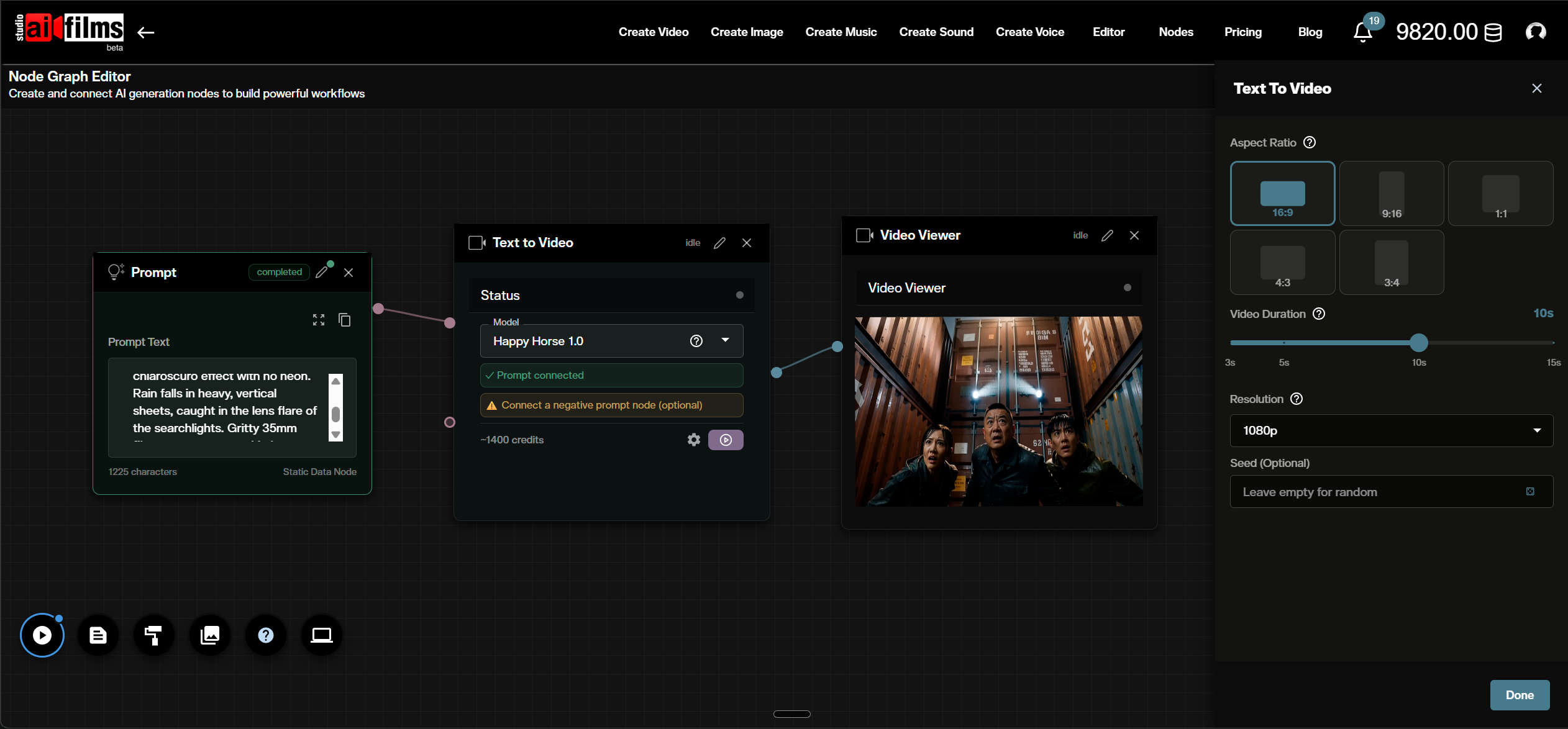
Image to Video
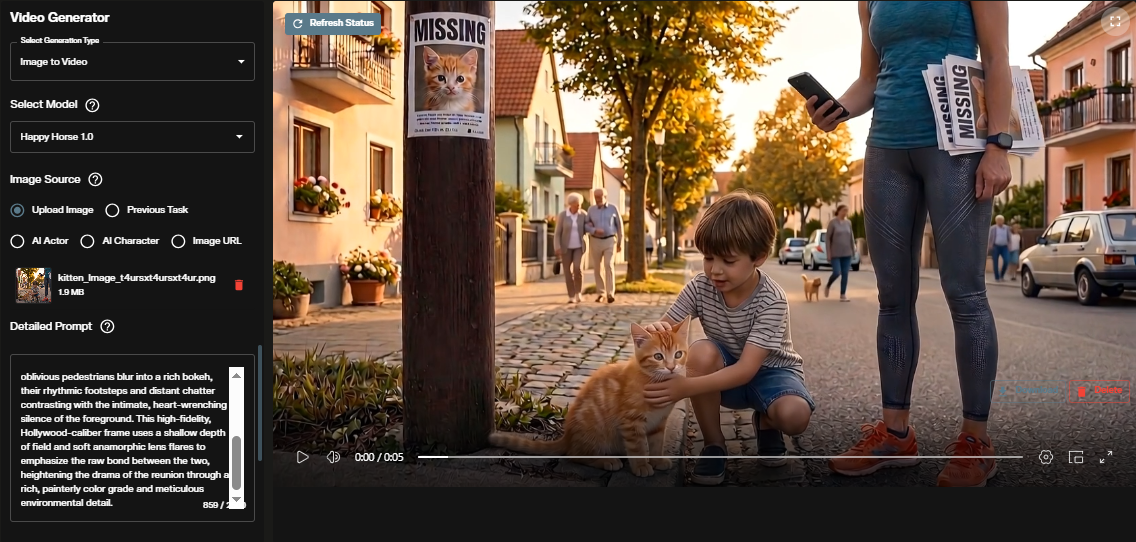
Image-to-video animates a reference image into a cinematic clip. The model preserves the composition, lighting, and subject identity of your source while applying fluid motion and camera movement. The output aspect ratio matches the input image automatically. The image to video generator page covers the full model roster on this generation type.
Step 1: Switch to image to video mode
Use the mode dropdown to select image to video. The interface updates to show the image input field and image-to-video parameters.
Step 2: Upload your reference image
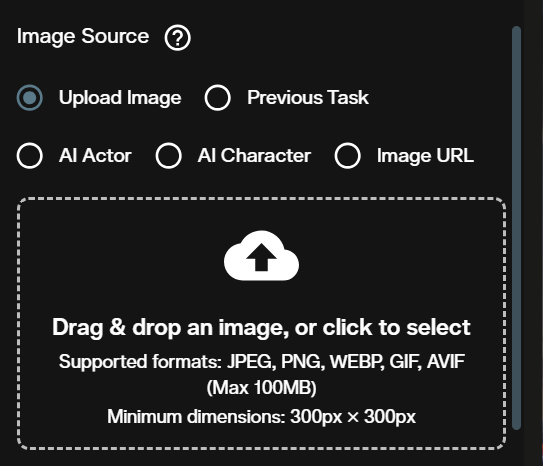
Upload your source image using a public URL or a Base64 encoded file. For files over 300 MB, a public URL is required to avoid upload timeouts.
Step 3: Write your prompt
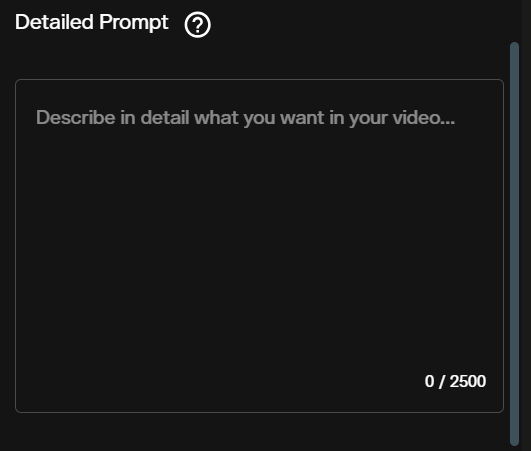
Describe what changes in the scene: the motion, camera movement, or transformation. The model preserves what is already in your image; your prompt directs what moves. "The figure turns slowly as wind passes through the curtain behind her" gives the model specific motion to execute.
Step 4: Choose resolution
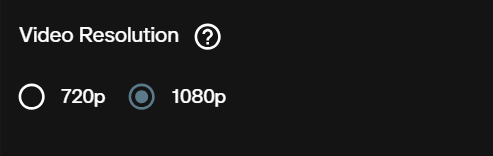
Select 720p or 1080p. For image-to-video, the output width is calculated automatically from the input image's aspect ratio. 720p and 1080p refer to the height of the output video.
Step 5: Set the duration
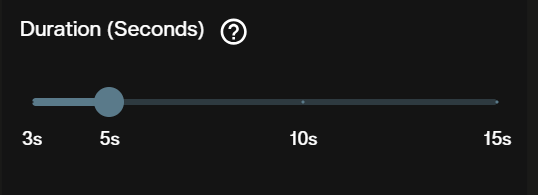
Choose between 3 and 15 seconds. A 5 second clip covers most motion tests before committing to a longer generation.
Step 6: Set the seed (optional)
A fixed seed reproduces the same animation from the same image and prompt. Set to -1 or leave blank for a random result.
Step 7: Review the credit cost
The interface shows the exact cost for the selected resolution and duration before you submit.

Step 8: Generate and view output
Submit the request. The animated video appears in the output panel ready to download.
Credit Costs
Both text-to-video and image-to-video bill at the same per second rate.
| Resolution | 3 seconds | 5 seconds | 10 seconds | 15 seconds |
|---|---|---|---|---|
| 720p | 420 credits | 700 credits | 1,400 credits | 2,100 credits |
| 1080p | 840 credits | 1,400 credits | 2,800 credits | 4,200 credits |
Credits for failed generations are automatically refunded. For subscription and credit details, visit the AI FILMS Studio pricing page.
For another cinematic video generation workflow covering text-to-video and image-to-video, see the Seedance 2.0 tutorial.
Prompt Tips for Happy Horse 1.0
Specify camera movement explicitly. "Slow dolly push toward the subject" produces a distinct result from "the camera moves forward". Happy Horse 1.0 follows specific cinematographic instructions for dolly shots, pans, cranes, and rack focuses.
Use 720p and short durations for iteration. Generate at 720p with 3 to 5 seconds to validate motion and composition. Switch to 1080p and a longer duration for final deliverables.
Anchor the visual style. Add descriptors like "photorealistic", "film still", or "editorial" to set the visual register. Style tags give the model a clear aesthetic target alongside the motion instructions.
For image-to-video, describe the motion not the subject. The model already knows what your image looks like. "Close up portrait of a woman with red hair" adds nothing. "She turns slightly to the left, eyes following something off frame" gives the model specific motion to execute.
Sources
Alibaba
Continue Reading


Video & LipSync
- Video Generator
- Text to Video
- Image to Video
- Start-End Frame to Video
- Draw to Video
- Motion Control
- Video Enhancer
- Video Upscaler
- Video Extend
- Video to Video LipSync
- Audio to Video LipSync
- Image to Video LipSync
- Video FaceSwap
- Seedance 2.5
- WAN 3.0
- Seedance 2
- FLUX 3
- Minimax H3
- Vidu Q3 Pro
- Grok Imagine Video 1.5
- Gemini Omni
- Google Veo 3.1
- Kling 3.0 Pro
- Luma Ray 3.2
- LTX 2.3
- Happy Horse 1.1
- Kling 3.0 Motion
- ByteDance Upscaler
- InfiniteTalk
- InsightFace
Image & Edit
- AI Character
- AI Actor
- Art Generator
- Text to Image
- Image to Image
- LoRA Image to Image
- Draw to Edit
- Image LoRA Training
- Remove Background
- Image Enhancer
- MidJourney 8.0
- Krea 2
- OpenAI GPT Image 2.0
- Nano Banana Pro Ultra
- Nano Banana 2 Lite
- Nano Banana Pro
- Minimax Image
- Clarity Pro
- Z-Image Turbo LoRA
- Krea 2 Turbo LoRA
- Z-Image LoRA Trainer
- Qwen Image LoRA Trainer
- Background Erase Network 2 (BEN2)