
How to Use Suno Text to Music in AI FILMS Studio: v5.5 and v3.5 Guide

Share this post:
How to Use Suno Text to Music in AI FILMS Studio: v5.5 and v3.5 Guide
Suno Music is now available in AI FILMS Studio's music workspace. Each generation runs simultaneously and delivers two complete MP3 tracks, letting you compare variations before choosing one to keep. The model costs 90 credits per run, regardless of which version you select.
Suno v5.5 and v3.5: Choosing the Right Version
AI FILMS Studio exposes seven Suno model versions in the dropdown: v3.5, v4, v4.5, v4.5 Plus, v4.5 All, v5, and v5.5. The two endpoints of that range are the ones that matter most for production decisions.
| Feature | Suno v3.5 | Suno v5.5 |
|---|---|---|
| Audio output | 24 kHz | 44.1 kHz (CD quality) |
| Song length | Up to 4 minutes | Up to 4 minutes |
| Instrumental mode | Yes | Yes |
| Voices (voice cloning) | No | Yes (Pro/Premier) |
| Custom Models | No | Up to 3 (Pro/Premier) |
| My Taste personalization | No | Yes (all users) |
| Release date | 2024 | March 26, 2026 |
The audio quality gap is the deciding factor for most projects. Suno v3.5 outputs at 24 kHz, which caps the reproducible frequency range at 12 kHz. If you upsample that file to 44.1 kHz for delivery, the frequencies above 12 kHz remain empty. Suno v5.5 outputs natively at 44.1 kHz, the standard for CD audio and digital distribution, and integrates without conversion into DAW timelines in DaVinci Resolve, Pro Tools, or Logic.
Use v5.5 for any project destined for theatrical exhibition, streaming delivery, or professional post production. v3.5 remains available as a stylistic option. Its sonic character differs from v5.5 in ways that some creators find useful for retro or lo fi aesthetics.
For filmmakers evaluating music generation outside the browser, Stable Audio 3 from Stability AI is the main open weight alternative, covering both music composition and sound effects for local deployment.
Opening the Music Generator
Go to the AI FILMS Studio music workspace or click Create Music in the top navigation. Every control in the text to music form is documented here, and the AI music generator overview covers both generation types and the models each one carries.
The Music Generator panel opens on the left. Confirm Text to Music is selected in the Select Generation Type dropdown. Under Select Model, choose Suno Music, and confirm the label next to the model name shows that two tracks will be generated.
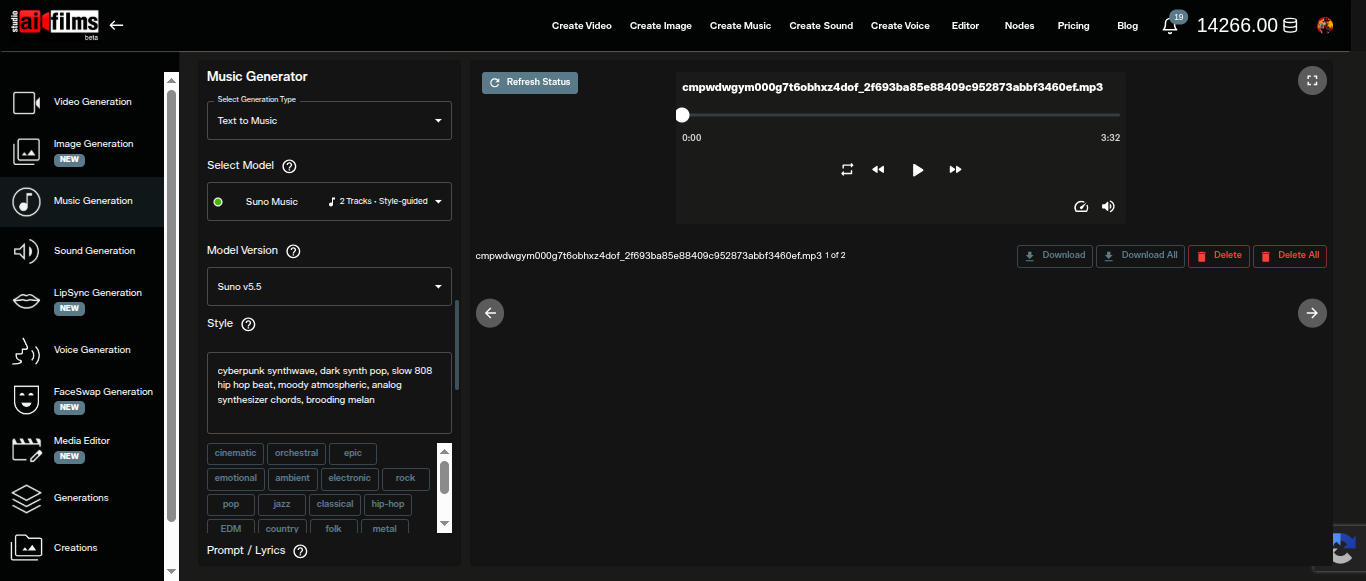
Open the Model Version dropdown and select your version. v5.5 is the default and the recommended choice for most work.
Describing the Style
The Style text area accepts descriptors separated by commas that define the sonic character of the track. Think of this as art direction for the model. The more specific the descriptors, the more focused the output.
Below the text area, 40 clickable style tags let you add genre, mood, or instrument keywords without typing. Clicking a tag appends it to the Style field. The tags span genres (cinematic, orchestral, epic, electronic, rock, pop, jazz, classical, hip hop, EDM, country, folk, metal, punk, reggae, blues, soul, funk, indie, acoustic, synth), instruments (piano, guitar, drums, bass, strings, brass, choir), and moods (upbeat, melancholic, energetic, calm, dark, bright, aggressive, soft, dramatic, peaceful, intense, groovy, atmospheric).
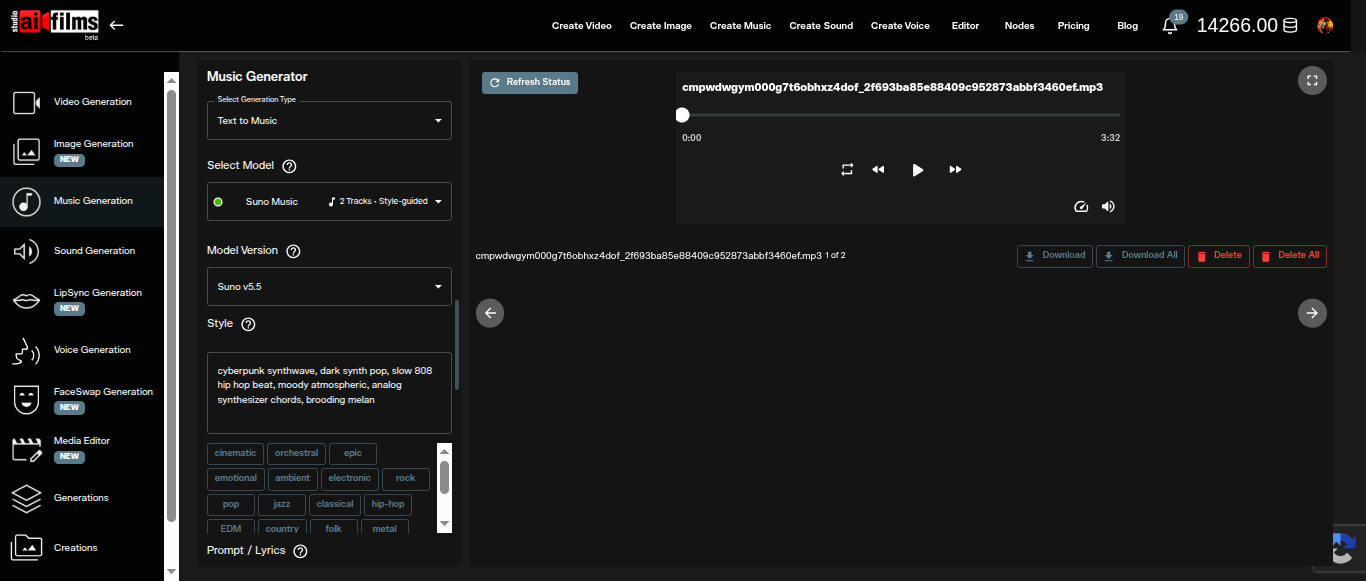
Style prompts work best when they combine genre, texture, and mood. Here are three example prompts for common filmmaking use cases:
| Use case | Style prompt |
|---|---|
| Cinematic score | cinematic, orchestral, epic, sweeping strings, film trailer, emotional |
| Dark electronic | cyberpunk synthwave, dark synth pop, slow 808 bass, moody atmospheric, analog synthesizer, brooding |
| Lo fi background | lo fi hip hop, ambient, jazz, vinyl crackle, melancholic, slow tempo, piano, calm |
Adjusting the Three Parameter Sliders
Three sliders below the Style field control distinct creative dimensions. All three default to 0.65 and move between 0 and 1.
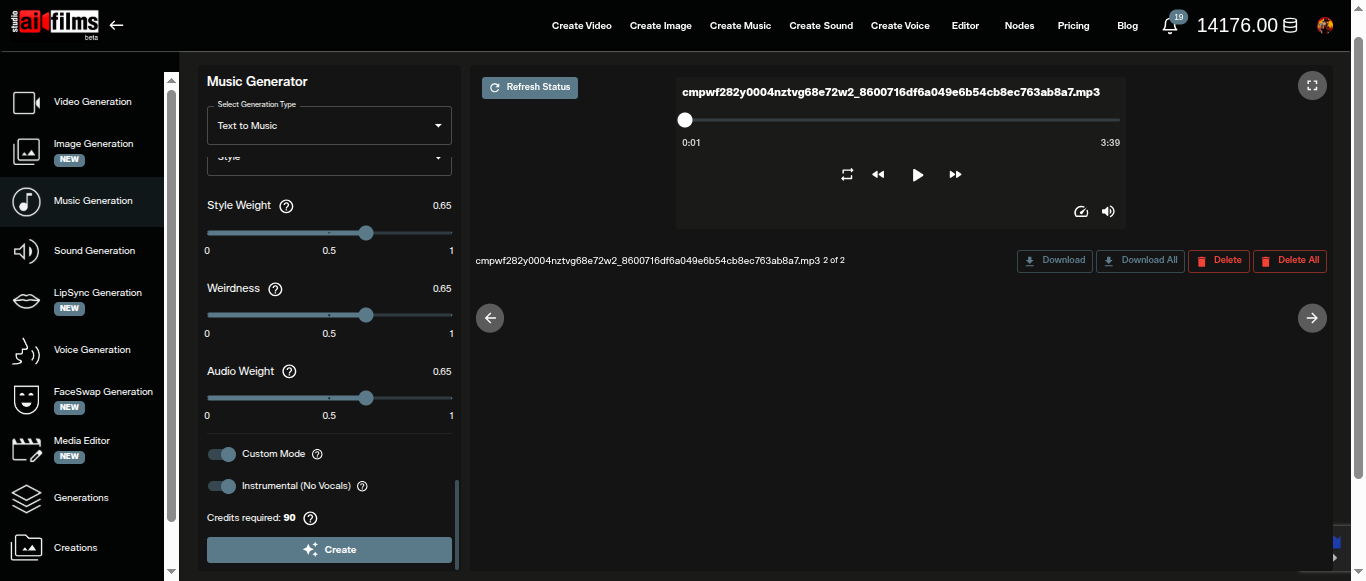
Style Weight controls how literally the model follows your Style text. Higher values keep the output tightly inside the described genre and texture. Lower values give the model room to interpret freely, which can yield interesting surprises but weaker adherence.
Weirdness introduces harmonic and structural unpredictability. Values below 0.5 produce conventional chord progressions and arrangement structures. Values above 0.8 push the model toward unusual intervals, odd time signatures, and textures that cross genre lines. For scoring work, keep this between 0.5 and 0.7 unless you specifically want experimental output.
Audio Weight balances production fidelity against raw generation quality. Higher values emphasize clean, polished sound with more defined dynamics. Lower values can produce a rawer, more unprocessed character.
Writing Lyrics and Using Custom Mode
The Prompt / Lyrics field accepts the vocal content for tracks that include a singer. For instrumental tracks, this field can hold a brief thematic description of what the music should evoke, though the Style field carries more weight for purely instrumental work.
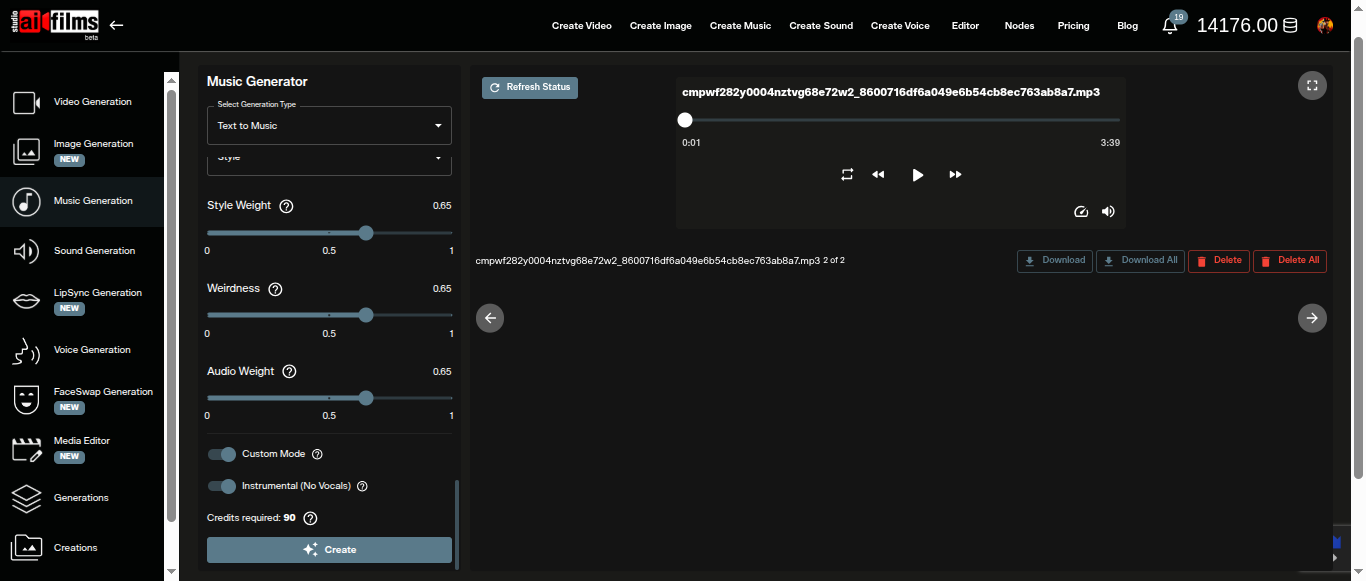
Custom Mode unlocks explicit control over the track structure. When enabled, a Title field appears. This lets you name the track, which influences how the model frames the composition. Use Custom Mode when you need a specific feel that the Style field alone is not producing.
Instrumental (No Vocals) removes the vocal layer entirely. This is the correct setting for underscore, background tracks, and score elements where a singer would compete with dialogue or narration. When Instrumental is turned off, a Vocal Gender selector appears with Male and Female options. This sets the default voice character for the generated singer.
Generating Your Tracks
Click Create at the bottom of the panel. The credit indicator shows 90 credits required before you confirm.
Suno generates two complete tracks in a single run. Both appear in the output area on the right side of the workspace with individual audio players. Use the player controls to preview each track, then click Download under the preferred version or Download All to save both.
The two outputs from a single generation share the same style and parameters but differ in arrangement, melodic choices, and mix. Comparing both before choosing is the primary workflow advantage of this model.
Using Suno in the Node Graph Editor
The AI FILMS Studio Nodes Graph Editor lets you chain Suno into automated workflows alongside image, video, and voice models.
To add Suno to a graph:
- Add a Prompt node and enter your style description
- Add a Text to Music node and connect the Prompt output to its prompt input
- Open the node settings panel on the right and set Model Version to Suno v5.5
- Add an Audio Viewer node and connect the Text to Music output to it
- Click Execute Graph
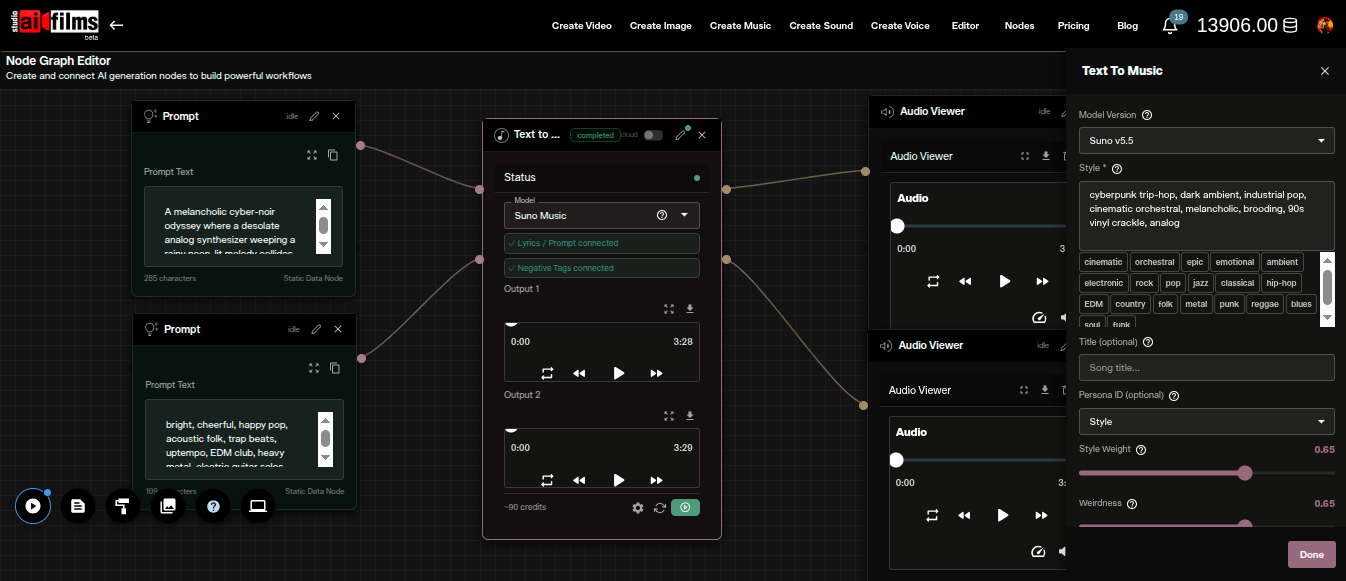
The Nodes view exposes two additional fields not visible in the standard workspace:
Title (optional): Names the track. Equivalent to enabling Custom Mode in the workspace.
Persona ID (optional): Accepts a Suno Voices persona ID. Users who have created a personal voice profile can enter that ID here to apply their voice character to the generated singer. Leave this blank unless you have a persona set up.
The Negative Tags port is available as an optional input connection. Connect a Prompt node to it and enter style keywords you want excluded from the output. This works like a negative prompt for image models, telling the model which sonic qualities to avoid.
Tips for Better Results
Be specific in the Style field. "Cinematic" alone produces generic orchestral output. "Cinematic, sweeping strings, low brass undertone, slow build, war film" targets a much more specific register.
Combine genre and mood tags. Clicking three or four tag chips and adding two or three custom descriptors generally yields better adherence than relying on one tag or one long text string.
Use Weirdness above 0.7 deliberately. Higher Weirdness values are not improvements. They produce unusual outputs on purpose. If your goal is a consistent, usable score element, keep Weirdness around 0.5 to 0.65.
Generate twice and compare. Because the model produces two tracks per run and costs 90 credits, a second run costs 180 credits total and gives you four variations to choose from. Comparing four variations is often worth the cost difference versus spending time trying to refine a single generation into the exact output you want.
For output at library quality, choose v5.5. Its 44.1 kHz output satisfies the technical delivery specifications for most streaming and broadcast platforms. v3.5 at 24 kHz requires upsampling before distribution, which adds a processing step and does not recover the missing frequencies above 12 kHz.
Suno is the only model on the Text to Music generation type. Switching to Lyric to Music gives you two more, both of which expect you to write the words yourself. ACE-Step 1.5 treats lyrics as optional and adds a duration slider running to four minutes, which makes it the better choice for instrumental score. MiniMax Music 2.5 requires lyrics and exposes sample rate, bitrate and output format for delivery control.
For a locally runnable alternative, ACE-Step 1.5 scores above Suno v5 on SongEval benchmarks and runs free under an MIT license on consumer hardware with less than 4GB of VRAM.
Sources
Suno
Continue Reading


Video & LipSync
- Video Generator
- Text to Video
- Image to Video
- Start-End Frame to Video
- Draw to Video
- Motion Control
- Video Enhancer
- Video Upscaler
- Video Extend
- Video to Video LipSync
- Audio to Video LipSync
- Image to Video LipSync
- Video FaceSwap
- Seedance 2.5
- WAN 3.0
- Seedance 2
- FLUX 3
- Minimax H3
- Vidu Q3 Pro
- Grok Imagine Video 1.5
- Gemini Omni
- Google Veo 3.1
- Kling 3.0 Pro
- Luma Ray 3.2
- LTX 2.3
- Happy Horse 1.1
- Kling 3.0 Motion
- ByteDance Upscaler
- InfiniteTalk
- InsightFace
Image & Edit
- AI Character
- AI Actor
- Art Generator
- Text to Image
- Image to Image
- LoRA Image to Image
- Draw to Edit
- Image LoRA Training
- Remove Background
- Image Enhancer
- MidJourney 8.0
- Krea 2
- OpenAI GPT Image 2.0
- Nano Banana Pro Ultra
- Nano Banana 2 Lite
- Nano Banana Pro
- Minimax Image
- Clarity Pro
- Z-Image Turbo LoRA
- Krea 2 Turbo LoRA
- Z-Image LoRA Trainer
- Qwen Image LoRA Trainer
- Background Erase Network 2 (BEN2)