
LongCat Video Generator Tutorial: Extended AI Video on AI FILMS Studio
Share this post:
LongCat Video Generator Tutorial: Extended AI Video on AI FILMS Studio
LongCat Video is a Diffusion Transformer model from Meituan designed for generating coherent AI video at extended durations. While most AI video models cap out at 5 to 10 seconds before consistency breaks down, LongCat Video is built to sustain visual coherence across minutes of continuous generation. This tutorial covers every step for using it on AI FILMS Studio, from your first text to video prompt through to automating complete pipelines in the Node Graph Editor.
Studio availability, updated 2026-09-15. LongCat Video was previously available in AI FILMS Studio. It is no longer available. To generate video in the Studio, see the models listed on the text to video page.
For background on the model's architecture and capabilities, see our LongCat Video extended duration coverage. For the specialized avatar and lip-sync variant, see the LongCat Video Avatar guide.
Understanding LongCat Video
LongCat Video was available in the Video Generation workspace on AI FILMS Studio, and the AI video generator overview covers how its two modes sit alongside the other four generation types. The model supports two primary generation modes:
- Text to Video, generate a video clip directly from a written prompt
- Image to Video, animate a starting image using a prompt that describes the motion
Both modes share the same core settings panel, though Image to Video adds an image upload step and exposes a wider frame range for extended output.
Credit consumption scales with the number of frames you generate and the quality tier you choose. The default configuration shown in the interface starts at 200 credits, but selecting a higher frame count, maximum quality, or disabling acceleration will increase the cost. Check the Credits Required indicator at the bottom of the panel before generating.
Step by Step: Text to Video with LongCat Video
1. Open the Video Workspace and Select the Model
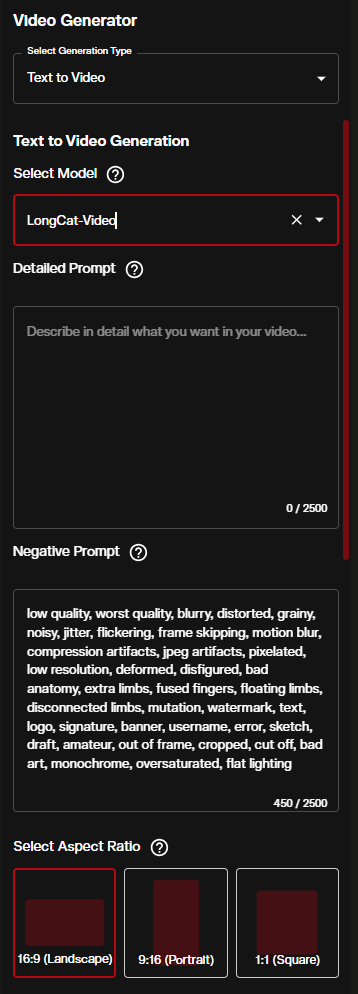
Navigate to the Video Generation workspace and set the Generation Type to Text to Video. From the model dropdown, select LongCat-Video. Every field in the text to video form is documented here, including how the model picker constrains duration and resolution.
2. Write Your Prompt
The Detailed Prompt field accepts up to 2500 characters. Use it to describe the scene, subjects, lighting, camera movement, and the progression of action over time. Because LongCat Video generates longer sequences, temporal structure in your prompt matters: describe what happens at the start, what shifts during the clip, and how the scene resolves.
The Negative Prompt field is pre filled with quality modifiers such as "low quality, blurry, distorted." Keep these unless you have specific reasons to remove them.
Aspect Ratio sets the output dimensions:
- 16:9 (Landscape), standard cinematic and widescreen format
- 9:16 (Portrait), optimized for social and mobile vertical formats
- 1:1 (Square), versatile for both web and social use
3. Configure Technical Settings
The next panel controls the core generation parameters.
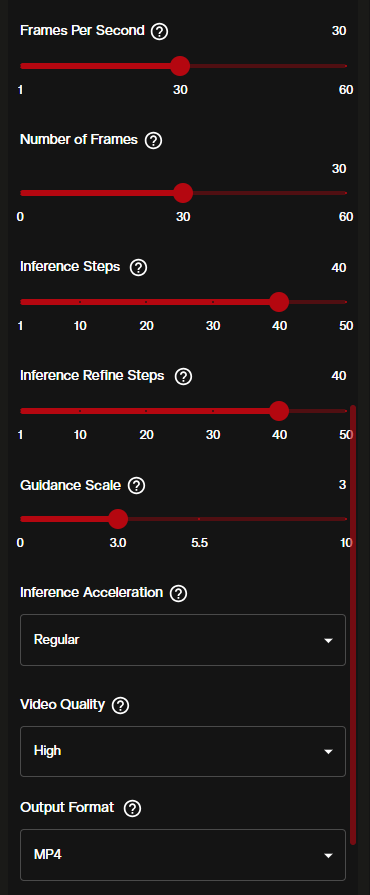
| Setting | Default | Range | Notes |
|---|---|---|---|
| Frames Per Second | 30 | 1–60 | Higher FPS produces smoother motion but increases cost |
| Number of Frames | 30 | 0–60 | Controls clip length at your chosen FPS |
| Inference Steps | 40 | n/a | More steps = higher quality, longer processing time |
| Inference Refine Steps | 40 | n/a | Additional refinement pass over the output |
| Guidance Scale | 3.0 | n/a | Higher values follow the prompt more literally |
Video Quality controls the rendering fidelity. Expand the dropdown to choose from four tiers:
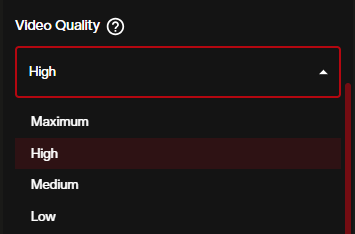
- Maximum, highest output fidelity, longest generation time
- High (default), strong quality with reasonable processing speed
- Medium, faster generation with a quality tradeoff
- Low, fastest option, suited for quick testing
Inference Acceleration offers a speed tradeoff. Regular is the balanced default for most use cases.
Output Format defaults to MP4, which is compatible with all major editing software.
4. Set Seed and Final Options
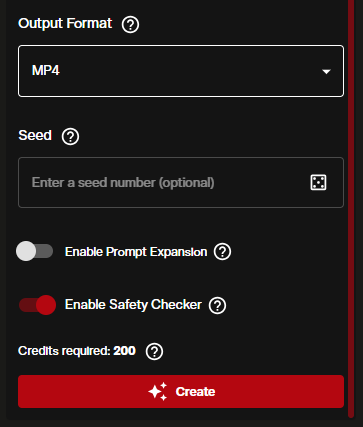
- Seed, leave the dice icon active for a random seed, or enter a specific number to reproduce a result
- Enable Prompt Expansion, when toggled ON, the model automatically elaborates your prompt. Useful for shorter prompts, but disable it when you want exact control over what is generated
- Enable Safety Checker, ON by default. Keep it on for standard use
- Credits Required, the indicator updates dynamically as you change settings. Confirm this number before hitting Create
Click the red Create button to start generation.
Step by Step: Image to Video with LongCat Video
1. Switch to Image to Video Mode
In the Video Generation workspace, change the Generation Type to Image to Video while keeping LongCat-Video as the selected model. The image to video reference covers the input section and the optional last frame that several models accept.
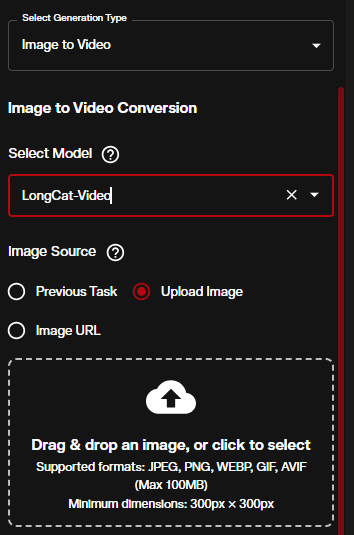
You have three ways to provide your starting image:
- Previous Task, pull the output image from another generation you already ran in the session
- Upload Image, drag and drop or browse for a local file (JPEG, PNG, WEBP, GIF, AVIF, up to 100MB, minimum 300×300 px)
- Image URL, paste a direct link to an image hosted online
2. Write Your Motion Prompt
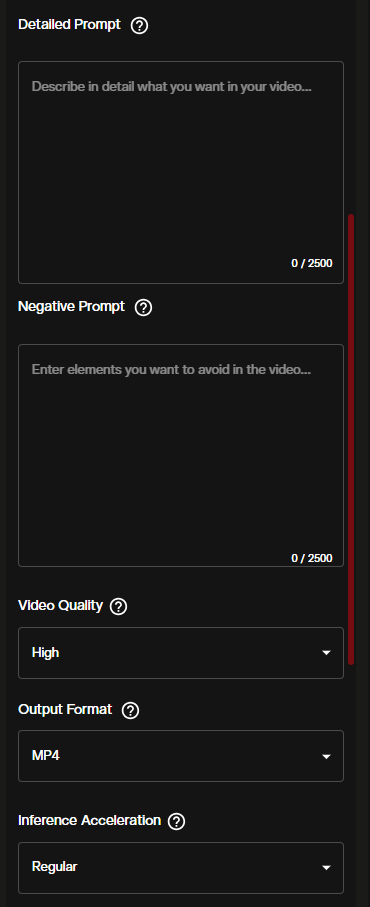
With an image loaded, the prompt now describes the motion rather than the full scene. Describe camera movements, subject actions, and any environmental changes that should unfold from the starting frame. Keep the negative prompt in place unless you are deliberately testing without quality filters.
The quick settings, Video Quality, Output Format, and Inference Acceleration, are accessible directly in this panel without scrolling.
3. Set Video Quality and Acceleration
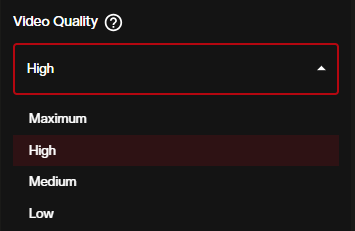
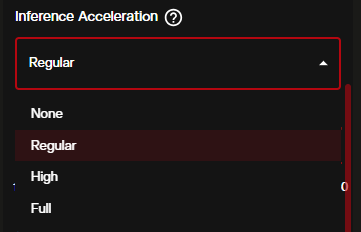
Inference Acceleration has four levels:
- None, no acceleration, maximum quality preservation
- Regular, balanced option, recommended for most generations
- High, noticeably faster, small quality reduction
- Full, fastest possible, suited for draft previews only
4. Control the Number of Frames
The Image to Video mode exposes a significantly wider frame range than Text to Video, which is where LongCat's extended duration capability becomes practical.
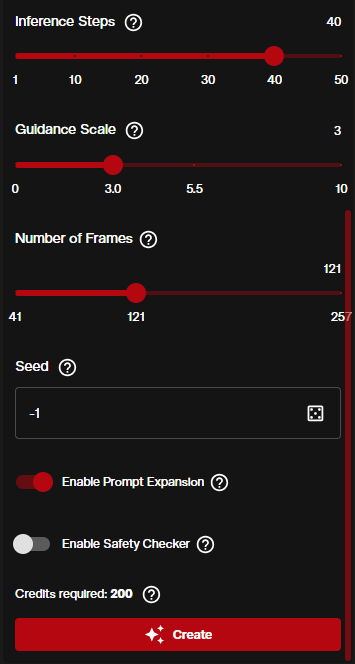
The Number of Frames slider runs from 41 to 257. At 30 FPS, 257 frames produces approximately 8.5 seconds of video, while at 24 FPS it reaches roughly 10 seconds. Pushing the frame count up directly increases the credit cost, so review the Credits Required indicator before confirming.
When Enable Prompt Expansion is ON in this view, the model enriches shorter prompts with additional detail. This can improve motion variety in longer generations where a brief prompt might otherwise produce repetitive or static output.
Automating with the Node Graph Editor
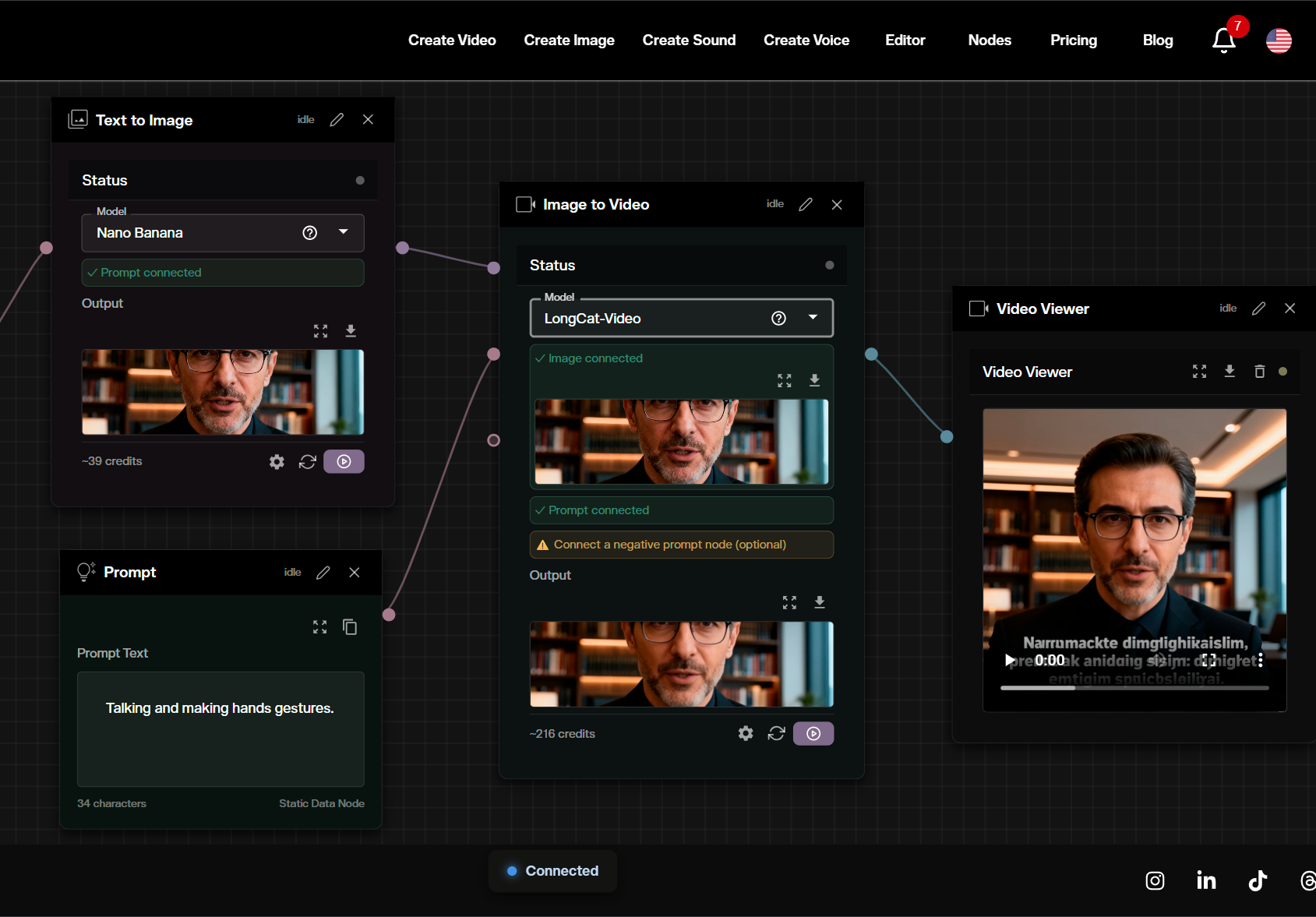
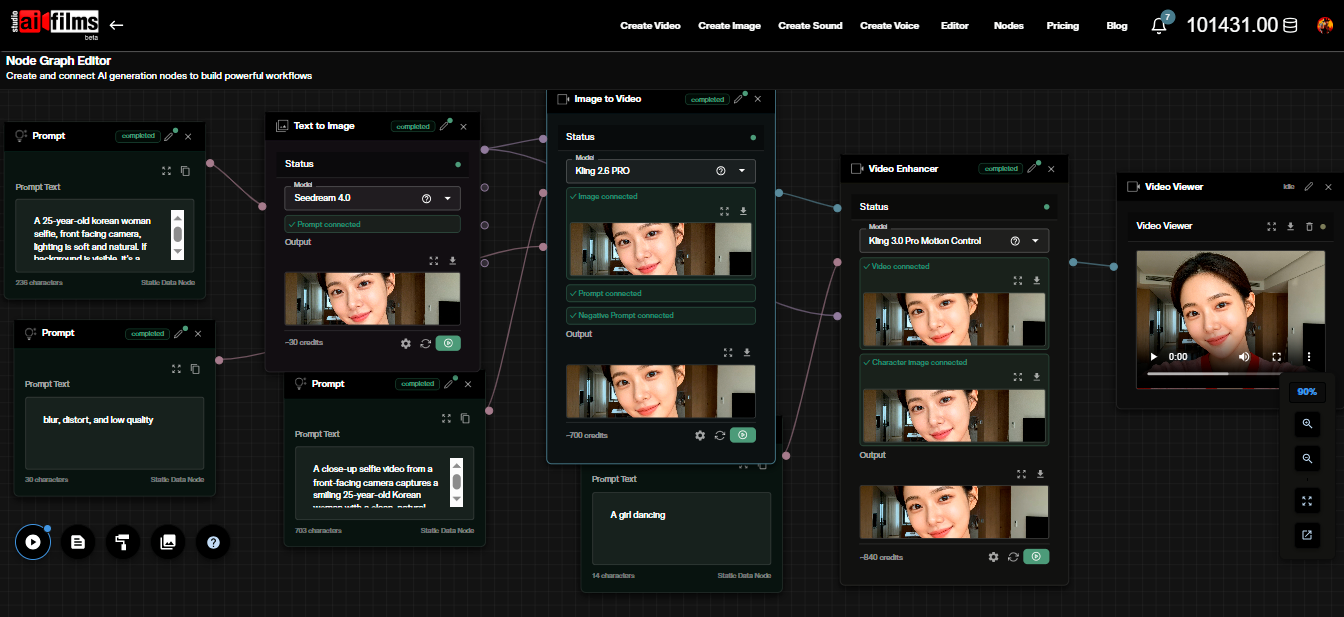
The Node Graph Editor lets you chain LongCat Video into multi model pipelines that run automatically from a single execution. This is particularly effective when you want to go from a text prompt all the way to an animated video in one workflow.
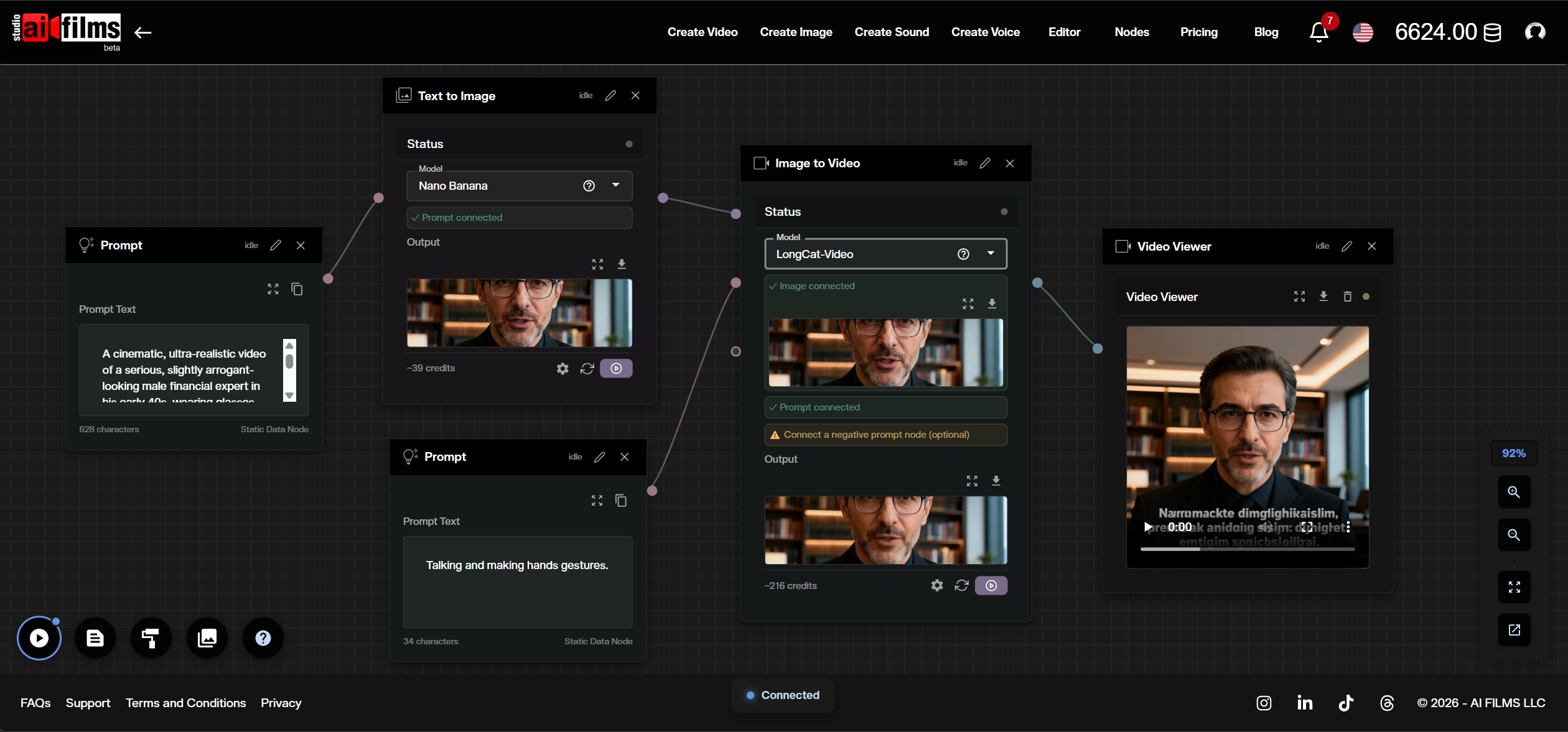
Building the Pipeline
The workflow above connects:
- Prompt node (Mauve port) → Text to Image node (set to NanoBanana / Gemini 2.5 Flash), generates a high quality starting image from your scene description
- A second Prompt node for motion description → Image to Video node (set to LongCat-Video), animates the generated image according to the motion prompt
- Image to Video node output → Video Viewer, displays the final result
To set this up in the Node Graph Editor:
- Drag a Text to Image node onto the canvas. Set the model to Nano Banana 2 or Gemini 2.5 Flash Image
- Drag a Prompt node and connect it to the Mauve input port of the Text to Image node
- Drag an Image to Video node. In its model dropdown, select LongCat-Video
- Connect the image output (Lavender port) from the Text to Image node to the image input of the Image to Video node
- Connect a second Prompt node with your motion description to the Prompt input of the Image to Video node
- Add a Video Viewer node and connect the output of the Image to Video node to it
Note: the LongCat-Video node will flag a warning if no negative prompt is connected. Connect a third Prompt node with your negative prompt terms to the negative prompt port to clear this.
The pipeline runs topologically, meaning the Text to Image node generates first, then the Image to Video node uses that output automatically. All you do is click Run.
Prompt Engineering Tips for Extended Sequences
Longer video generation rewards more structured prompting. A few approaches that work well with LongCat Video:
Describe the arc, not just the moment. Instead of "a woman walks through a forest," try "a woman enters a sunlit forest clearing, pauses to look around, then slowly walks toward a stream in the background." The model uses temporal cues to distribute action across frames.
Be specific about character appearance. Consistency mechanisms perform best with detailed descriptions. "A woman in a red coat with short dark hair carrying a leather briefcase" gives the model more to preserve than "a woman."
Indicate transitions explicitly. Phrases like "the camera slowly pans left," "the light shifts from golden hour to dusk," or "she turns to face the camera" help the model understand when motion or conditions should change.
Use the negative prompt deliberately. Adding "camera shake, jump cut, flickering, duplicate subjects" to the negative prompt helps prevent common artifacts in longer sequences where consistency pressure increases.
Start with fewer frames to test. Run a quick 41-frame generation to verify your prompt and settings produce the look you want before committing to a 200-frame generation.
Best Practices and Creative Applications
LongCat Video fitted several production workflows:
Short film and narrative sequences. Extended frame counts allow scenes to develop beyond a single beat. Combine multiple Image to Video generations with different starting frames to assemble longer scenes.
Podcast and presentation video. Pair LongCat's Image to Video capability with a still of your presenter, then route the output through a Kling Text to Video Lipsync node to add spoken dialogue.
Music video production. At 30 FPS, the 41–257 frame range covers 1.5 to 8.5 seconds per clip. Chain several LongCat Image to Video nodes in a pipeline to generate visual content that matches your track structure.
Storyboard previsualization. Generate a sequence of still frames with FLUX or NanoBanana, then animate each through LongCat Video image to video to produce rough motion previsualization for a full scene.
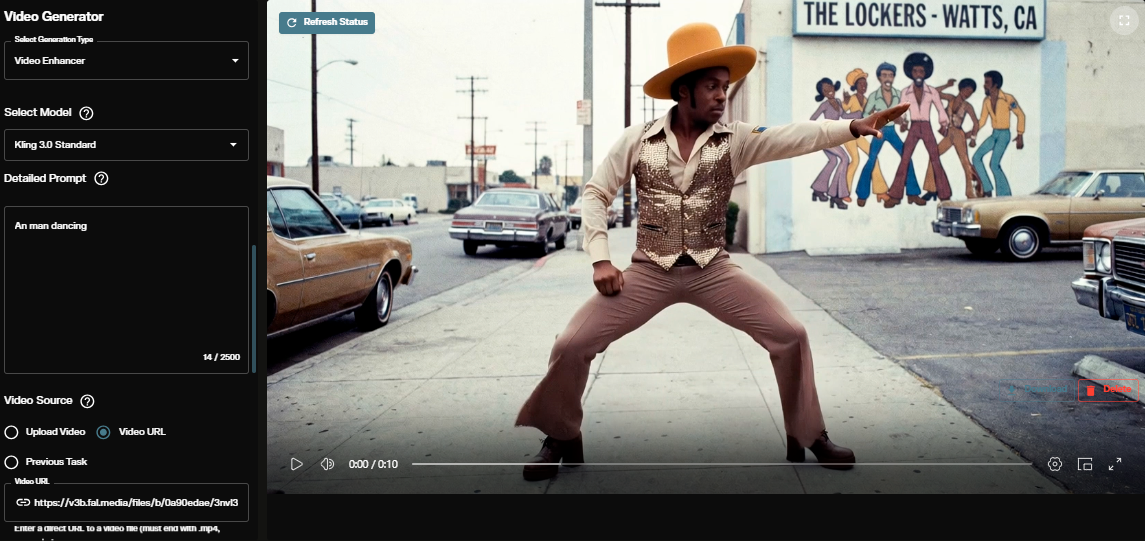
Upscaling the output. After generation, route LongCat's video output through a Video Enhancer node using Real-ESRGAN or Topaz to increase resolution before final use. The video upscaler page lists the target resolutions each upscaling model reaches.
Motion control. For precise character motion transfer rather than prompt driven generation, Kling 3.0 Motion Control lets you drive a new character with body movements and facial expressions extracted from a reference video.
Sources
LongCat Video Project Page: Meituan
https://meituan-longcat.github.io/LongCat-Video/
GitHub Repository: meituan-longcat/LongCat-Video
https://github.com/meituan-longcat/LongCat-Video
Technical Paper: arXiv (linked from project page)
https://meituan-longcat.github.io/LongCat-Video/
LongCat Video Avatar: Meigen AI
https://meigen-ai.github.io/LongCat-Video-Avatar/
Continue Reading
.jpg?w=3840)


Video & LipSync
- Video Generator
- Text to Video
- Image to Video
- Start-End Frame to Video
- Draw to Video
- Motion Control
- Video Enhancer
- Video Upscaler
- Video Extend
- Video to Video LipSync
- Audio to Video LipSync
- Image to Video LipSync
- Video FaceSwap
- Seedance 2.5
- WAN 3.0
- Seedance 2
- FLUX 3
- Minimax H3
- Vidu Q3 Pro
- Grok Imagine Video 1.5
- Gemini Omni
- Google Veo 3.1
- Kling 3.0 Pro
- Luma Ray 3.2
- LTX 2.3
- Happy Horse 1.1
- Kling 3.0 Motion
- ByteDance Upscaler
- InfiniteTalk
- InsightFace
Image & Edit
- AI Character
- AI Actor
- Art Generator
- Text to Image
- Image to Image
- LoRA Image to Image
- Draw to Edit
- Image LoRA Training
- Remove Background
- Image Enhancer
- MidJourney 8.0
- Krea 2
- OpenAI GPT Image 2.0
- Nano Banana Pro Ultra
- Nano Banana 2 Lite
- Nano Banana Pro
- Minimax Image
- Clarity Pro
- Z-Image Turbo LoRA
- Krea 2 Turbo LoRA
- Z-Image LoRA Trainer
- Qwen Image LoRA Trainer
- Background Erase Network 2 (BEN2)