

OpenMOSS Team (Apache 2.0)
Share this post:
MOSS-Image: Open Source Layout Control Image AI
A film frame often carries text. Title cards, shop signs, phone screens, newspaper inserts and posters all need readable letters. Most image models still break letters when the text gets long. MOSS-Image is a 5B open weights model from the OpenMOSS Team that targets this problem. It was released on 2026-10-16 with a technical report (arXiv:2610.23374).
Studio availability. MOSS-Image is not available in AI FILMS Studio. These are open weights for local deployment. To generate images in the cloud, use the text to image page or the image workspace.
What MOSS-Image Is
MOSS-Image uses a single stream diffusion transformer with 5B parameters. The team trained it from scratch. It comes in two checkpoints on Hugging Face, OpenMOSS-Team/MOSS-Image-Base and OpenMOSS-Team/MOSS-Image-SFT.
The system has a second part. An intent aware prompt enhancement module turns a short request into a detailed description of content and layout. The authors report two results.
- LongLongTextBench. MOSS-Image reaches 96.3% average text coverage on long English and Chinese text. The authors call this the best result among open weights models.
- RealLayoutArena. The full system ranks second in the end to end comparison. The backbone ranks first among generators that use the same enhanced prompts.
The pipeline code uses the Apache 2.0 license, and the model card lists Apache 2.0. The model accepts prompts up to 4K tokens. That is long enough for a full poster brief with every line of text spelled out.
Layout Control for Blocking and Set Dressing
The model takes a JSON layout next to the text prompt. The layout has a summary caption and a list of items. Each item has a label, a caption, optional text and a bounding box. The box uses yxyx order in pixel coordinates measured from the canvas center. The box coordinates must match the output width and height.
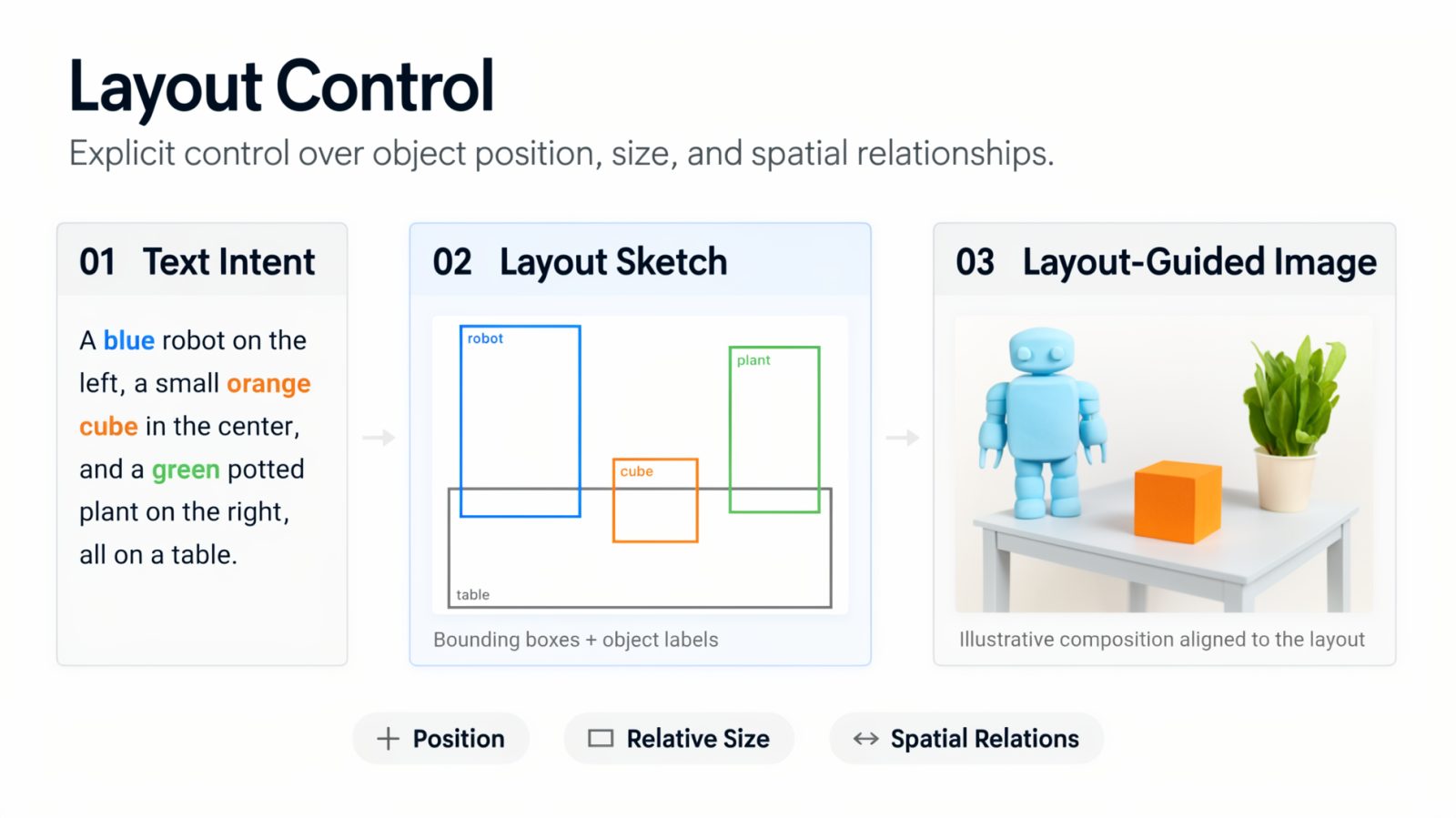
Layout control showcase. Credit: OpenMOSS Team, Apache 2.0.
A director can place the key object, the sign and the character in exact spots. The model then fills in the picture around those boxes. This matches how a production designer plans a set. You decide where the sign goes before you decide what it says.
Use the same layout for several shots of one location. The sign stays in the same place, so shots cut together cleanly.
Base and SFT Checkpoints
The Base checkpoint is the raw pretrained model. The SFT checkpoint is tuned for cleaner finished images. Compare both on your own prompts before you commit to one.
The comparison image on the right puts Base on the left and SFT on the right for one prompt. Look at skin texture, small text and edge detail. Choose Base when you plan to fine tune. Choose SFT when you want finished frames at once.
A third party trainer called KohakuMossTrainer supports adapter training on as little as 6 GB of VRAM. This is a community project, so test it before you rely on it.
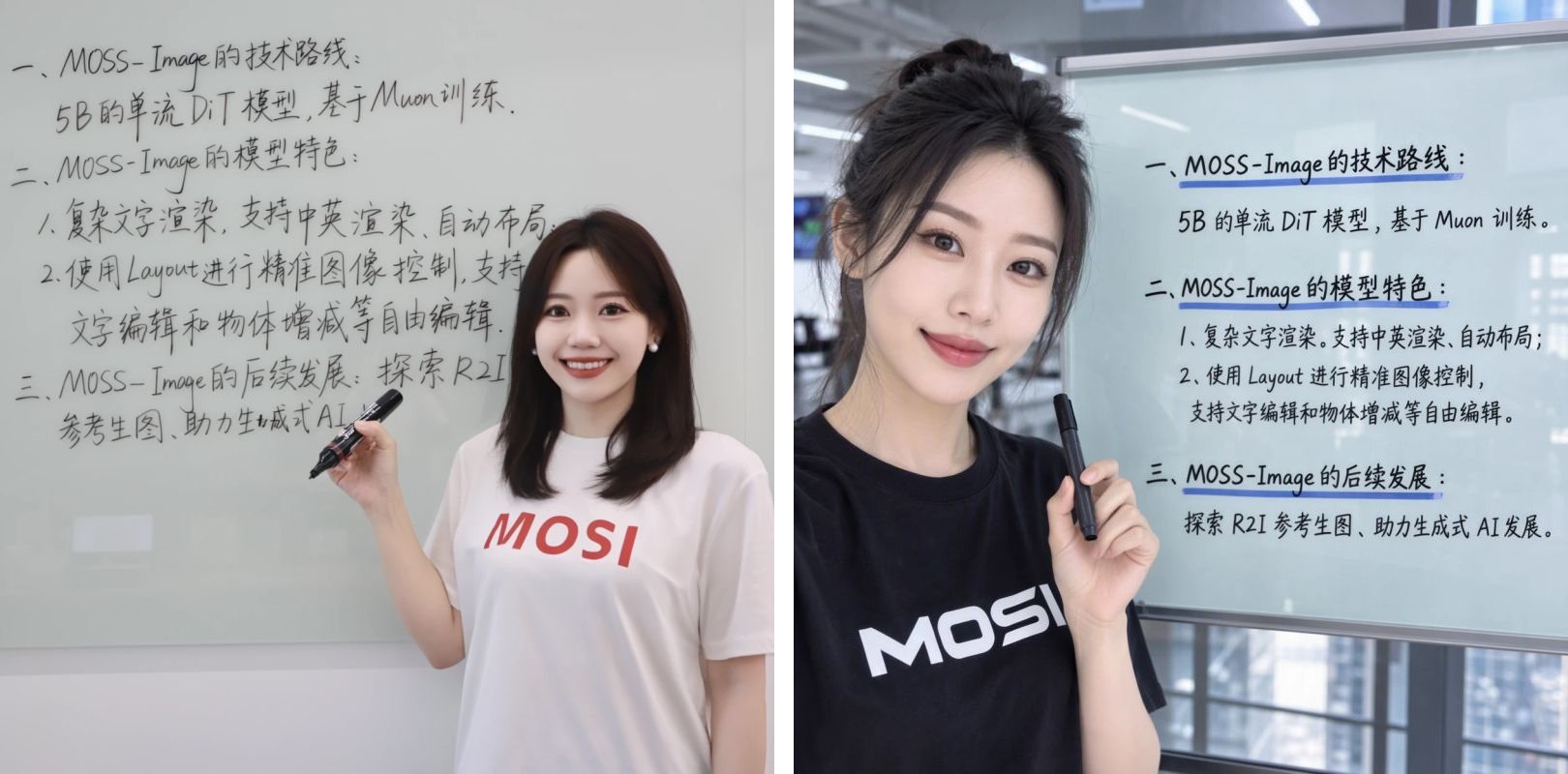
Base (left) and SFT (right). Credit: OpenMOSS Team, Apache 2.0.
Run MOSS-Image Locally
The repository ships a custom diffusers pipeline. The README gives these defaults. The sampler is flow matching Euler with 50 steps, guidance scale 3, shift 5 and layer skipping at layer 22 for the negative branch.
import torch
from diffusers import DiffusionPipeline

pipe = DiffusionPipeline.from_pretrained(
    "OpenMOSS-Team/MOSS-Image-Base",
    custom_pipeline="pipeline_moss_image",
    trust_remote_code=True,
    torch_dtype={"default": torch.bfloat16, "vae": torch.float32},
)
pipe.scheduler = type(pipe.scheduler).from_config(pipe.scheduler.config)
pipe.to("cuda")

image = pipe(
    "A rain soaked street at night. A neon sign above a noodle shop reads 'MIDNIGHT NOODLES' in clear red letters.",
    height=1456,
    width=1456,
    num_inference_steps=50,
    guidance_scale=3.0,
    uncond_skip_layers=[22],
    generator=torch.Generator("cpu").manual_seed(42),
).images[0]
image.save("noodle_shop_sign.png")
Clone OpenMOSS/MOSS-Image and run pip install -r requirements.txt first. For a browser interface, install the UI extra with pip install -e '.[ui]' and run python gradio_app.py --model OpenMOSS-Team/MOSS-Image-Base. You can try the model without a GPU in the public Hugging Face Space.
Hardware, Variants and License
The README gives no VRAM figure for inference. It offers three memory modes instead. If the GPU runs out of memory, switch to a lower mode or use a smaller image size.
| Item | Detail |
|---|---|
| Parameters | 5B single stream DiT |
| Checkpoints | MOSS-Image-Base, MOSS-Image-SFT |
| Memory modes | GPU resident, Component, Sequential (lowest memory, slowest) |
| Example size | 1456x1456 at 50 steps |
| Prompt length | Up to 4K tokens |
| Hardware | NVIDIA GPU with CUDA |
| License | Apache 2.0 |
Film Uses
- Title cards and posters. Spell out the full credit block in the prompt and check every line.
- Practical signage. Generate shop signs, street names and notices in English and Chinese for one location.
- Screen inserts. Create phone screens, newspaper pages and interface mockups that actors look at.
- Storyboard panels with lettering. Add captions and sound effect text without a separate design pass.
Image Generation in AI FILMS Studio
MOSS-Image runs outside the Studio. For cloud image work, the text to image page lists the live models. Examples include HiDream O1 Text to Image, Krea 2 Large, Seedream 5.0 Pro and GPT Image 2 Text to Image. Open the image workspace to compare them.
Related guides cover other open weights image models for look development. Read Z-Image and ERNIE-Image for concept art, HiDream O1 pixel native generation and Krea 2 Raw and Turbo.
Sources
MOSS-Image Technical Report (arXiv:2610.23374) | MOSS-Image GitHub (OpenMOSS/MOSS-Image) | OpenMOSS-Team/MOSS-Image-Base Hugging Face | OpenMOSS-Team/MOSS-Image-SFT Hugging Face
Continue Reading


Video & LipSync
- Video Generator
- Text to Video
- Image to Video
- Start-End Frame to Video
- Draw to Video
- Motion Control
- Video Enhancer
- Video Upscaler
- Video Extend
- Video to Video LipSync
- Audio to Video LipSync
- Image to Video LipSync
- Video FaceSwap
- Seedance 2.5
- WAN 3.0
- Seedance 2
- FLUX 3
- Minimax H3
- Vidu Q3 Pro
- Grok Imagine Video 1.5
- Gemini Omni
- Google Veo 3.1
- Kling 3.0 Pro
- Luma Ray 3.2
- LTX 2.3
- Happy Horse 1.1
- Kling 3.0 Motion
- ByteDance Upscaler
- InfiniteTalk
- InsightFace
Image & Edit
- AI Character
- AI Actor
- Art Generator
- Text to Image
- Image to Image
- LoRA Image to Image
- Draw to Edit
- Image LoRA Training
- Remove Background
- Image Enhancer
- MidJourney 8.0
- Krea 2
- OpenAI GPT Image 2.0
- Nano Banana Pro Ultra
- Nano Banana 2 Lite
- Nano Banana Pro
- Minimax Image
- Clarity Pro
- Z-Image Turbo LoRA
- Krea 2 Turbo LoRA
- Z-Image LoRA Trainer
- Qwen Image LoRA Trainer
- Background Erase Network 2 (BEN2)