
Seedance 2.0 Mini Tutorial: Text to Video and Image to Video

Share this post:
Seedance 2.0 Mini Tutorial: Text to Video and Image to Video
Seedance 2.0 Mini by ByteDance is now available on AI FILMS Studio. It is the faster, lower cost tier in the Seedance 2.0 lineup, built for daily production needs where speed and credit efficiency matter as much as output quality. Its resolution ceiling differs by generation type, reaching 4K in the image to video generator while stopping at 1080p in text to video.
What Is Seedance 2.0 Mini
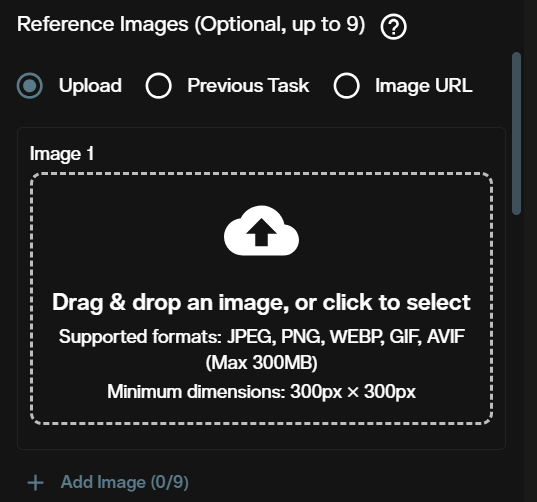
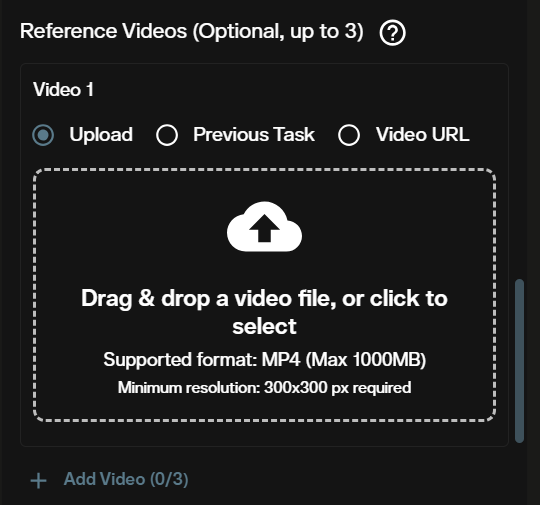
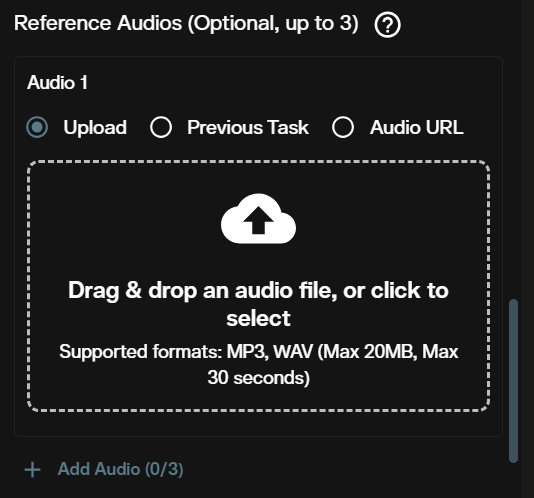
Seedance 2.0 Mini generates cinematic video with multiple shots from text prompts and reference media. It accepts multimodal input: you can combine a text prompt with up to 9 reference images, 3 reference videos, and 3 reference audio tracks to guide the composition, motion, and sound of the output. The model generates native audio synchronized to video motion when the toggle is on.
Three variants of Seedance 2.0 are available on AI FILMS Studio. Mini sits at the entry point, optimized for speed and cost at multiple resolution tiers.
| Variant | Resolutions | Duration | Best For |
|---|---|---|---|
| Mini | 480p, 720p, 1080p | 4–15 seconds | Drafts, iteration, daily production |
| Standard | 720p | 5, 10, or 15 seconds | Standard quality output |
| 1080 VIP | 1080p | 4–15 seconds | Finals, VIP priority routing |
For a comparison of the full Seedance 2.0 lineup, see the Seedance 2.0 standard tutorial and the Seedance 2.0 1080 VIP tutorial.
Text to Video
Step 1: Open the video workspace and select the generation type
Go to AI FILMS Studio. In the Video Generator panel, open the Select Generation Type dropdown and choose Text to Video. The text to video generator page documents every field in that form, and the AI video generator overview covers the other five generation types in the dropdown.
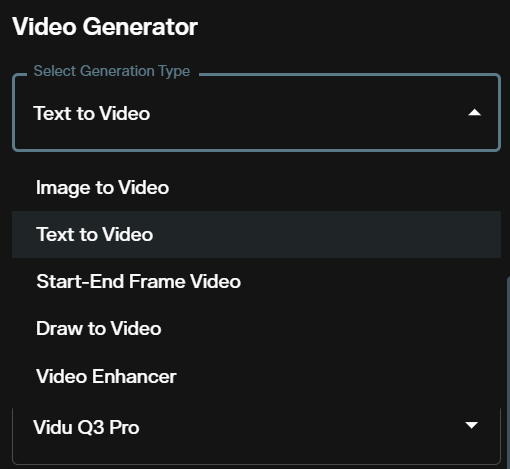
Step 2: Select Seedance 2.0 Mini
Open the Select Model dropdown and choose Seedance 2.0 Mini. The dropdown shows the resolution range and duration presets for each model, letting you compare options before selecting.
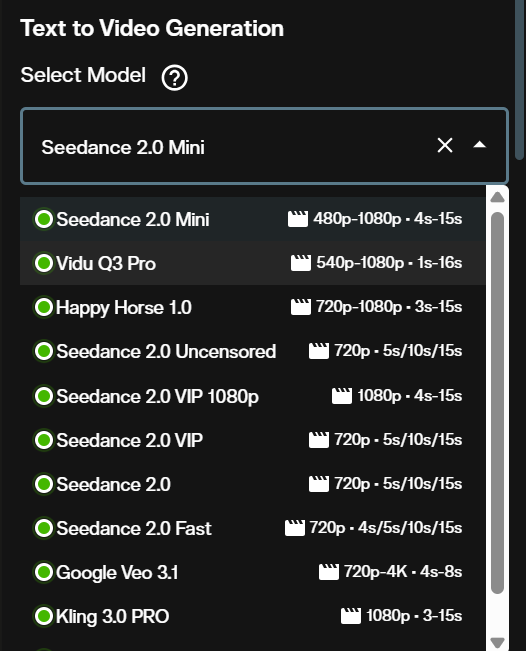
Step 3: Write your prompt
The Detailed Prompt field accepts up to 2,500 characters. Describe the scene, motion, camera movement, lighting, and mood. Specific camera direction produces more consistent results: "a slow crane rising above the rooftops" gives the model clearer guidance than "camera moves up."
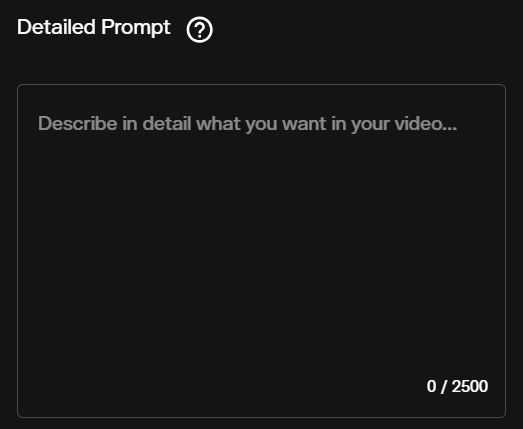
Step 4: Select aspect ratio
Six aspect ratios are available: 21:9 (Ultra wide), 16:9 (Landscape), 4:3 (Standard), 1:1 (Square), 3:4 (Portrait), and 9:16 (Portrait). Select the format that matches your target platform or distribution channel.
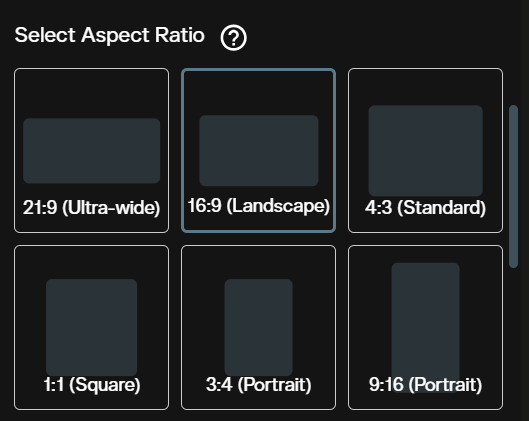
Step 5: Add reference media (optional)
Seedance 2.0 Mini accepts three types of reference input alongside the text prompt. All three are optional and can be combined.
Reference Images: Upload up to 9 images (JPEG, PNG, WEBP, GIF, AVIF, max 300 MB each, minimum 300×300 px). You can also pull from a Previous Task or paste an Image URL. Use reference images to anchor characters, visual styles, or compositions across the output.
Reference Videos: Upload up to 3 video clips (MP4, max 1,000 MB). Use reference videos to guide motion patterns and camera behavior.
Reference Audios: Upload up to 3 audio files (MP3 or WAV, max 20 MB and max 30 seconds each). Use reference audio to guide the tone and texture of the model's native audio output.
Step 6: Choose resolution and duration
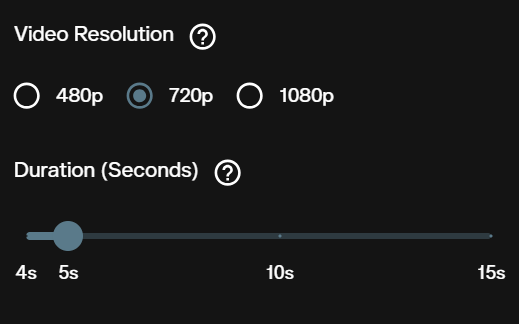
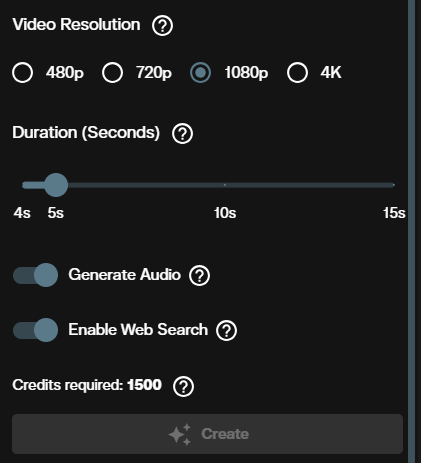
Select 480p, 720p, or 1080p. Use 480p to quickly validate scene layout and motion before committing to a higher resolution. Use 720p as the standard production setting. Use 1080p for final deliverables.
Set the duration using the slider. Any integer from 4 to 15 seconds is accepted. Start at 5 seconds when testing a new prompt.
Step 7: Set the optional controls
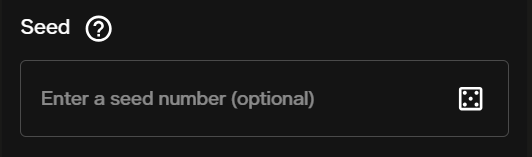
Seed: Enter a number to lock the generation to a specific state. This reproduces consistent results across runs or lets you run controlled variations on the same prompt.
Generate Audio: Toggle on to include a native audio track synchronized to the video. The model generates sound based on what it infers from the prompt and visual content. Toggle off when you plan to add your own audio in post.

Enable Web Search: Toggle on to let the model retrieve current context before generating. This helps with prompts referencing specific real world locations, recent events, or subjects that benefit from fresh data.

Step 8: Review the credit cost and generate
The credit cost appears before you submit. Confirm the resolution and duration are correct before clicking Create.

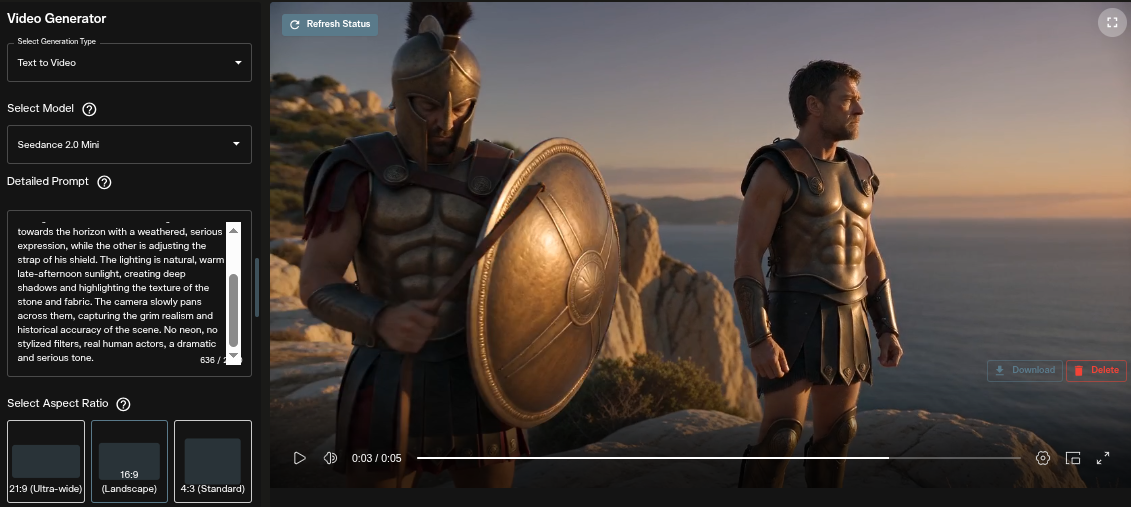
Image to Video
Image-to-video animates a reference image into a video clip. The model preserves the subject identity and composition of the source image while applying the motion and camera behavior described in your prompt.
Step 1: Select Image to Video and the model
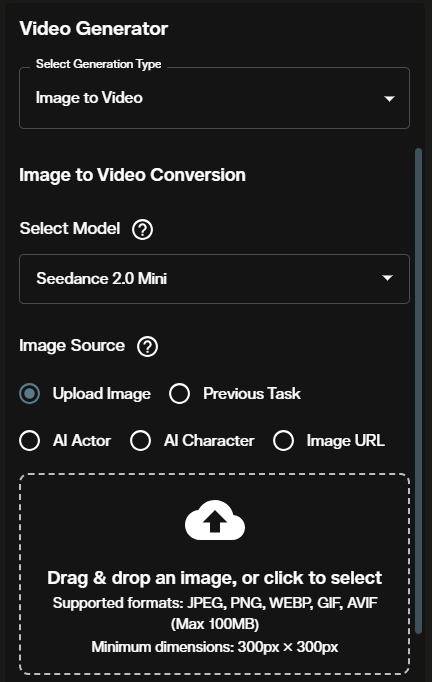
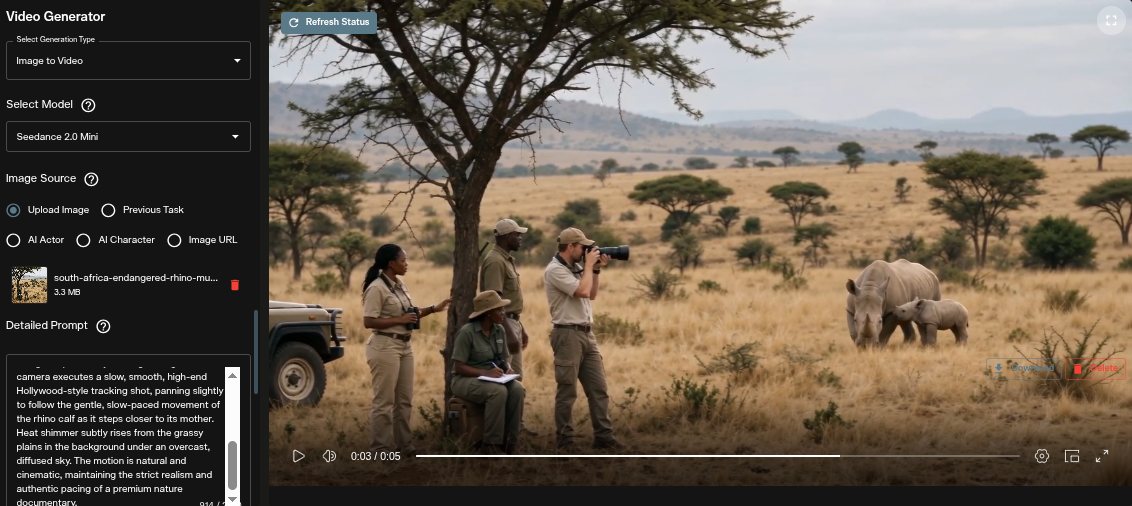
Open the video workspace, set the generation type to Image to Video, then select Seedance 2.0 Mini from the model dropdown. Choose your image source: Upload Image, Previous Task, AI Actor, AI Character, or Image URL.
Step 2: Write your prompt and select aspect ratio
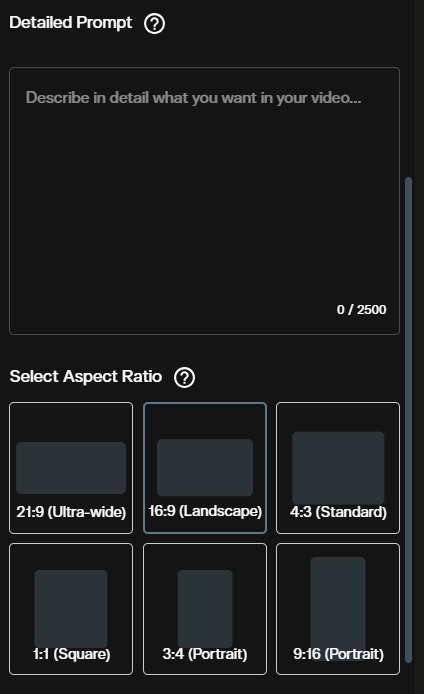
Describe the motion and change. The model preserves what is already in your image, so your prompt should describe what happens, not what the subject looks like. "The figure turns and walks toward the horizon as wind moves through the wheat field" gives the model clear motion direction.
The same six aspect ratios are available. If you leave the aspect ratio unset, the output matches the native dimensions of your uploaded image.
Step 3: Choose resolution, duration, and audio settings
Image-to-video supports four resolution tiers: 480p, 720p, 1080p, and 4K. The 4K tier is available for image-to-video only and not in the text-to-video flow. Set duration with the same 4 to 15 second slider. Generate Audio and Enable Web Search work the same way as in text-to-video.
The credit cost updates in real time as you change settings. Click Create to submit.
Start-End Frame Video
The video workspace also offers a Start-End Frame Video generation type. Select it from the generation type dropdown, then upload a first frame and a last frame. Seedance 2.0 Mini interpolates the scene between both images, producing a clip that opens on the first frame and closes on the last. This mode is useful for generating precise transitions or connecting two moments planned in advance within a sequence.
Using Seedance 2.0 Mini in the Nodes Graph
Both generation modes are available as nodes in the Nodes Graph Editor.
Text-to-video in nodes: Connect a Prompt node to a Text to Video node set to Seedance 2.0 Mini, then wire the output to a Video Viewer or Result node.
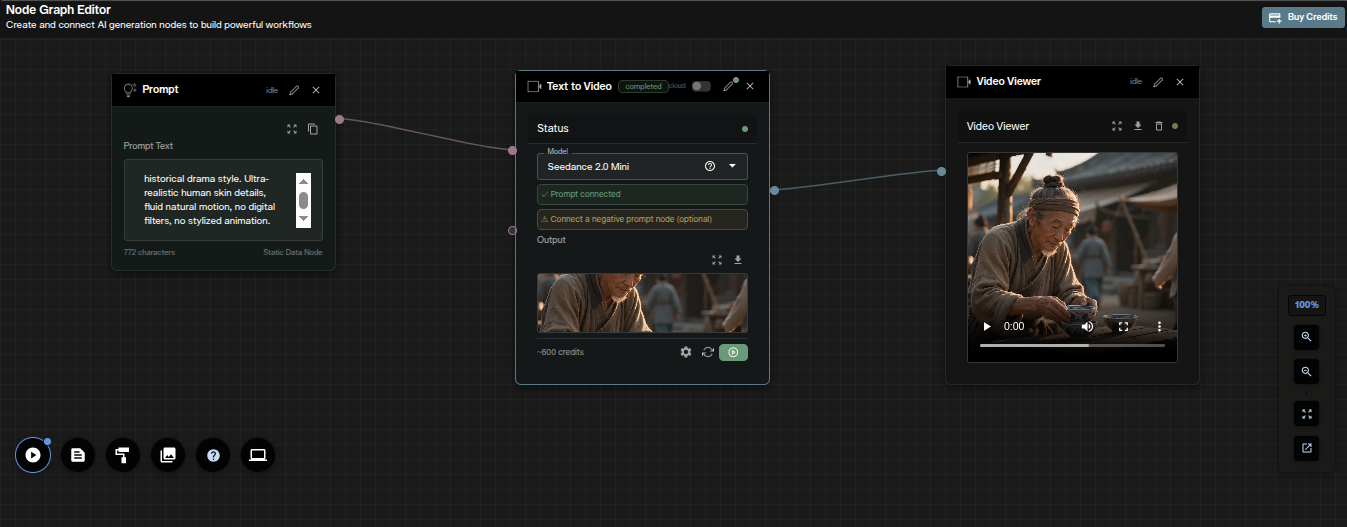
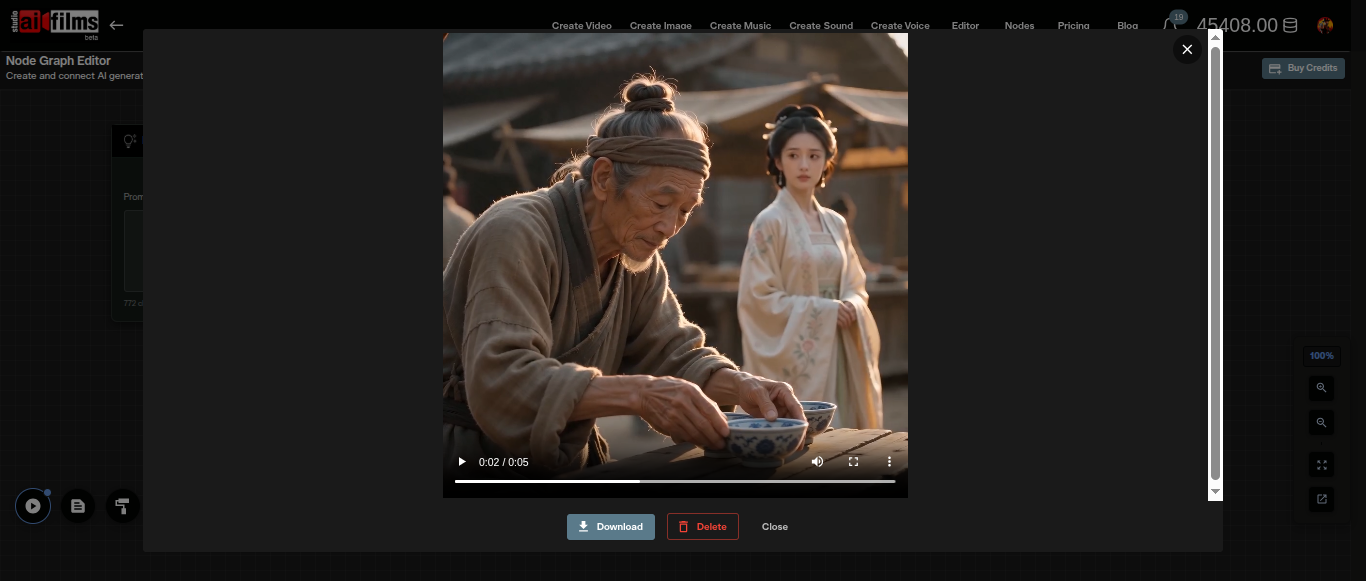
Image-to-video in nodes: Connect an Image from Task node and a Prompt node to an Image to Video node set to Seedance 2.0 Mini, then wire the output to a Video Viewer or Result node.
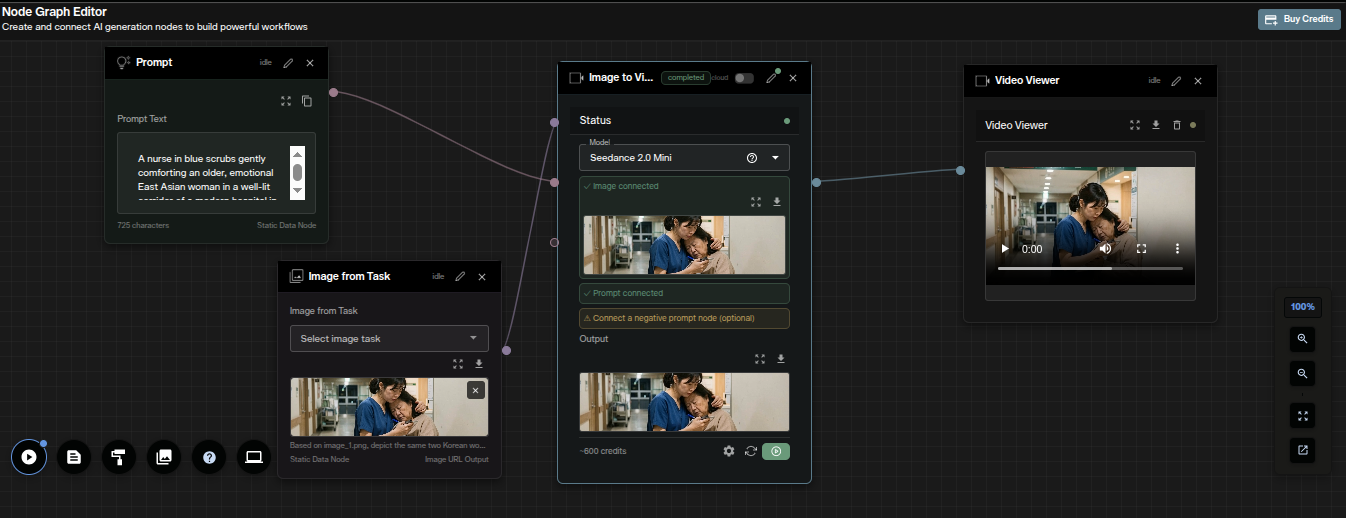
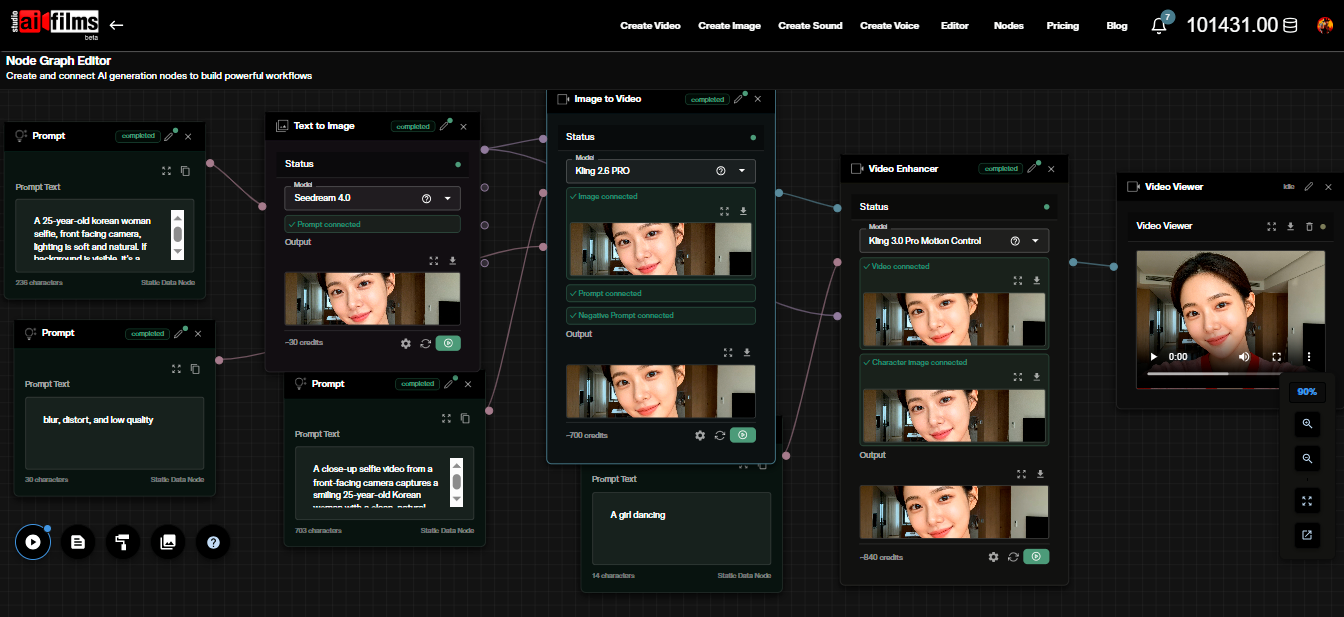
Node pipelines let you chain Seedance 2.0 Mini with image generation, audio, or enhancement nodes for automated multistep workflows.
Credit Costs
Credit cost scales with resolution and duration. Text-to-video supports 480p, 720p, and 1080p. Image-to-video adds a 4K tier.
Text to Video
| Resolution | 4 seconds | 5 seconds | 10 seconds | 15 seconds |
|---|---|---|---|---|
| 480p | 240 credits | 300 credits | 600 credits | 900 credits |
| 720p | 480 credits | 600 credits | 1,200 credits | 1,800 credits |
| 1080p | 1,200 credits | 1,500 credits | 3,000 credits | 4,500 credits |
Image to Video
| Resolution | 4 seconds | 5 seconds | 10 seconds | 15 seconds |
|---|---|---|---|---|
| 480p | 240 credits | 300 credits | 600 credits | 900 credits |
| 720p | 480 credits | 600 credits | 1,200 credits | 1,800 credits |
| 1080p | 1,200 credits | 1,500 credits | 3,000 credits | 4,500 credits |
| 4K | 2,400 credits | 3,000 credits | 6,000 credits | 9,000 credits |
Use 480p to validate prompt composition and motion direction. Switch to 720p for standard deliverables. Use 1080p or 4K for final production output. Credits for failed generations are refunded automatically. For subscription and credit details, visit the AI FILMS Studio pricing page.
For detailed prompt guidance, camera control techniques, and multi image reference workflows, all the core principles carry over from the Seedance 2.0 standard tutorial.
Mini keeps the three reference sections and stops at 15 seconds. The newer model raises that ceiling to 30 seconds in a single pass and widens the reference capacity to 50 assets.
Sources
ByteDance Seed
Continue Reading
.jpg?w=3840)


Video & LipSync
- Video Generator
- Text to Video
- Image to Video
- Start-End Frame to Video
- Draw to Video
- Motion Control
- Video Enhancer
- Video Upscaler
- Video Extend
- Video to Video LipSync
- Audio to Video LipSync
- Image to Video LipSync
- Video FaceSwap
- Seedance 2.5
- WAN 3.0
- Seedance 2
- FLUX 3
- Minimax H3
- Vidu Q3 Pro
- Grok Imagine Video 1.5
- Gemini Omni
- Google Veo 3.1
- Kling 3.0 Pro
- Luma Ray 3.2
- LTX 2.3
- Happy Horse 1.1
- Kling 3.0 Motion
- ByteDance Upscaler
- InfiniteTalk
- InsightFace
Image & Edit
- AI Character
- AI Actor
- Art Generator
- Text to Image
- Image to Image
- LoRA Image to Image
- Draw to Edit
- Image LoRA Training
- Remove Background
- Image Enhancer
- MidJourney 8.0
- Krea 2
- OpenAI GPT Image 2.0
- Nano Banana Pro Ultra
- Nano Banana 2 Lite
- Nano Banana Pro
- Minimax Image
- Clarity Pro
- Z-Image Turbo LoRA
- Krea 2 Turbo LoRA
- Z-Image LoRA Trainer
- Qwen Image LoRA Trainer
- Background Erase Network 2 (BEN2)