
BEN2 Background Remover Tutorial: Remove Image Backgrounds on AI FILMS Studio

Share this post:
BEN2 Background Remover Tutorial: Remove Image Backgrounds on AI FILMS Studio
BEN2 (Bilateral Edge Network 2) is now available on AI FILMS Studio via the Image Enhancer workspace. It removes the background from any photograph or generated image in a single step, outputting a transparent PNG with clean edges preserved along hair strands, fabric, and fine object boundaries. The background remover page explains where the model holds up and where source contrast starts to limit the result.
What BEN2 Does
BEN2 uses bilateral edge detection to isolate the foreground subject automatically. There are no masks to draw, no threshold sliders to calibrate, and no parameters to tune. Upload an image, click Generate, and receive a cutout ready for compositing.
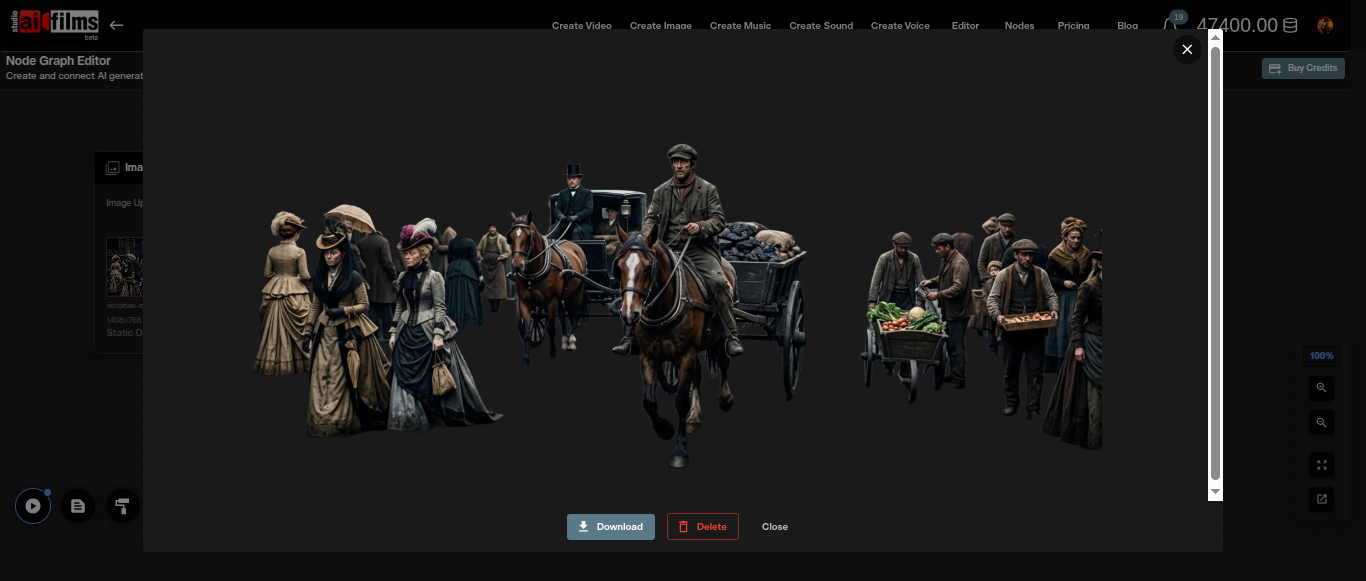
The output format is PNG with a full alpha channel. Every pixel carries a transparency value: the subject is fully opaque, edges carry partial transparency where detail requires it, and the background is fully transparent. This is the format compositing tools, video editors, and image-to-video workflows expect.
BEN2 costs 10 credits per image.
Using BEN2 in the Image Workspace
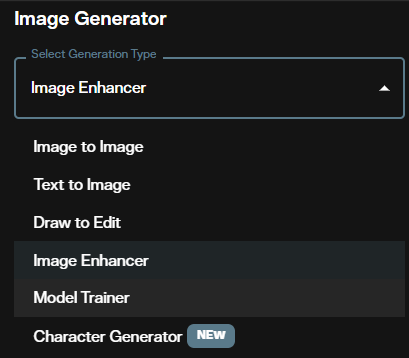
Step 1: Open the Image Workspace and Select Image Enhancer
Go to AI FILMS Studio. In the generation type dropdown, select Image Enhancer. The AI image generator overview covers all seven generation types in that dropdown, and the image upscaler is the other tool living under Image Enhancer.
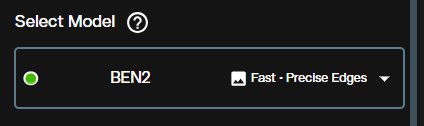
Step 2: Select BEN2
In the model selector, choose BEN2. This sets the Image Enhancer to background removal mode.
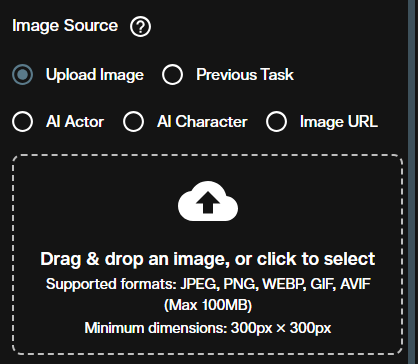
Step 3: Upload or Select Your Source Image
Choose your image source. Options include Upload Image, Previous Task, and Image URL. Upload a photo or paste the URL of a previously generated image.
BEN2 handles photographic subjects, AI generated characters, product shots, and illustrations. Subjects with distinct contrast against the background produce the cleanest edges. For images with complex textures at the boundary (fur, curly hair, fine fabric threads), higher resolution source images improve edge accuracy.
Step 4: Set a Seed (Optional)
Enter a seed value to make the output reproducible across runs. Leave it empty for a fresh extraction on each generation.

Step 5: Generate and Download
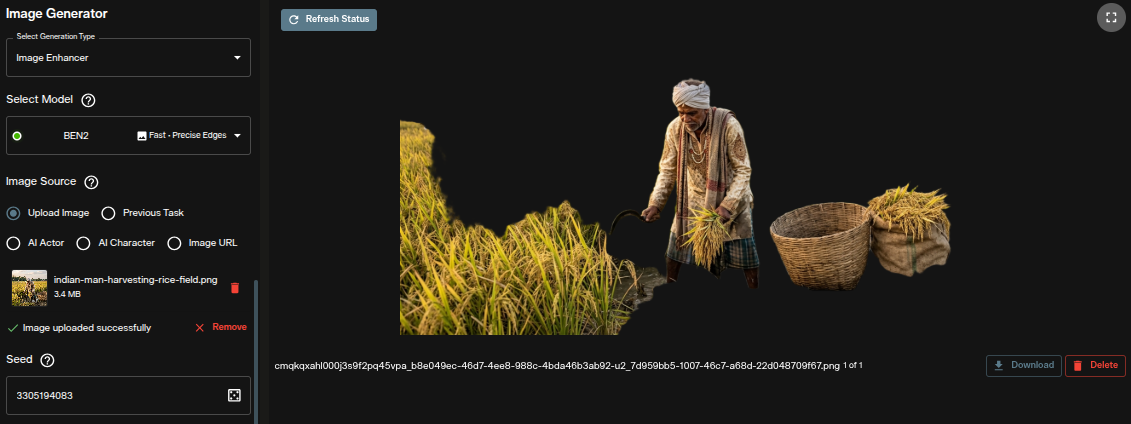
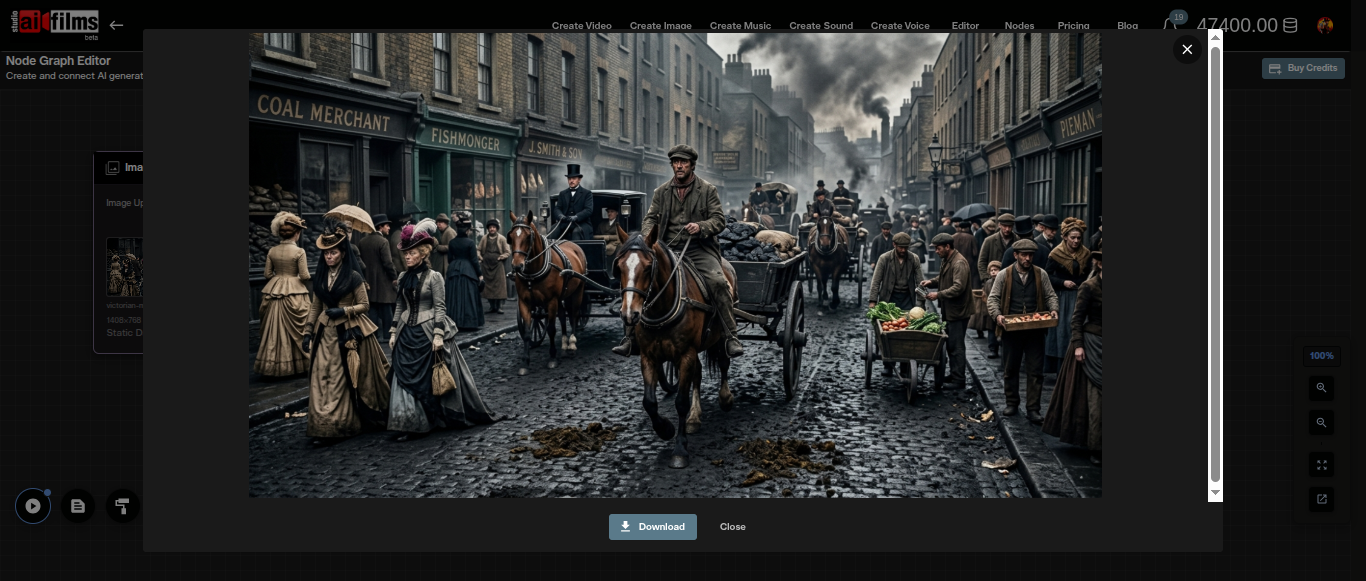
Click Generate. The output appears as a transparent PNG in the workspace. Download it directly or send it to the next step in a pipeline.
Using BEN2 in the Nodes Graph
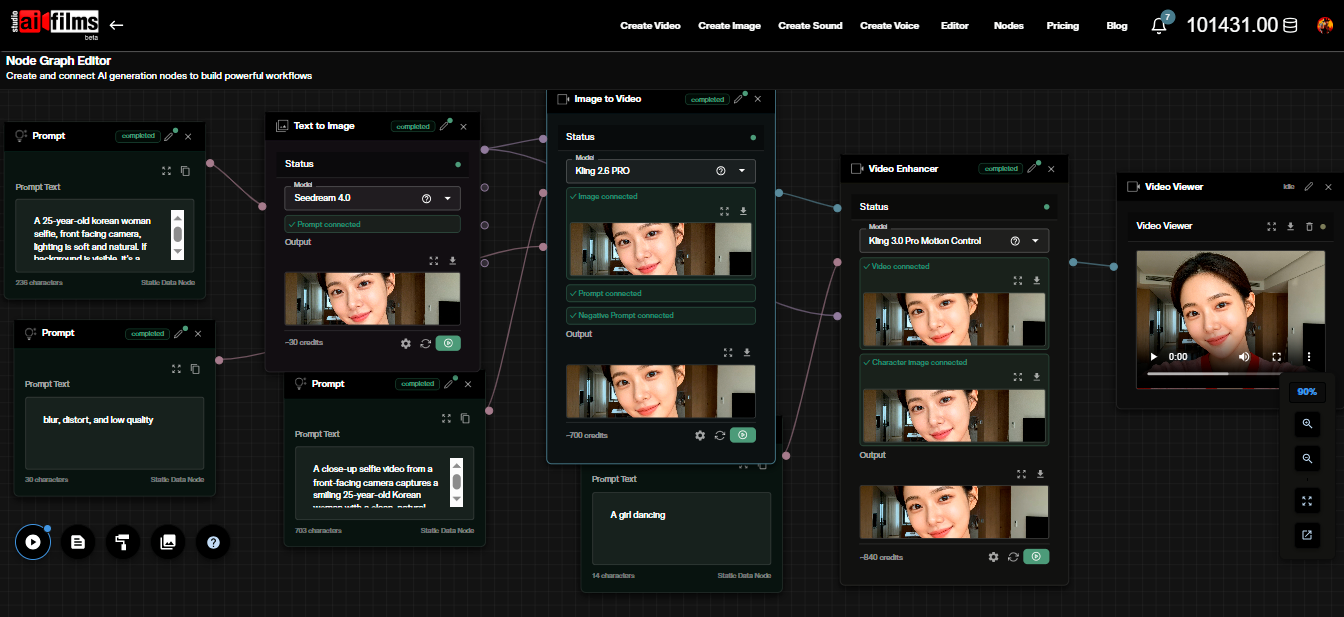
BEN2 is available as an Image Enhancer node in the AI FILMS Studio Nodes Graph Editor. This lets you wire background removal directly into a pipeline without switching workspaces.
Connect an Image from Task node or Image Upload node to the BEN2 Image Enhancer node. The node outputs the transparent PNG, which you can pass to a Result node or chain into further processing steps.
Pipeline Example: Generate, Remove Background, Animate
A practical node pipeline for filmmakers:
- Text to Image node (FLUX.2 Pro or Seedream 5.0 Pro) generates a character or subject still
- BEN2 Image Enhancer node removes the background, producing a transparent PNG
- Image to Video node (Seedance 2.0 Mini or Kling) animates the cutout against a new background described in the prompt
This produces an animated subject composited into a different environment without any manual masking. The FLUX 2 tutorial covers the image generation step in detail.
Credit Cost
Each background removal request costs 10 credits, regardless of image resolution or subject complexity.
| Task | Credits |
|---|---|
| Background removal (per image) | 10 credits |
Credits for failed generations are refunded automatically. For subscription and credit details, visit the pricing page.
When to Use BEN2 vs MatAnyone 2
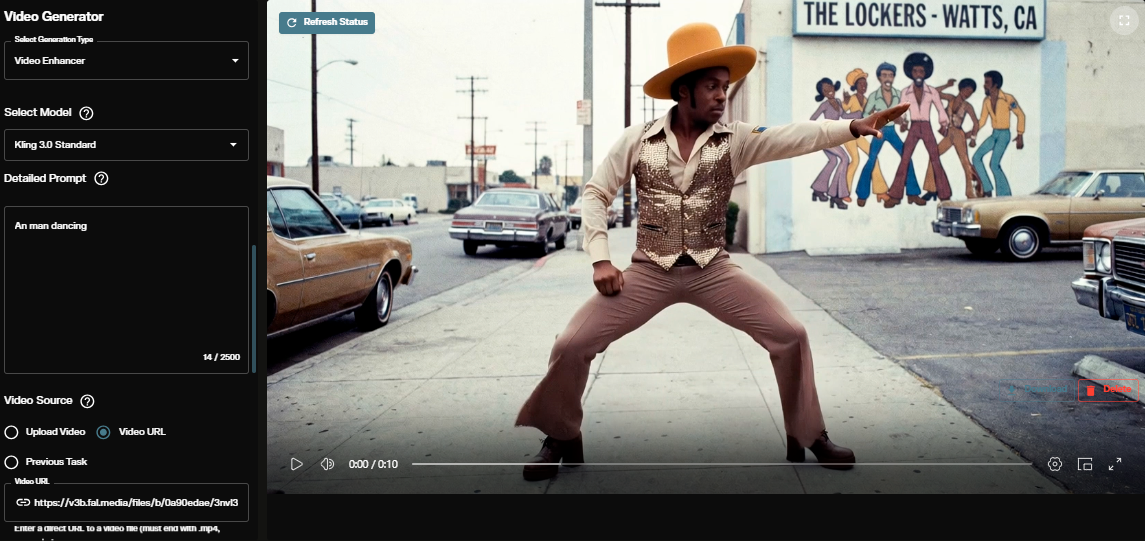
BEN2 removes backgrounds from still images and individual frames. MatAnyone 2 extracts foreground subjects from video sequences with pixel level alpha mattes, processing each frame in the temporal context of the full clip. Use BEN2 for single images, reference frames, and production stills. Use MatAnyone 2 when the source material is a video clip and temporal consistency across frames matters.
Sources
AI FILMS Studio
Continue Reading
.jpg?w=3840)


Video & LipSync
- Video Generator
- Text to Video
- Image to Video
- Start-End Frame to Video
- Draw to Video
- Motion Control
- Video Enhancer
- Video Upscaler
- Video Extend
- Video to Video LipSync
- Audio to Video LipSync
- Image to Video LipSync
- Video FaceSwap
- Seedance 2.5
- WAN 3.0
- Seedance 2
- FLUX 3
- Minimax H3
- Vidu Q3 Pro
- Grok Imagine Video 1.5
- Gemini Omni
- Google Veo 3.1
- Kling 3.0 Pro
- Luma Ray 3.2
- LTX 2.3
- Happy Horse 1.1
- Kling 3.0 Motion
- ByteDance Upscaler
- InfiniteTalk
- InsightFace
Image & Edit
- AI Character
- AI Actor
- Art Generator
- Text to Image
- Image to Image
- LoRA Image to Image
- Draw to Edit
- Image LoRA Training
- Remove Background
- Image Enhancer
- MidJourney 8.0
- Krea 2
- OpenAI GPT Image 2.0
- Nano Banana Pro Ultra
- Nano Banana 2 Lite
- Nano Banana Pro
- Minimax Image
- Clarity Pro
- Z-Image Turbo LoRA
- Krea 2 Turbo LoRA
- Z-Image LoRA Trainer
- Qwen Image LoRA Trainer
- Background Erase Network 2 (BEN2)