
How to Use MiniMax Music 2.5 in AI FILMS Studio: Lyrics to Music Guide

Share this post:
How to Use MiniMax Music 2.5 in AI FILMS Studio: Lyrics to Music Guide
MiniMax Music 2.5 writes a complete song from a style description and a set of lyrics. It returns one mixed track with vocals and instrumentation together, rather than stems you assemble yourself. The model suits filmmakers who need an original song for a scene, a title sequence, or a trailer bed without clearing rights on a commercial recording.
This guide covers the model as it appears in the AI FILMS Studio music workspace and in the Nodes Graph Editor.
Where to Find It
Open the AI FILMS Studio music workspace or click Create Music in the top navigation. The lyrics to music generator page documents every control on this generation type side by side with the other model, and the AI music generator overview covers both routes into the workspace.
One point causes confusion. MiniMax Music 2.5 sits under Lyric to Music, not under Text to Music. The Text to Music generation type offers a different model. If you open the model picker and cannot find MiniMax Music 2.5, check the Select Generation Type dropdown first.
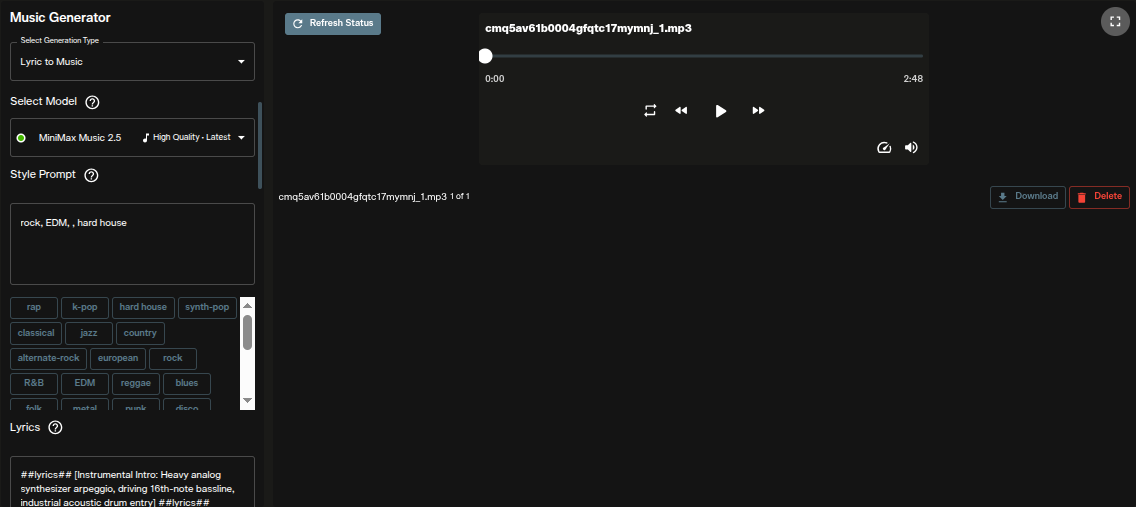
The Music Generator panel opens on the left. The generated track appears on the right with a player, a download button and a delete button.
Each run returns a single file. The example shown here runs 2 minutes 48 seconds.
Selecting the Model
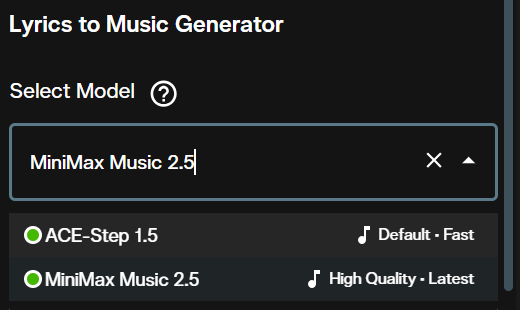
With Lyric to Music set, open Select Model. The picker is searchable and lists two options.
ACE-Step 1.5 carries the Default · Fast label. MiniMax Music 2.5 carries High Quality · Latest.
Choosing MiniMax Music 2.5 changes which controls appear below. The duration slider and seed field belong to ACE-Step 1.5 and disappear. Three audio output controls take their place.
Writing the Style Prompt
The Style Prompt field defines genre, mood and instrumentation. It accepts up to 3,000 characters, though short comma separated lists work better than paragraphs.
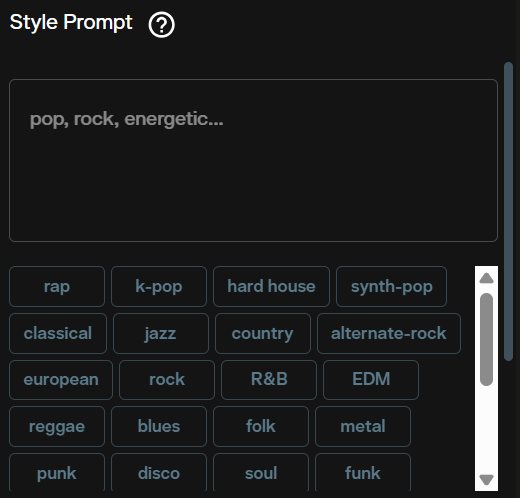
Below the field, a scrollable row of genre buttons appends tags without typing. The list covers rap, k-pop, hard house, synth-pop, classical, jazz, country, alternate-rock, european, rock, R&B, EDM, reggae, blues, folk, metal, punk, disco, soul and funk.
Clicking a button adds that tag to whatever is already in the field. Combining two or three buttons with your own instrument descriptors gives tighter control than either method alone.
A style prompt that names instruments and production character outperforms one that names only a genre. "rock" produces something generic. "sub bass 808s, driving mid tempo live drums, sweeping symphonic strings, dark melancholic atmospheric pads" tells the model what to build.
Writing the Lyrics
The Lyrics field is where MiniMax Music 2.5 differs most from a text to music model. It expects real lyrics, and the field is required. The counter caps at 3,000 characters.
Eight buttons sit under the field. Five insert structure markers at the cursor position. Intro, Verse, Chorus, Bridge and Outro each drop in a lowercase marker wrapped in square brackets, such as [verse].
The other three shape timing and arrangement. New Line inserts a single line break. Pause inserts a double line break, which reads as a rest. Accompaniment inserts a ## marker.
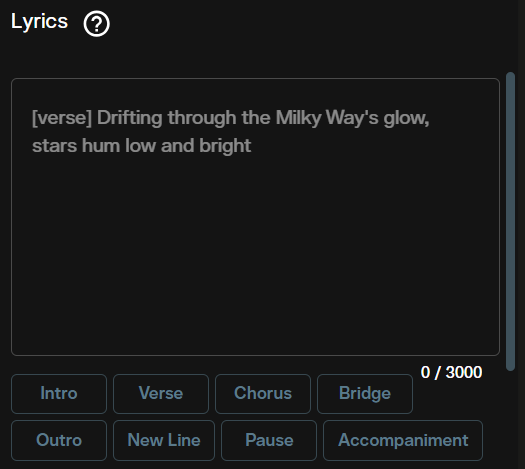
The ## markers work as a pair. Wrap a passage in ## on both sides and the model treats the text inside as an instrumental direction rather than words to sing. A working example looks like this:
##lyrics## [Instrumental Intro: Heavy analog synthesizer arpeggio,
driving 16th-note bassline, industrial acoustic drum entry] ##lyrics##

[verse]
The sun rises on the broken ground
Silence screams without a sound

[chorus]
I stand alone against the gale
Through the storm, I will prevail
Structure markers change the arrangement, not just the vocal delivery. A lyric sheet with a marked chorus produces a track that returns to a recognisable hook. The same words with no markers produce something flatter.
The Three Audio Output Controls
MiniMax Music 2.5 exposes three output settings that ACE-Step 1.5 does not. All three affect the file you download, not the composition.
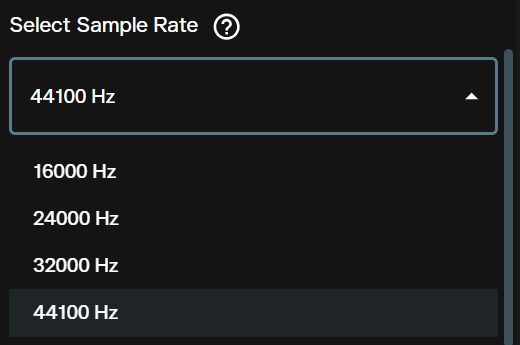
Select Sample Rate offers 16000 Hz, 24000 Hz, 32000 Hz and 44100 Hz. The default is 44100 Hz.
44100 Hz is the standard for CD audio and for most streaming delivery. It drops into a timeline in DaVinci Resolve, Pro Tools or Logic without conversion. The lower rates exist for speech style output and small file delivery.
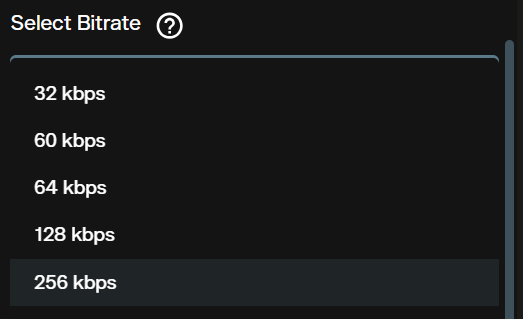
Select Bitrate offers 32 kbps, 60 kbps, 64 kbps, 128 kbps and 256 kbps. The default is 256 kbps.
Bitrate controls compression, so it changes file size and the amount of detail kept in the mix. For anything heading into an edit, stay at 256 kbps. The lower settings are for preview and reference use.
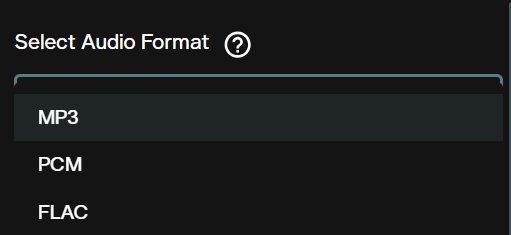
Select Audio Format offers MP3, PCM and FLAC. The default is MP3.
MP3 is compressed and opens anywhere. FLAC is lossless compression, so it keeps full quality at roughly half the size of raw audio. PCM is uncompressed and produces the largest files.
Parameter Reference
| Control | Values | Default | What it changes |
|---|---|---|---|
| Select Generation Type | Text to Music, Lyric to Music | Text to Music | Which models are available. MiniMax Music 2.5 needs Lyric to Music |
| Select Model | ACE-Step 1.5, MiniMax Music 2.5 | ACE-Step 1.5 | Which controls appear below |
| Style Prompt | Up to 3,000 characters | Empty | Genre, mood, instrumentation |
| Lyrics | Up to 3,000 characters, required | Empty | The words sung, plus structure and arrangement |
| Select Sample Rate | 16000, 24000, 32000, 44100 Hz | 44100 Hz | Frequency detail in the output file |
| Select Bitrate | 32, 60, 64, 128, 256 kbps | 256 kbps | Compression and file size |
| Select Audio Format | MP3, PCM, FLAC | MP3 | Container and compression type |
Each song generation costs 150 credits, and the figure appears in the form before you submit.
Running It in the Nodes Graph Editor
The Nodes Graph Editor exposes the same model through a node named Text To Music. The node name refers to the node family, and the model selector inside it still offers MiniMax Music 2.5.
A working graph runs three nodes. A Prompt node carries the style description. It connects to the Text To Music node, which holds the lyrics, bitrate and sample rate. That node feeds an Audio Viewer node for playback.
The settings panel on the right repeats the same lyric buttons as the workspace, so structure markers work identically. A second port accepts an optional negative prompt node for qualities you want kept out of the mix.
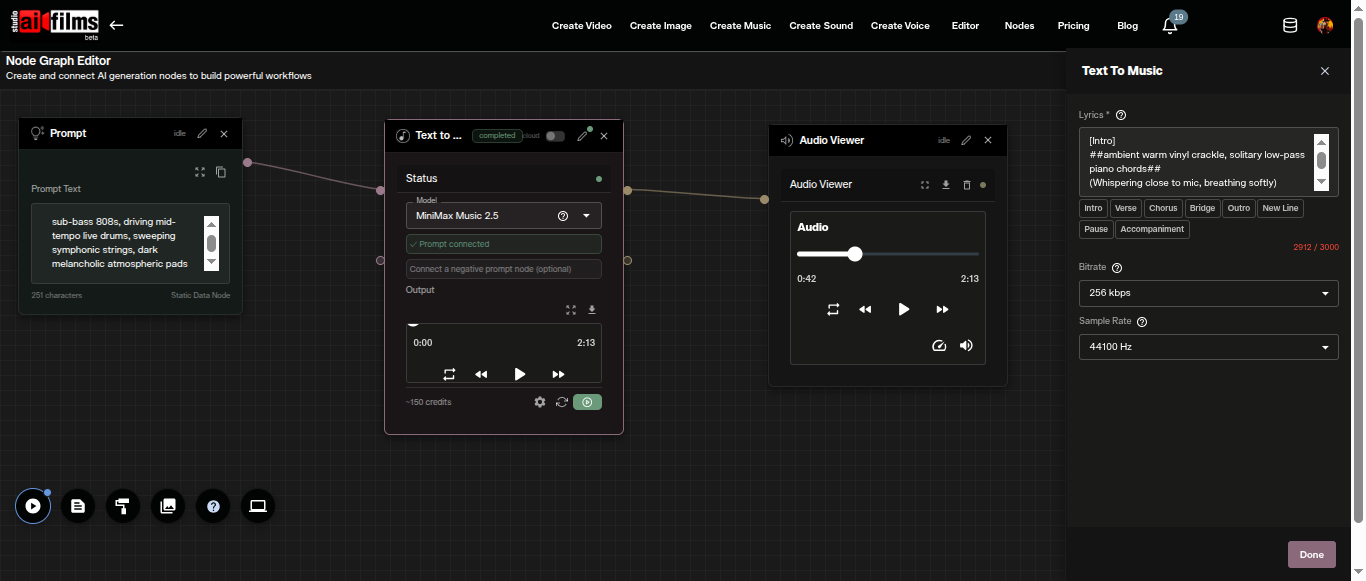
The node route is worth using when the song is one step in a longer chain. Generating a track and passing it straight into a lipsync or video node keeps the whole sequence in one graph.
Limitations
The lyrics field is required. MiniMax Music 2.5 will not produce an instrumental from an empty lyrics field. For an instrumental, either wrap the whole lyric in ## accompaniment markers or switch to a model that treats lyrics as optional.
There is no duration control. Track length follows from the lyrics and structure you supply. Longer lyric sheets with more marked sections produce longer tracks. If you need an exact runtime, generate and then trim in the editor.
There is no seed field. Two runs with identical settings will not return identical audio. Download anything you want to keep before running again.
Output is a single mixed file. The model does not return separated stems, so you cannot rebalance vocals against instrumentation afterwards. Plan the mix through the style prompt instead.
Tips for Better Results
Name instruments, not just genres. The style prompt responds to specifics. Naming the drum character, the bass register and the pad texture changes the output far more than adding a third genre tag.
Mark the structure every time. Even a short lyric benefits from [verse] and [chorus] markers. They tell the model where the arrangement should lift and where it should return.
Keep 44100 Hz and 256 kbps for anything you will edit. Lower settings are for previewing ideas quickly. The quality difference is audible once a track sits under dialogue.
Write the lyric first, then the style. Deciding the song structure before describing the production tends to produce a track that holds together, because the style prompt can then describe how that specific arrangement should sound.
For a model on the same generation type that accepts optional lyrics and gives you a duration slider and a seed, ACE-Step 1.5 runs open source under an MIT license and scores above Suno v5 on SongEval benchmarks. For style driven generation without writing lyrics at all, the Suno text to music workflow in AI FILMS Studio covers the Text to Music generation type. Filmmakers who also need sound design can compare Stable Audio 3 for open weight music and sound effects.
Sources
MiniMax | AI FILMS Studio | SongEval
Continue Reading


Video & LipSync
- Video Generator
- Text to Video
- Image to Video
- Start-End Frame to Video
- Draw to Video
- Motion Control
- Video Enhancer
- Video Upscaler
- Video Extend
- Video to Video LipSync
- Audio to Video LipSync
- Image to Video LipSync
- Video FaceSwap
- Seedance 2.5
- WAN 3.0
- Seedance 2
- FLUX 3
- Minimax H3
- Vidu Q3 Pro
- Grok Imagine Video 1.5
- Gemini Omni
- Google Veo 3.1
- Kling 3.0 Pro
- Luma Ray 3.2
- LTX 2.3
- Happy Horse 1.1
- Kling 3.0 Motion
- ByteDance Upscaler
- InfiniteTalk
- InsightFace
Image & Edit
- AI Character
- AI Actor
- Art Generator
- Text to Image
- Image to Image
- LoRA Image to Image
- Draw to Edit
- Image LoRA Training
- Remove Background
- Image Enhancer
- MidJourney 8.0
- Krea 2
- OpenAI GPT Image 2.0
- Nano Banana Pro Ultra
- Nano Banana 2 Lite
- Nano Banana Pro
- Minimax Image
- Clarity Pro
- Z-Image Turbo LoRA
- Krea 2 Turbo LoRA
- Z-Image LoRA Trainer
- Qwen Image LoRA Trainer
- Background Erase Network 2 (BEN2)