
Nano Banana Pro 2 Text to Image Tutorial for AI FILMS Studio
Share this post:
Nano Banana Pro 2 Text to Image Tutorial for AI FILMS Studio
Nano Banana Pro 2 is Google's latest Gemini based text-to-image model, combining the quality of the Nano Banana Pro tier with Flash level generation speed. It supports 4K output, maintains character consistency across multiple subjects in a single generation, and includes a live web search toggle that grounds outputs in real world visual context. AI FILMS Studio makes it available in the image workspace and the Node Graph Editor. This guide covers every parameter and walks through both workflows.
What Nano Banana Pro 2 Can Do
The model is built on Gemini's world knowledge base, which gives it access to real entities, visual styles, and spatial concepts beyond what a typical image model learns from a static dataset. Its standout practical capabilities include:
- Character and object consistency: Up to five characters and up to fourteen distinct objects can maintain visual fidelity within a single generation. This makes it practical for multi shot storyboards, product compositions, and recurring character work.
- Text rendering: The model renders legible, layout aware text in images. Logos, poster titles, UI mockups, and data callouts are supported. Text accuracy has improved significantly over earlier Nano Banana versions, though complex or highly stylized layouts still benefit from explicit prompt guidance.
- Web search grounding: A toggle in the platform pulls real time Google Search results into the generation process, letting the model reference current products, real locations, recent events, and specific public figures with greater visual accuracy.
- Narrative prompt alignment: The model responds better to structured, sentence based prompts than to keyword lists. It handles complex multi element descriptions with strong compositional coherence.
- High fidelity, 4K output: The platform supports 512px up to 4K resolution. Outputs carry SynthID and C2PA Content Credentials, marking them as AI generated in compatible viewers.
In the AI FILMS Studio image workspace, this model appears as Nano Banana 2 in the model selection dropdown. The platform also lists Nano Banana Pro as a separate entry; this tutorial covers the Nano Banana 2 variant labeled "High fidelity · 4K support."
AI FILMS Studio also offers Nano Banana 2 Lite, a faster, lower cost variant with a simplified parameter set. If your workflow prioritizes generation speed over resolution and advanced controls, the Lite tutorial covers that model in full.
Opening the Image Workspace
Go to the AI FILMS Studio image workspace. The Image Generator panel opens on the left side with the generated output displayed on the right. Every control in the text to image form is documented here, including aspect ratio, seed and LoRA style, and the AI image generator overview covers all seven generation types.
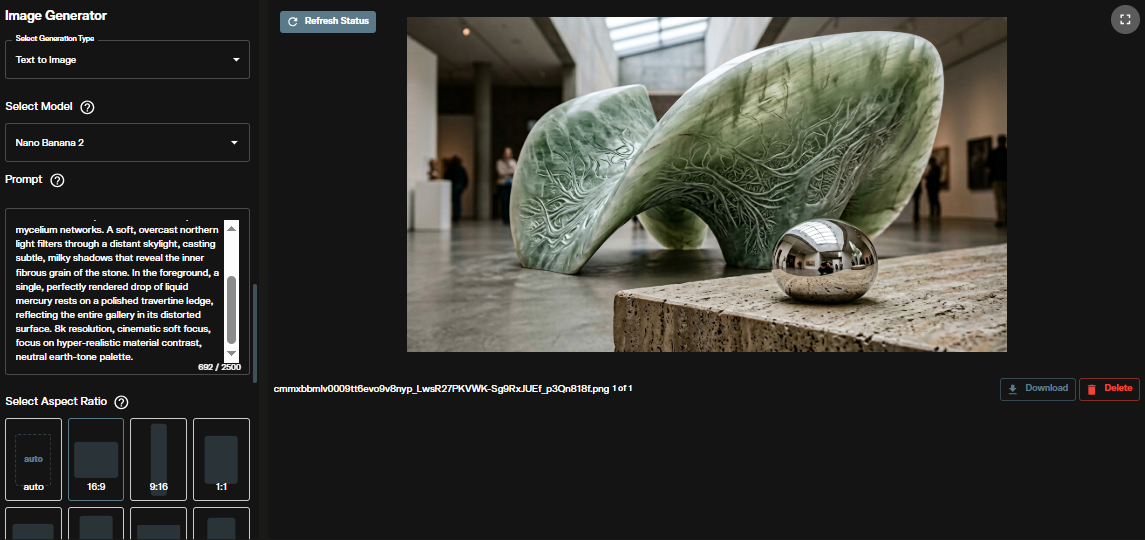
At the top of the left panel, confirm the generation type is set to Text to Image.
Step 1: Select the Model
Open the Select Model dropdown. Find and select Nano Banana 2, which is labeled "High fidelity · 4K support."
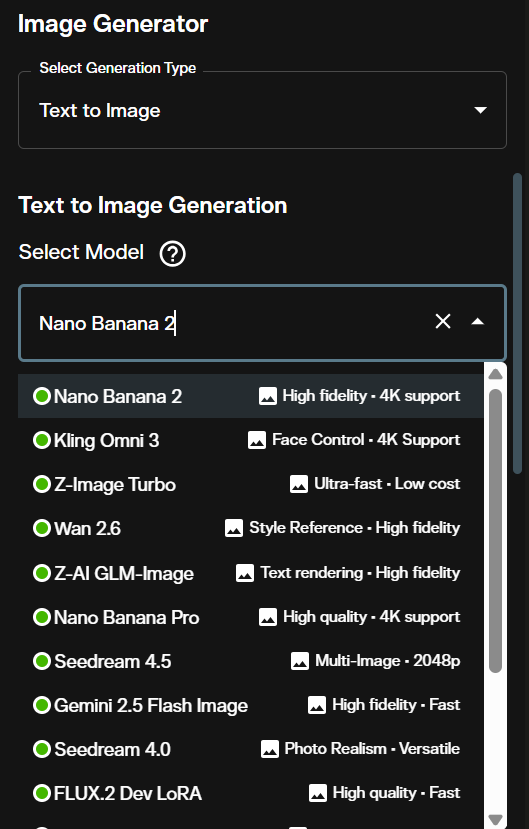
The platform lists both Nano Banana 2 and Nano Banana Pro as separate models. If you need the highest available quality tier from the Nano Banana line, compare both in a quick test generation before committing to a full resolution run.
Step 2: Write Your Prompt
Enter your description in the Prompt field. Nano Banana Pro 2 is designed for narrative prompts, not keyword lists.
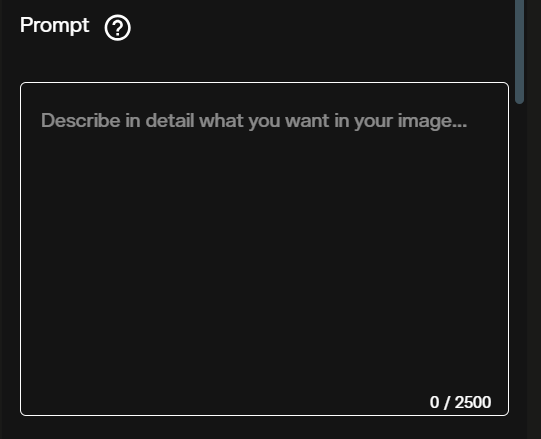
Structure your prompts in this order:
- Subject: who or what is in the frame
- Action or state: what the subject is doing or how it appears
- Location or context: the setting or background
- Composition: framing, angle, distance, layout
- Style: photographic, illustrative, cinematic, or specific art direction references
This structure gives the model's internal reasoning enough context to resolve ambiguities before generation begins. For text rendering in the image (logos, captions, UI labels), quote the exact words you want and specify font weight, color, and placement explicitly.
Step 3: Choose Aspect Ratio
The Select Aspect Ratio panel offers eleven presets: auto, 16:9, 9:16, 1:1, 4:3, 3:4, 3:2, 2:3, 21:9, 5:4, and 4:5.
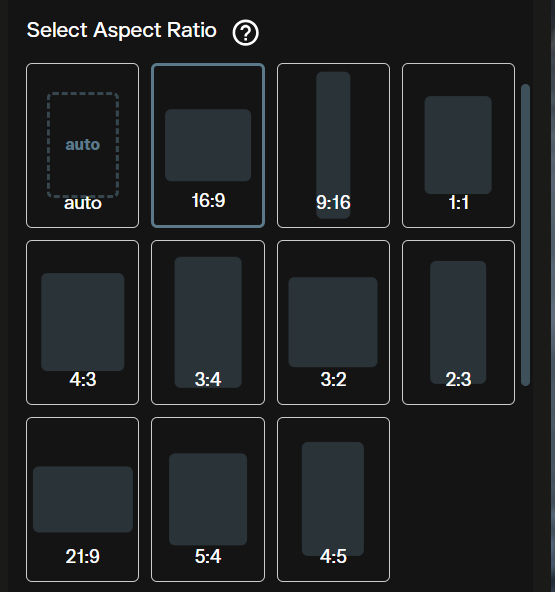
Use auto to let the model determine the ratio from your prompt content. For specific output targets, select a fixed ratio: 16:9 for YouTube thumbnails or cinematic stills, 9:16 for Instagram Stories and TikTok covers, 1:1 for social grid posts, and 21:9 for ultrawide cinematic compositions.
Step 4: Set Resolution
The Resolution dropdown offers 512px, 1K, 2K, and higher tiers.
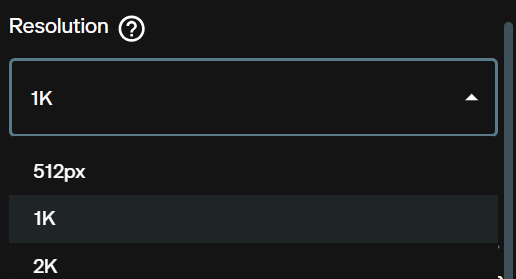
Use 512px for rapid concept iteration. Move to 1K or 2K for production quality outputs. Resolution affects credit cost and generation time. The platform displays the exact credit total for your current settings before you generate.
Step 5: Reasoning Level
Reasoning Level controls how much internal inference the model applies before generating. The options are Disabled, Minimal, and High.
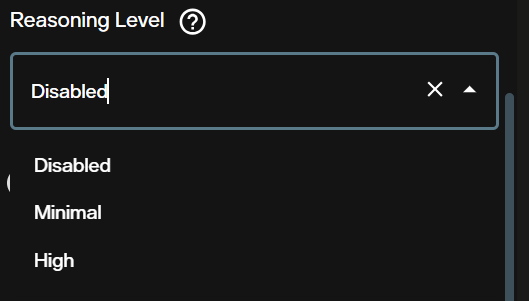
- Disabled: Fastest path. The model moves directly from prompt to image with no extra reasoning pass.
- Minimal: Light inference. Improves alignment for moderately complex prompts.
- High: Full reasoning pass. Better coherence for prompts with multiple interacting subjects, specific spatial relationships, or grounding dependent content. Generation takes longer.
Start with Disabled or Minimal for exploration. Switch to High when the output consistently misses a key compositional element from your prompt.
Step 6: Number of Images
The Number of Images slider generates 1 to 4 images per request.
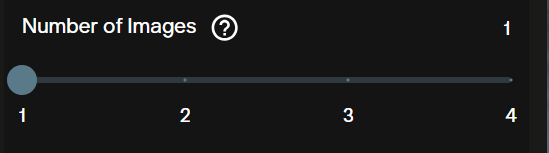
Set to 4 when exploring a new prompt to get a range of interpretations in one generation. Drop to 1 once you have confirmed a direction you want to refine. Each image adds to the credit cost shown in the credits indicator.
Step 7: Limit Generations
Limit Generations is a toggle that caps the total number of generation runs in a session.
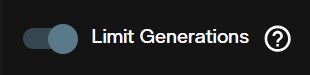
Enable this when running iterative tests across a longer session to prevent credit overruns. The cap prevents accidental repeated generation when you lose track of how many runs you have queued.
Step 8: Web Search
The Web Search toggle enables real time Google Search grounding during generation.
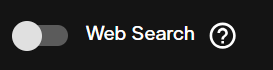
When active, the model queries Google Search to pull visual references matching your prompt. This is the feature that most distinguishes Nano Banana Pro 2 from other image models on the platform. Enable it when your prompt references a specific real product, a known real location, a current event, or a public figure where photographic accuracy matters.
Keep it disabled for fully fictional or abstract scenes where search grounding is irrelevant and could introduce unwanted realism constraints. Even with web search active, outputs are probabilistic. Treat them as a strong starting point, not a guaranteed factual reproduction.
Step 9: Safety Tolerance
Safety Tolerance is a slider from 1 to 6 controlling content filtering strictness. The default is 4.
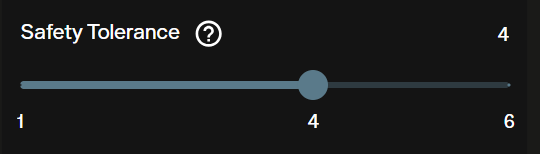
Lower values apply stricter filtering and will refuse or heavily modify prompts the model flags as borderline. Higher values permit more creative latitude. Nano Banana Pro 2 runs Google's Gemini safety systems, which are conservative by default.
Step 10: Seed
The Seed field defaults to Random. Enter a fixed number to lock the generation's starting state.
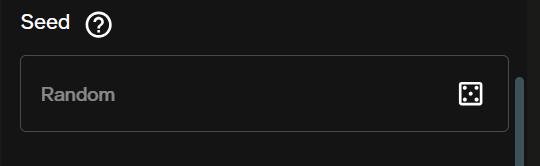
Fix the seed after you find a generation you want to build on. A fixed seed lets you adjust one parameter at a time (resolution, reasoning level, prompt detail) and compare results against the same visual baseline. This is particularly useful during character consistency testing.
Credit Cost
The Credits required indicator in the workspace shows the exact cost for your current settings before generation.

Credit cost scales with resolution and the number of images selected. Higher resolution and multi image batches cost more. Check the AI FILMS Studio pricing page for current subscription rates and credit values.
Node Graph Editor Workflow
The Node Graph Editor lets you chain Nano Banana Pro 2 into automated pipelines alongside video, audio, and enhancement models.
To build a basic text-to-image pipeline:
- Open the Node Graph Editor at studio.aifilms.ai/nodes
- Add a Prompt node and enter your image description
- Add a Text to Image node and set the model to Nano Banana 2
- Connect the Prompt node's output to the Text to Image node's prompt input
- Add an Image Viewer node and connect the Text to Image output to it
- Click Execute Graph
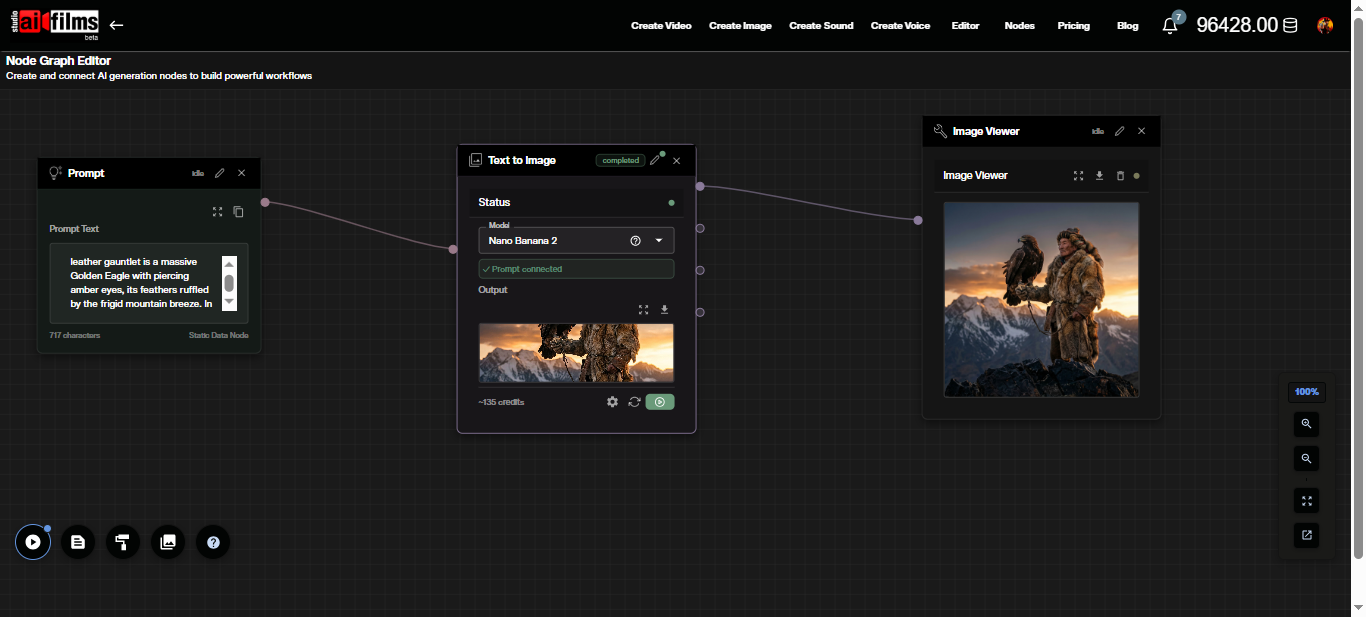
The Text to Image node displays a credit estimate and updates the output thumbnail after generation completes.
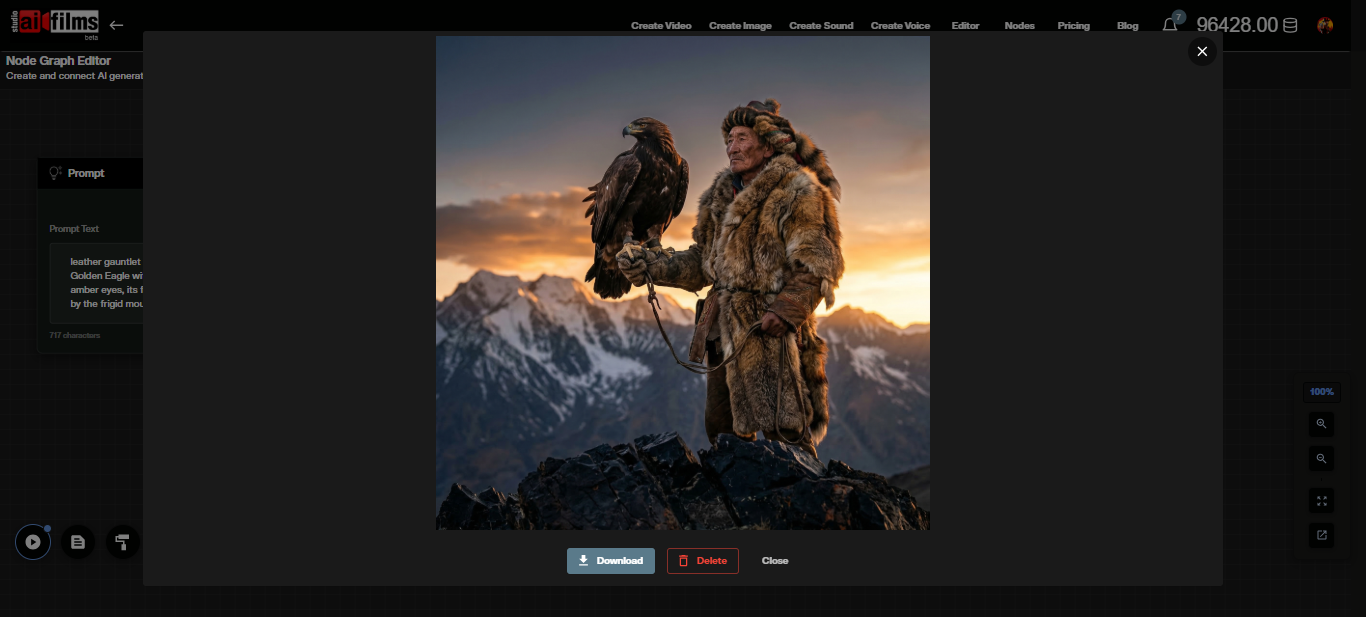
From this point, you can chain the image output into an Image to Video node to animate the result using Kling, Google Veo 3.1, or Seedance through the video workspace. The image to video page covers which models accept a still and what each one does with it. For a full walkthrough of building multi step Node Graph pipelines with image generation, see the FLUX 2 tutorial, which covers image editing, LoRA training, and multi reference workflows.
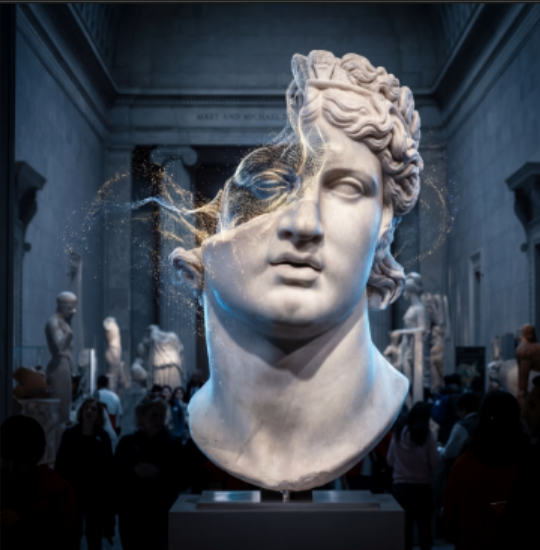
Once you have a base image you are happy with, the image-to-image workflow lets you edit it further with natural language:
Prompt Examples
These prompts are structured using the Subject, Action, Location, Composition, Style format. Fix the seed after the first generation you want to refine.
Cinematic portrait with consistent character:
Woman in her 40s, weathered outdoor gear, adjusting binoculars,
high altitude rocky ridge at sunrise, eye level medium shot,
golden hour side lighting, film grain, 35mm analog photography
Product photography:
Matte black espresso machine on pale oak kitchen counter,
steam rising from portafilter, overhead 45-degree angle,
clean minimalist background, soft window light from left,
commercial product photography
Poster with text rendering:
Dystopian city skyline at dusk, surveillance drones in the sky,
title text "SIGNALS" in bold white sans-serif at top center,
tagline "They hear everything" in smaller italic text below title,
dark cinematic color grade, widescreen 2.39:1 aspect ratio
Data grounded scene with Web Search enabled:
Satellite view of a dense urban river delta at night,
city lights visible through cloud gaps,
labeled geographic markers for major districts,
infographic overlay style with clean annotation lines
Multi subject consistency test:
Three astronauts in orange mission suits reviewing a holographic star map,
circular command room interior, low fill lighting with blue ambient glow,
wide shot with all three subjects fully visible, concept art style
For a curated library of production ready templates tuned for this model, see our collection of Nano Banana prompts.
What to Watch Out For
The model handles most structured prompts reliably, but three categories require extra attention.
Text in images: Quote the exact words you want rendered and describe font weight, color, and placement. Even with improved text generation, minor character errors or spacing inconsistencies can still appear in complex layouts. Always review at full resolution before delivery.
Complex or contradictory scenes: Prompts that ask for physically impossible configurations or more than five distinct characters with individual visual identities can produce misaligned results. Simplify or split the scene into separate generations.
Web search grounding is probabilistic: Search grounded outputs reflect what the model retrieves at generation time. Results are not guaranteed to be factually accurate, especially for rapidly changing visual subjects. Use as reference, not as ground truth.
For context on how this model's knowledge of real faces and public figures has raised creator rights questions, see our analysis of the YouTube creator likeness crisis involving Nano Banana 2.
FAQ
What is Nano Banana Pro 2? Nano Banana Pro 2 is Google's current Gemini based image generation model combining Pro tier quality with Flash level speed. It appears as Nano Banana 2 in the AI FILMS Studio model dropdown.
How much does a generation cost? Credit cost varies by resolution and number of images. The workspace shows the exact amount in the Credits required indicator before you generate. See the pricing page for current subscription rates.
Can I use outputs commercially? Yes. Paid subscribers on AI FILMS Studio hold full commercial rights to content they generate on the platform.
What does Web Search do and when should I use it? Web Search pulls real time Google Search results to ground the generation in real world visual context. Use it for prompts referencing specific real products, locations, events, or public figures. Disable it for fully fictional or abstract scenes.
Can Nano Banana Pro 2 keep characters consistent across multiple images? Within a single generation, yes. The model supports up to five characters with maintained visual fidelity. For multi generation consistency, use a fixed seed and keep subject descriptions identical across prompts.
Are generated images watermarked? Yes. All Nano Banana Pro 2 outputs carry SynthID and C2PA Content Credentials marking them as AI generated. These are embedded at the file level and visible in compatible viewers.
What is Reasoning Level and when should I use High? Reasoning Level controls how much internal inference the model applies before generating. Use High for prompts with multiple interacting subjects, specific spatial relationships, or grounding dependent content where Disabled or Minimal produces misaligned results.
Can I animate the images I generate? Yes. Pass the output to an image-to-video model in the video workspace or chain it into an Image to Video node in the Node Graph Editor. Kling, Google Veo 3.1, and Seedance are available for image-to-video generation.
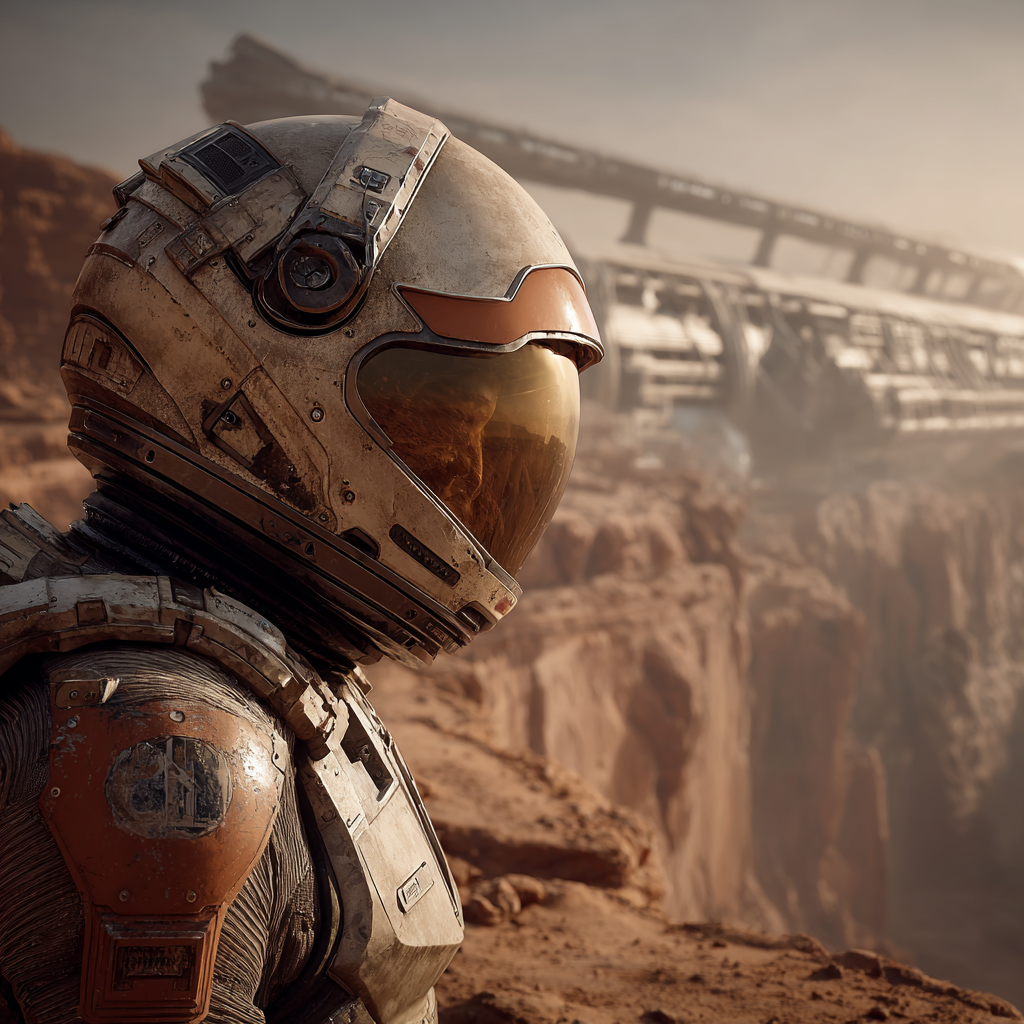
For a different approach to AI image generation, Midjourney 8.0 generates four cinematic images per prompt with Stylize, Chaos, and Weird controls:
Sources
Google Blog: "Nano Banana 2" Google Blog: "Build with Nano Banana 2" Gemini: Image Generation Overview Google AI Developers: Gemini API Image Generation Docs Google Cloud Blog: "Ultimate Prompting Guide for Nano Banana" Wired: Nano Banana 2 hands on
Continue Reading
.jpg?w=3840)


Video & LipSync
- Video Generator
- Text to Video
- Image to Video
- Start-End Frame to Video
- Draw to Video
- Motion Control
- Video Enhancer
- Video Upscaler
- Video Extend
- Video to Video LipSync
- Audio to Video LipSync
- Image to Video LipSync
- Video FaceSwap
- Seedance 2.5
- WAN 3.0
- Seedance 2
- FLUX 3
- Minimax H3
- Vidu Q3 Pro
- Grok Imagine Video 1.5
- Gemini Omni
- Google Veo 3.1
- Kling 3.0 Pro
- Luma Ray 3.2
- LTX 2.3
- Happy Horse 1.1
- Kling 3.0 Motion
- ByteDance Upscaler
- InfiniteTalk
- InsightFace
Image & Edit
- AI Character
- AI Actor
- Art Generator
- Text to Image
- Image to Image
- LoRA Image to Image
- Draw to Edit
- Image LoRA Training
- Remove Background
- Image Enhancer
- MidJourney 8.0
- Krea 2
- OpenAI GPT Image 2.0
- Nano Banana Pro Ultra
- Nano Banana 2 Lite
- Nano Banana Pro
- Minimax Image
- Clarity Pro
- Z-Image Turbo LoRA
- Krea 2 Turbo LoRA
- Z-Image LoRA Trainer
- Qwen Image LoRA Trainer
- Background Erase Network 2 (BEN2)