
How to Use ACE-Step 1.5 in AI FILMS Studio: Lyrics to Music Guide

Share this post:
How to Use ACE-Step 1.5 in AI FILMS Studio: Lyrics to Music Guide
ACE-Step 1.5 generates a complete track from a list of style tags, with lyrics as an optional extra. Leave the lyrics field empty and it returns an instrumental. Fill it in and it sings. That single behaviour makes it the most useful music model in the Studio for filmmakers, who need score and background beds far more often than they need songs with vocals.
It is the default model on the Lyric to Music generation type, it handles more than 50 languages, and it gives you direct control over track length up to four minutes.
Opening the Music Generator
Go to the AI FILMS Studio music workspace or click Create Music in the top navigation. The lyrics to music generator page documents every control on this generation type, including the ones that appear only on the other model, and the AI music generator overview covers both routes into the workspace.
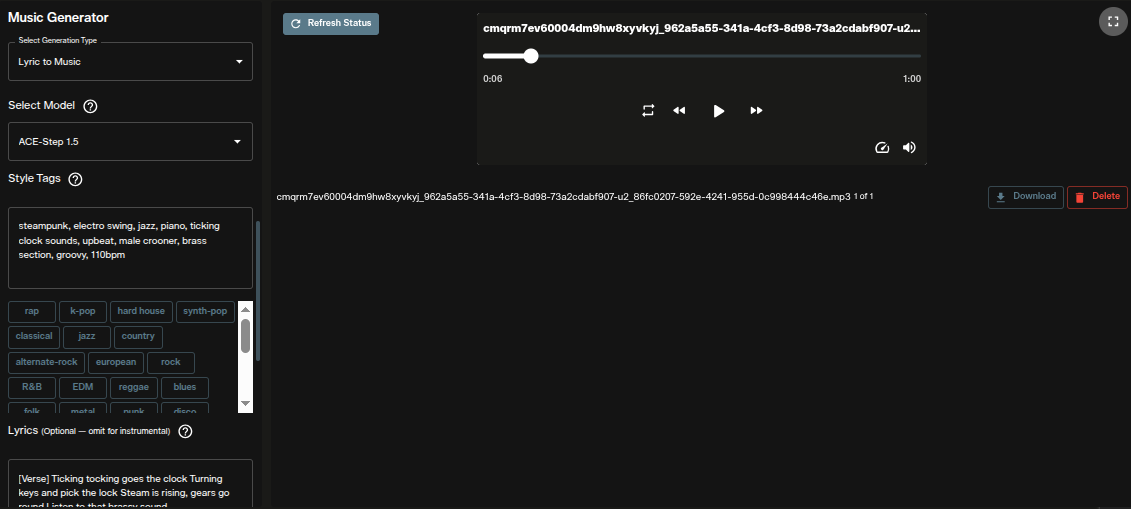
The Music Generator panel opens on the left. The generated track appears on the right with a player, a download button and a delete button.
Each run returns one file. The example shown here runs exactly 1 minute, which is the default duration.
Setting the Generation Type
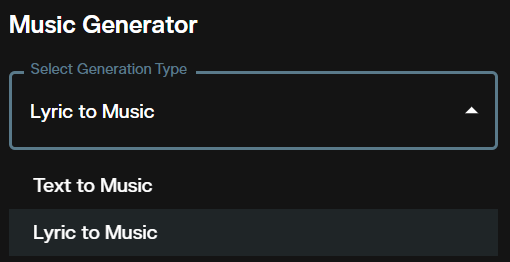
ACE-Step 1.5 lives under Lyric to Music. The Text to Music option offers a different model with a different set of controls, so the generation type has to be right before the model picker will show you ACE-Step 1.5.
The name of the generation type is slightly misleading. Lyrics are optional on this model, so Lyric to Music is where you go even when you want a purely instrumental cue with no words at all.
Switching between the two options resets the controls below, so pick the generation type first and fill in the fields afterwards.
Selecting the Model
Open Select Model. The picker is searchable and lists two options.
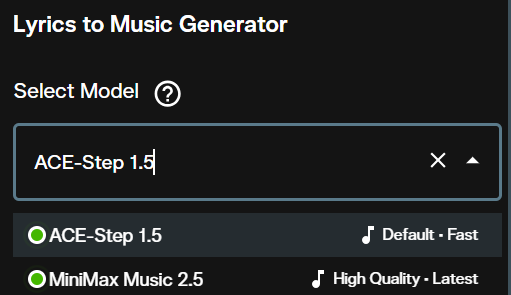
ACE-Step 1.5 carries the Default · Fast label and is already selected when you arrive. MiniMax Music 2.5 carries High Quality · Latest.
The choice changes which controls appear below. ACE-Step 1.5 gives you a duration slider and a seed field. Selecting the other model replaces both with sample rate, bitrate and audio format settings.
Writing the Style Tags
The field is labelled Style Tags for this model, and the label is doing real work. It expects comma separated descriptors rather than a written sentence.
The placeholder text shows the shape it wants, listing pop, rock, energetic, upbeat and electric guitar. Tags can name a genre, a mood, an instrument or a tempo, and the model blends all of them into one sound.
A scrollable row of buttons below the field appends tags without typing. The list covers rap, k-pop, hard house, synth-pop, classical, jazz, country, alternate-rock, european, rock, R&B, EDM, reggae, blues, folk, metal, punk, disco, soul and funk.
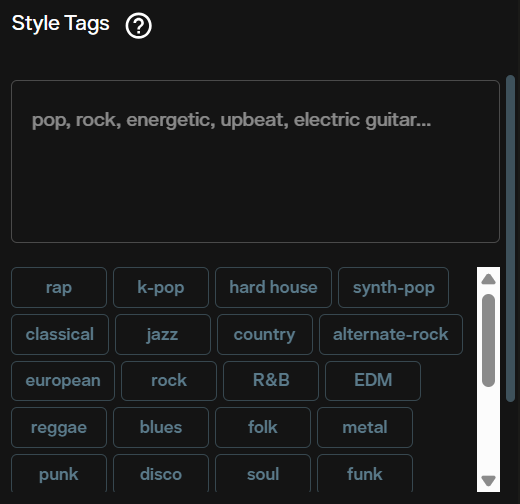
Adding a tempo in beats per minute works well here. A tag list like "steampunk, electro swing, jazz, piano, ticking clock sounds, upbeat, male crooner, brass section, groovy, 110bpm" gives the model a genre, a texture, a vocal character and a speed, and the output holds together far better than a two tag list would.
Lyrics, and Leaving Them Out
The Lyrics field is marked optional, and the label states plainly that omitting it produces an instrumental. This is the control that makes ACE-Step 1.5 worth reaching for on a film project.
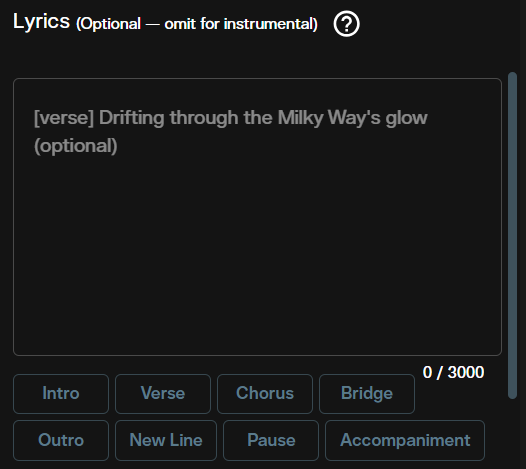
Leave it empty and you get a scored instrumental built from the style tags alone. No vocal line, no humming, no wordless singing.
Fill it in and the model sings what you wrote. The counter caps at 3,000 characters, which is roughly a full song.
Eight buttons sit under the field. Intro, Verse, Chorus, Bridge and Outro insert a lowercase structure marker in square brackets at the cursor, such as [verse]. ACE-Step 1.5 reads those markers natively and uses them to segment the arrangement, not only the vocal.
The other three shape timing. New Line inserts a single line break. Pause inserts a double line break, which the model reads as a rest. Accompaniment inserts a ## marker, used in pairs to wrap a passage you want treated as an instrumental direction rather than sung words.
[verse]
Ticking tocking goes the clock
Turning keys and pick the lock

[chorus]
Steam is rising, gears go round
Listen to that brassy sound
Duration
The Duration slider is the control ACE-Step 1.5 has and the other music models do not.
It runs from 1 second to 240 seconds, with marks at 1s, 60s, 120s and 240s. The default is 60 seconds.
240 seconds is four minutes, which covers a full song or a long cue. At the other end, a 10 second setting is useful for generating a sting or a transition element.
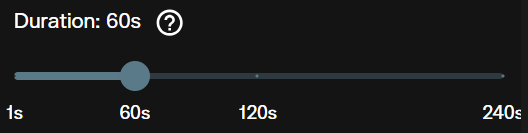
Set duration to match the cut you are scoring rather than generating long and trimming. The model paces the arrangement across whatever length you give it, so a 30 second setting produces a piece that resolves at 30 seconds instead of a four minute track cut short.
Seed

The Seed field defaults to -1, and the helper text under it confirms that -1 means a random seed. The dice button on the right fills in a random number for you.
A fixed seed makes a run repeatable. Keep the seed and change one style tag, and you hear what that tag changed rather than hearing an entirely different piece.
This is the fastest way to refine a cue. Generate with a random seed until something is close, note the seed number, then iterate on the tags with that seed locked.
Parameter Reference
| Control | Values | Default | What it changes |
|---|---|---|---|
| Select Generation Type | Text to Music, Lyric to Music | Text to Music | Which models are available. ACE-Step 1.5 needs Lyric to Music |
| Select Model | ACE-Step 1.5, MiniMax Music 2.5 | ACE-Step 1.5 | Which controls appear below |
| Style Tags | Up to 3,000 characters, comma separated | Empty | Genre, mood, instruments, tempo |
| Lyrics | Up to 3,000 characters, optional | Empty | Words sung. Empty produces an instrumental |
| Duration | 1 to 240 seconds | 60 seconds | Length of the generated track |
| Seed | Any integer, or -1 | -1 | Reproducibility. -1 gives a random result each run |
Cost scales with duration at 0.30 credits per second, so a 60 second cue costs 18 credits and a full 240 second track costs 72. The figure appears in the form before you submit and updates as you move the slider.
Running It in the Nodes Graph Editor
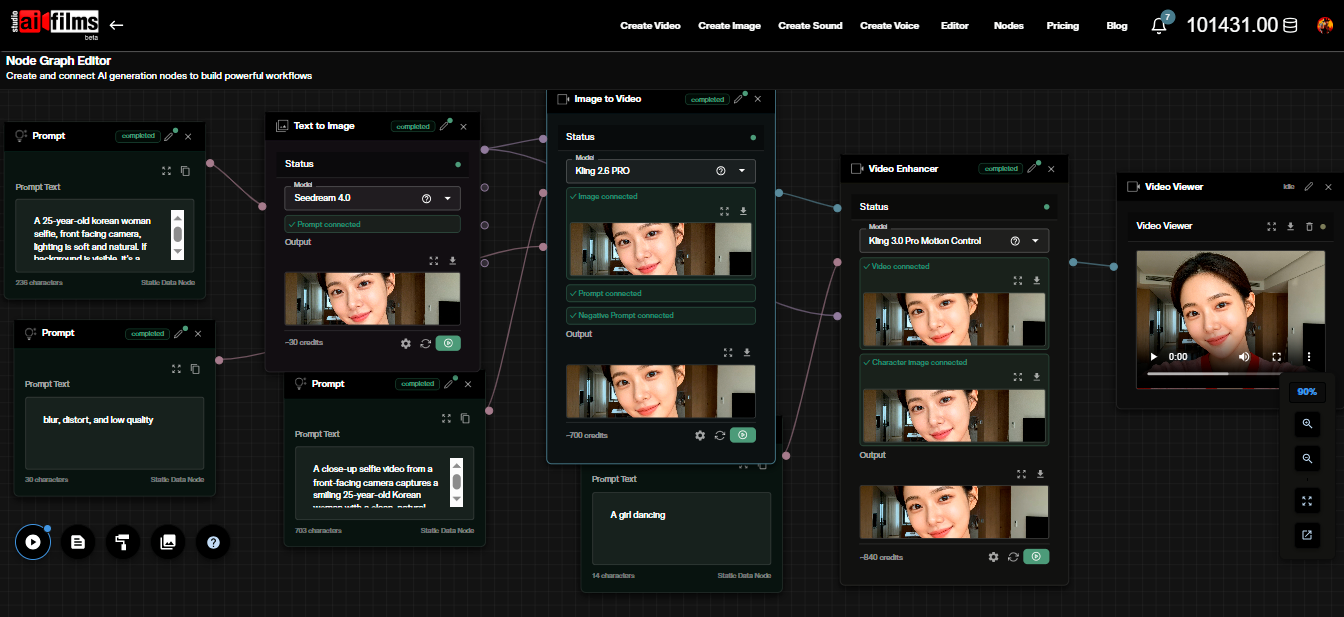
The Nodes Graph Editor exposes ACE-Step 1.5 through a node named Text To Music. That name refers to the node family. The model selector inside it still offers ACE-Step 1.5.
A working graph runs three nodes. A Prompt node carries the lyrics and connects into the Text To Music node, which shows a "Lyrics connected" confirmation once the link is made. That node feeds an Audio Viewer node for playback.
The settings panel on the right holds Style Tags, Duration and Seed. A second port accepts an optional negative prompt node for qualities you want kept out of the mix.
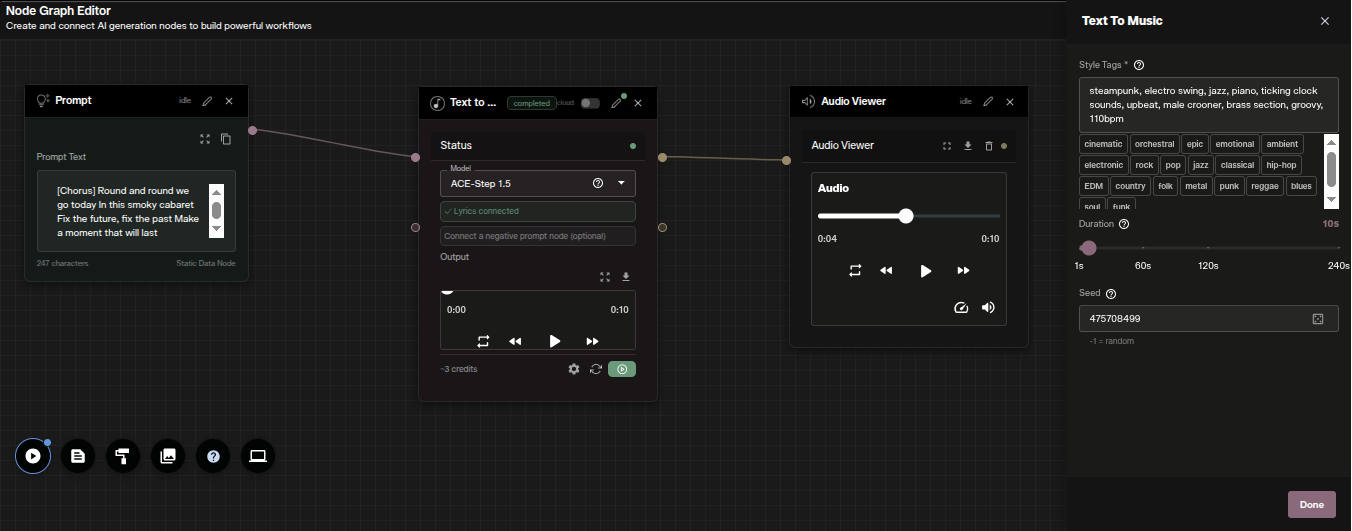
The node view offers a different set of style tag buttons to the workspace, covering cinematic, orchestral, epic, emotional, ambient, electronic, rock, pop, jazz, classical, hip hop, EDM, country, folk, metal, punk, reggae, blues, soul and funk. The cinematic and orchestral tags in particular are more useful for scoring than the workspace list.
Use the node route when the track is one step in a longer chain. Generating a cue and passing it into a video or lipsync node keeps the whole sequence in one graph.
Limitations
No stems. Output is one mixed file. You cannot rebalance the vocal against the instrumentation afterwards, so plan the mix through the style tags.
Duration is a target, not a hard cut. The model paces an arrangement to the length you set. Very short durations under about 10 seconds sometimes end before the phrase resolves.
Structure markers only work in the lyrics field. Putting [chorus] in the Style Tags field does nothing. The markers belong with the words.
Four minutes is the ceiling. For anything longer, generate sections separately with a fixed seed and matching tags, then assemble them in the editor.
Tips for Better Results
Add a bpm tag. Naming a tempo such as "110bpm" gives the model a concrete target and makes successive generations easier to cut together.
Leave lyrics empty first. For scoring work, get the instrumental right before deciding whether the cue needs a vocal at all. Most film cues do not.
Lock the seed once you are close. Random seeds are for exploring. A fixed seed is for refining, because it isolates the effect of each tag you change.
Match duration to the cut. Generating at the length you actually need produces a piece that resolves properly, which saves you fading out an unfinished phrase.
ACE-Step 1.5 is also released openly, and it runs locally under an MIT license and scores above Suno v5 on SongEval benchmarks on consumer hardware with under 4GB of VRAM. For a model on the same generation type that requires lyrics and returns higher audio settings, the MiniMax Music 2.5 lyrics to music workflow covers sample rate, bitrate and output format. For style driven songs without writing lyrics, the Suno text to music workflow in AI FILMS Studio covers the Text to Music generation type.
For an open model that writes an editable score before the audio, see YuE2, which is licensed for non commercial use.
Sources
ACE-Step | AI FILMS Studio | SongEval
Continue Reading


Video & LipSync
- Video Generator
- Text to Video
- Image to Video
- Start-End Frame to Video
- Draw to Video
- Motion Control
- Video Enhancer
- Video Upscaler
- Video Extend
- Video to Video LipSync
- Audio to Video LipSync
- Image to Video LipSync
- Video FaceSwap
- Seedance 2.5
- WAN 3.0
- Seedance 2
- FLUX 3
- Minimax H3
- Vidu Q3 Pro
- Grok Imagine Video 1.5
- Gemini Omni
- Google Veo 3.1
- Kling 3.0 Pro
- Luma Ray 3.2
- LTX 2.3
- Happy Horse 1.1
- Kling 3.0 Motion
- ByteDance Upscaler
- InfiniteTalk
- InsightFace
Image & Edit
- AI Character
- AI Actor
- Art Generator
- Text to Image
- Image to Image
- LoRA Image to Image
- Draw to Edit
- Image LoRA Training
- Remove Background
- Image Enhancer
- MidJourney 8.0
- Krea 2
- OpenAI GPT Image 2.0
- Nano Banana Pro Ultra
- Nano Banana 2 Lite
- Nano Banana Pro
- Minimax Image
- Clarity Pro
- Z-Image Turbo LoRA
- Krea 2 Turbo LoRA
- Z-Image LoRA Trainer
- Qwen Image LoRA Trainer
- Background Erase Network 2 (BEN2)